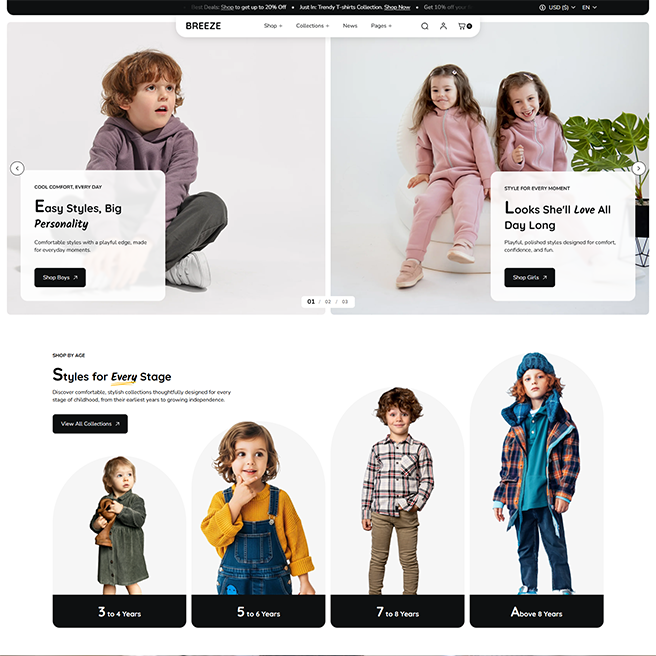
Our Curated Styles

Contact us

Contact us

Theme Installation

Follow the steps below to install the theme on your Online Store

  1. Log in to your Shopify admin.
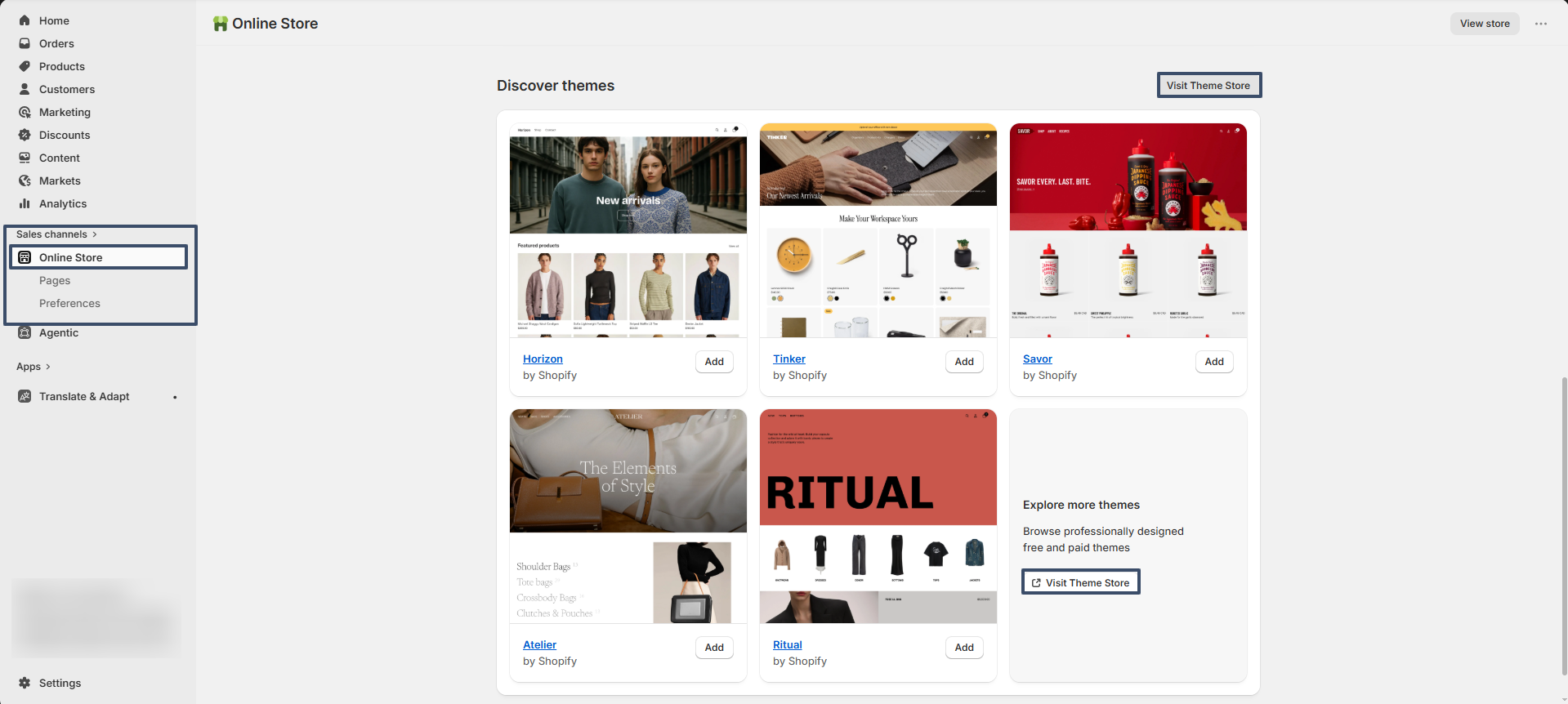
  2. Go to Online Store from the left sidebar.
  3. Scroll down to the Discover Themes section.
  4. Click on Visit Theme Store.
  5. In the Shopify Theme Store, search for Breeze theme.
  6. Open the theme and click Try theme to add it to your store.
  7. The theme will be added to your store.
  8. Click Customize to start editing and setting up your store design.
getting-started-theme

Try Breeze for free from the Shopify Theme Store

Breeze, like all premium themes in the Shopify Theme Store, offers a trial period, allowing you to explore its user-friendly design and quick setup features. During the trial, you can fully customize and configure the theme to create your ideal storefront. When you're ready to launch, purchase the theme to activate it on your live store., like all premium themes in the Shopify Theme Store, offers an trial period, allowing you to explore its user-friendly design and quick setup features. During the trial, you can fully customize and configure the theme to create your ideal storefront. When you're ready to launch, purchase the theme to activate it on your live store.

Steps

  • Visit the Shopify Theme Store and choose Breeze.
  • Click Try theme to add the theme to your online store.
  • In your Shopify admin, go to Online Store > Themes.
  • In the Theme library section, click the Customize button to open the theme editor or, to preview, use the ... button to open the actions menu, then click Preview.

Enable Customer accounts

  1. Go to Shopify Admin - Log in to your Shopify admin panel
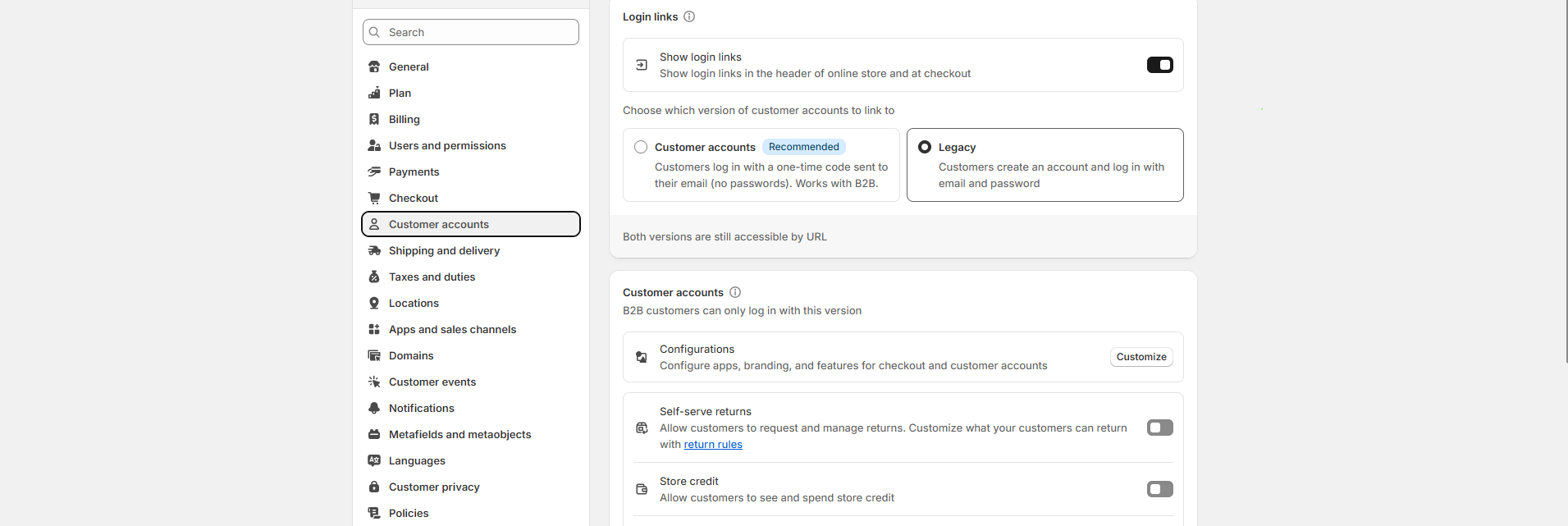
  2. Navigate to Settings - Bottom-left corner → Click "Settings"
  3. Select ‘Customer accounts’ - From the settings menu, click on “Customer accounts” (may also appear under "Checkout" in some themes or older versions).
  4. Choose Account Experience - You’ll see two types:
    • Customer accounts – Customers sign in with a one-time code sent to their email (no passwords). Works with B2B.
    • Legacy – Customers create an account and sign in with email and password
  5. Click Save
    Don’t forget to hit “Save” at the top or bottom of the page.
customer.png

How to Change Language Settings in Shopify

1. Change Storefront Language

  1. Go to Online Store > Themes
  2. Click “Actions” on your live theme → Select Edit default theme content
  3. In the top-left corner, use the language dropdown to change the language
  4. You can also manually translate text in each field if needed

2. Add Multiple Languages (for international stores)

  1. Go to Settings > Languages
  2. Click Add language
  3. Select the language you want to add
  4. Translate your content using the Translate & Adapt app or a third-party translation app
  5. Publish the language when translations are ready

3. Change Checkout Language

  1. Go to Settings > Checkout
  2. Scroll to “Checkout language” → Click Manage checkout language
  3. Edit or change the text used in the checkout process

4. Change Admin Language

  1. Click your account name (bottom-left corner)
  2. Go to Manage account > Preferences
  3. Choose your preferred admin language

Cart

Breeze provides two cart layouts: Cart Drawer and Cart Page. Both options allow customers to review cart items, update quantities, apply discounts, add order notes, and proceed to checkout.

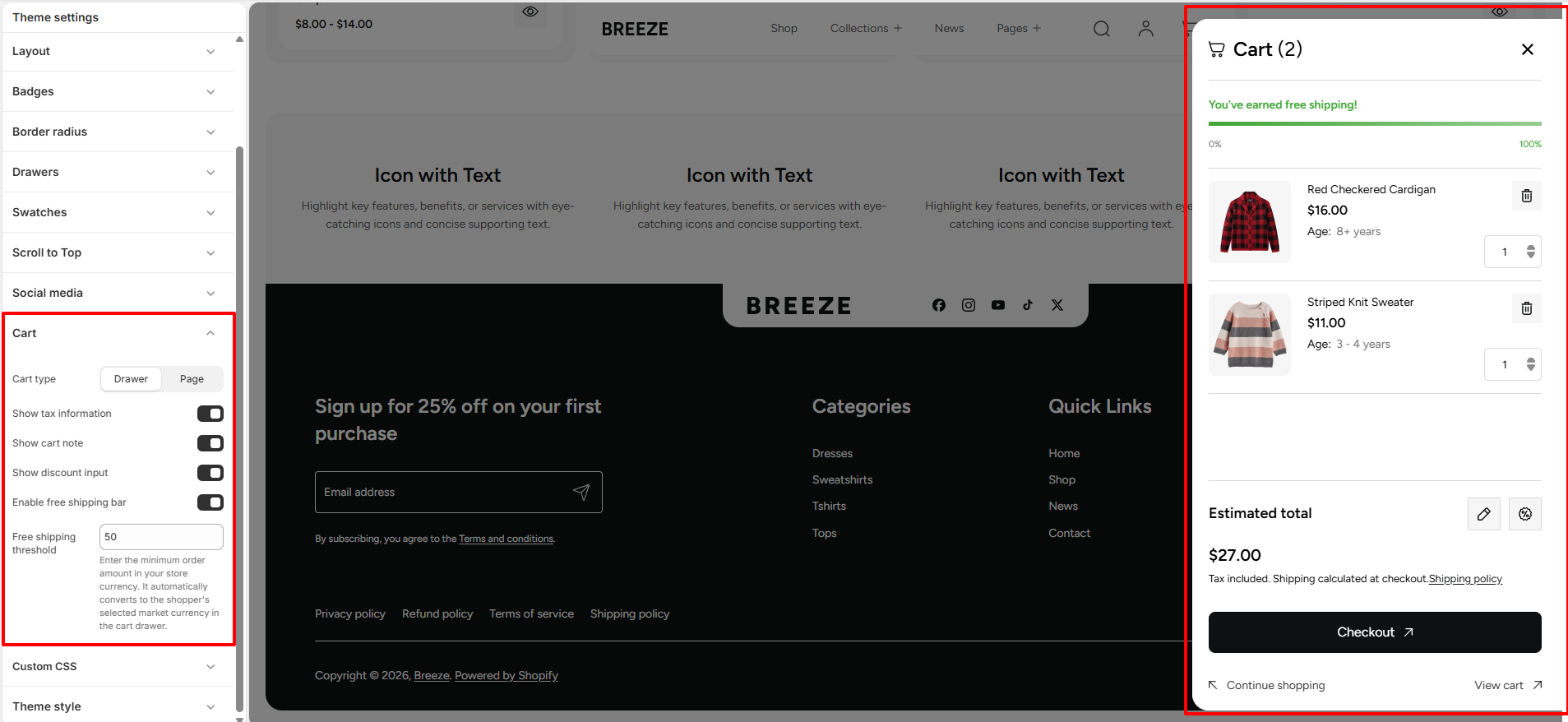
To configure cart functionality, navigate to: Theme Settings → Cart.

Cart Settings

The Cart settings control how the cart behaves throughout your store.

  • Cart Type – Choose how the cart is displayed: Cart Drawer or Cart Page.
  • Show Tax Information – Enable this setting to display tax information in the cart.
  • Show Cart Note – Allows customers to add special instructions or notes to their order.
  • Show Discount Input – Enable this setting to display a discount code input field in the cart.
  • Enable Free Shipping Bar – Enable this setting to display a free shipping progress bar in the cart.
  • Free Shipping Threshold – Set the minimum cart value required for customers to qualify for free shipping.

Cart Drawer

The Cart Drawer provides a quick shopping experience by allowing customers to manage their cart without leaving the current page.

Customers can:

  • View products added to the cart.
  • Update item quantities.
  • Remove products from the cart.
  • Add order notes.
  • Apply coupon or discount codes.
  • Review pricing details and order totals.
  • Proceed directly to checkout.
  • Open the full cart page when required.
Cart Drawer

Cart Page

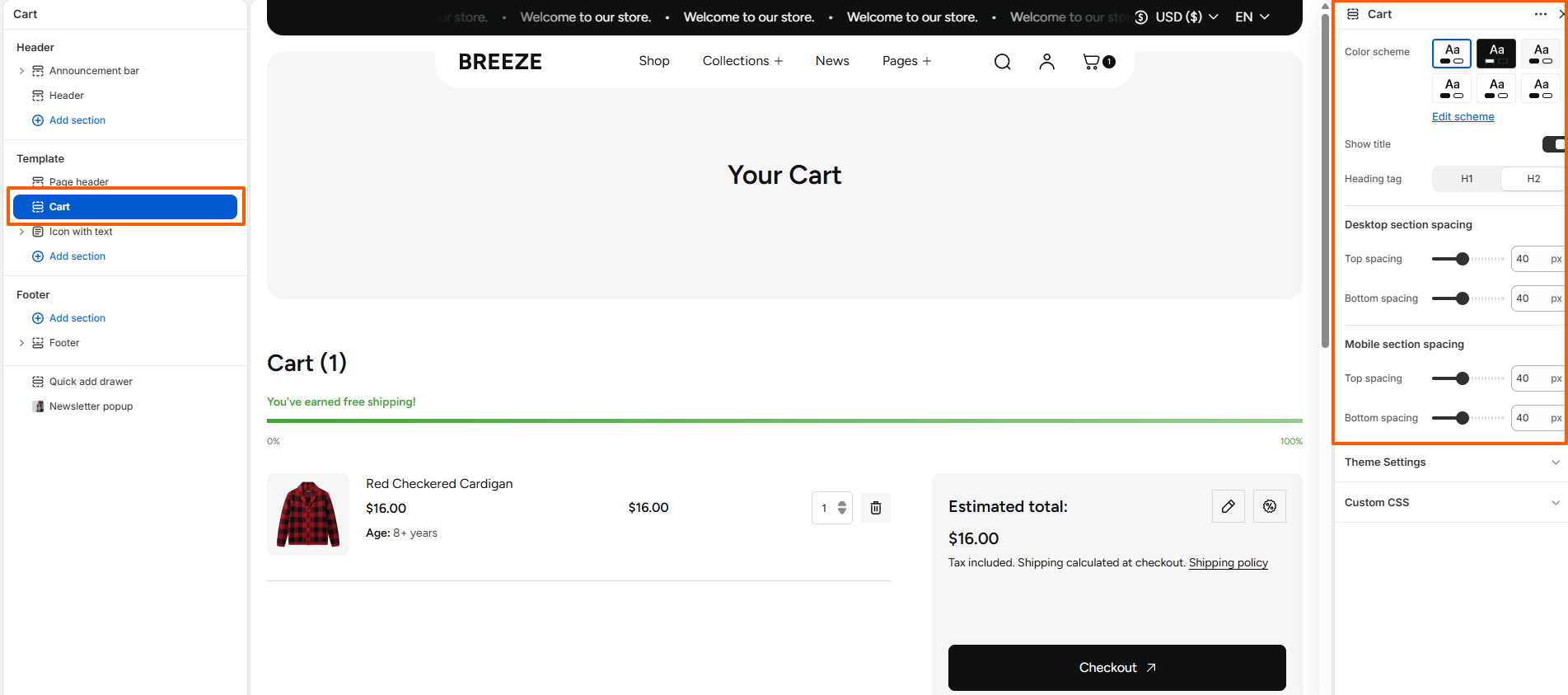
The Cart Page provides a complete overview of the customer's order before checkout. Customers can review all cart items, update quantities, remove products, apply discounts, add order notes, continue shopping, or proceed to checkout.

The Cart section includes additional customization options to match your store design.

  • Color Scheme – Controls the overall color style of the cart page.
  • Show Title – Controls whether the cart page title is displayed.
  • Heading Tag – Sets the HTML heading tag used for the cart page title.
  • Desktop Section Spacing – Controls the top and bottom spacing of the cart section on desktop devices.
  • Mobile Section Spacing – Controls the top and bottom spacing of the cart section on mobile devices.
Cart Page

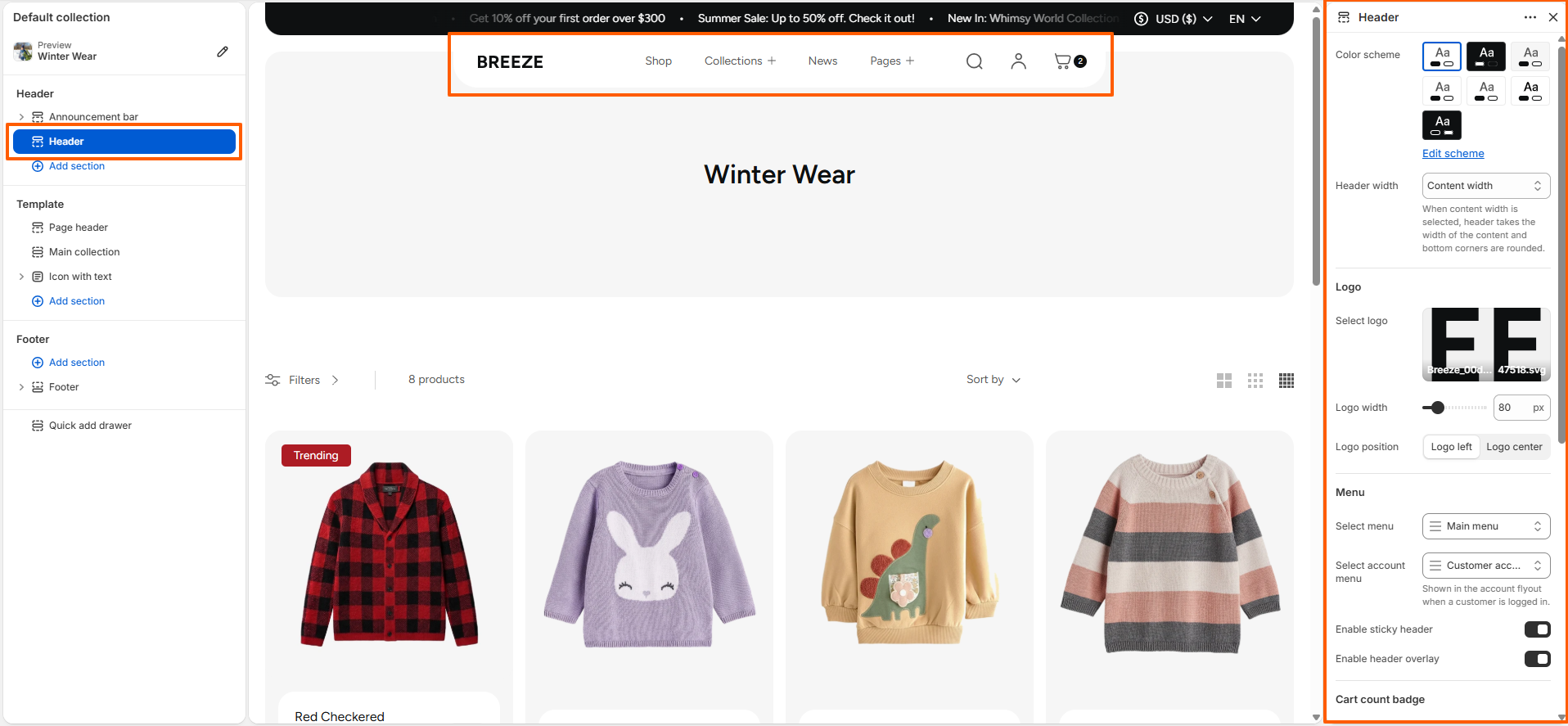
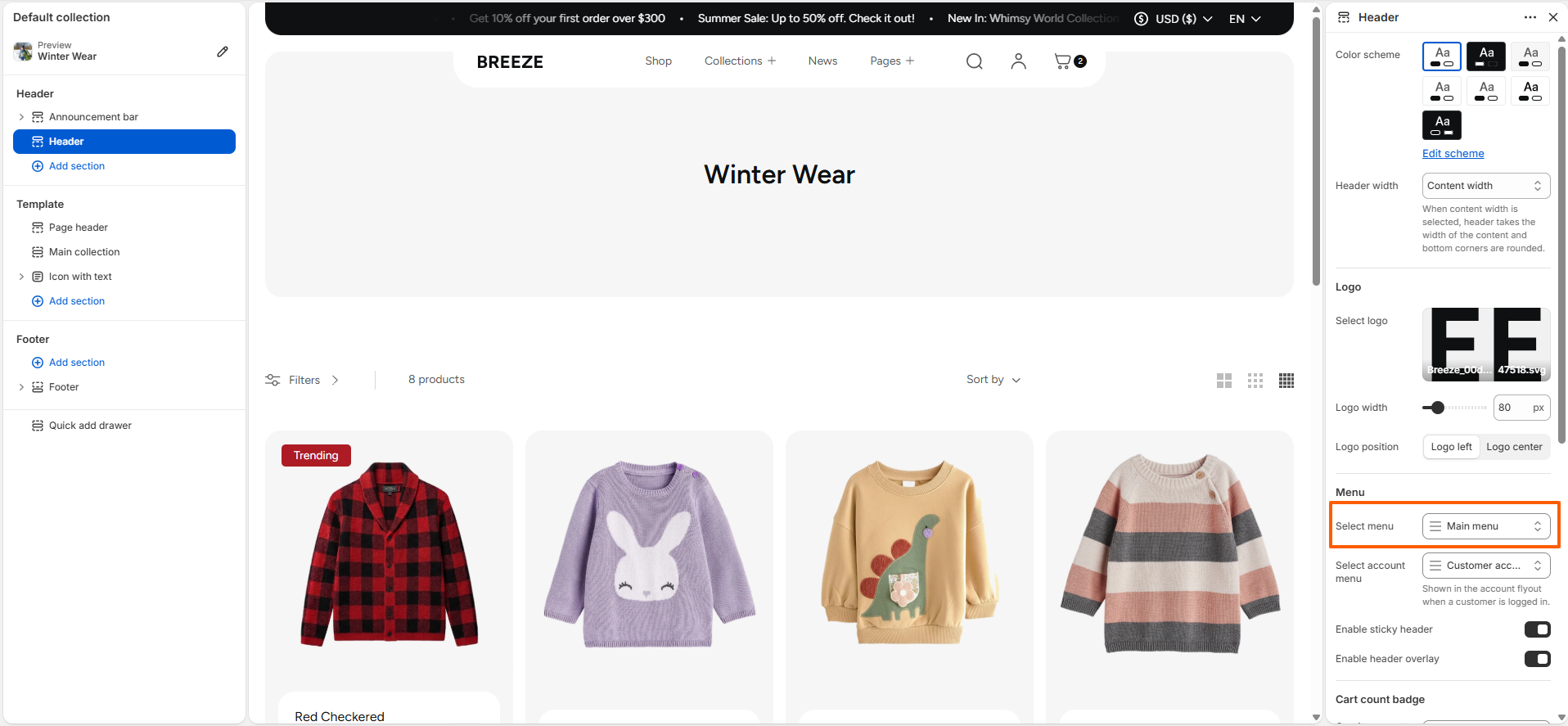
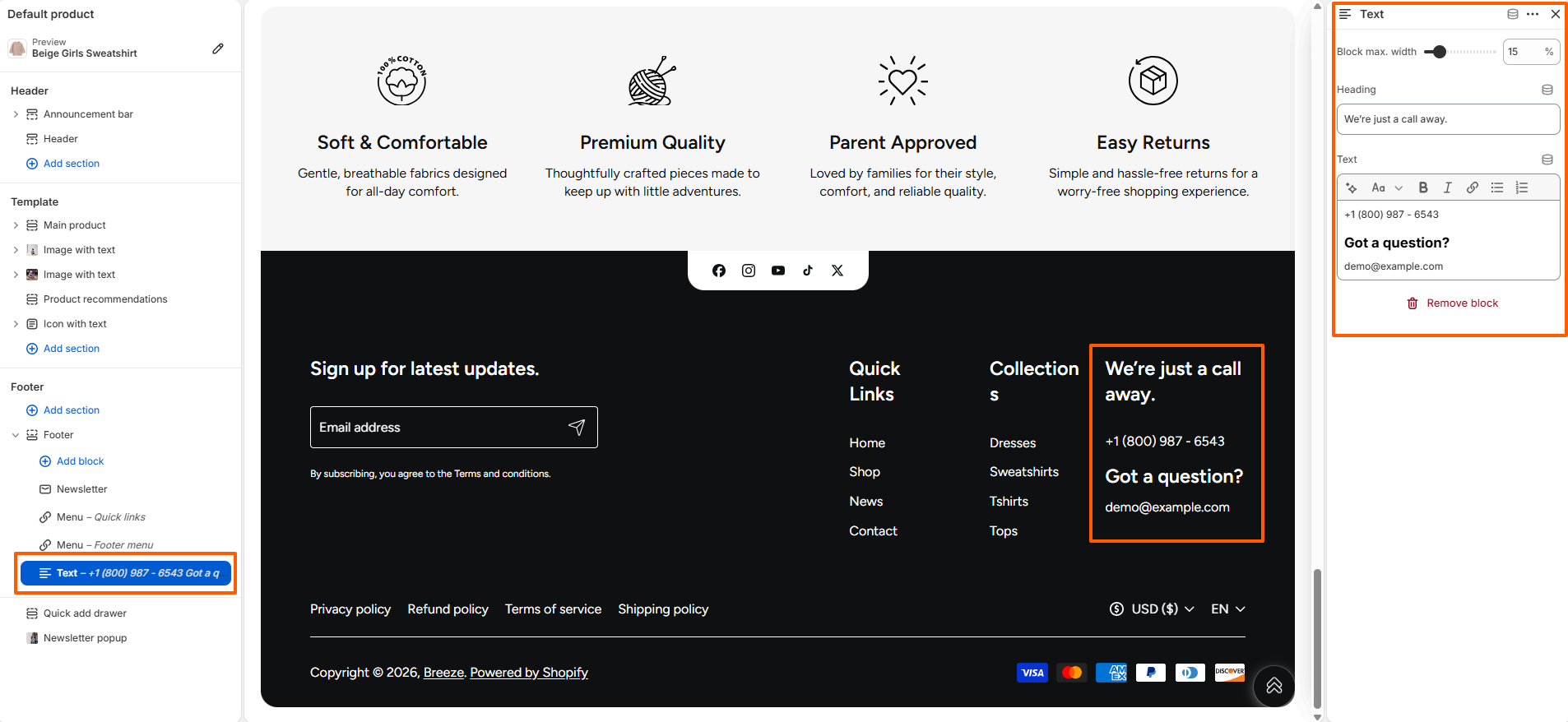
The Header section provides settings to customize the overall appearance and layout of your store header. You can configure the color scheme, header width, logo, navigation menus, sticky and overlay header behavior, cart count badge, and desktop and mobile spacing.

Header preview

The header settings allow you to create a consistent navigation experience across your storefront. You can control the logo position and size, assign your main and account menus, and adjust the header behavior and spacing for different devices.

Follow these steps to configure the Header

Steps

  • Open the Customizer: Go to Online Store > Themes > Customize.
  • Navigate to the Header section.
  • Color scheme: Select the color scheme you want to use for the header.
  • Header width: Choose the width of the header content. When content width is selected, the header takes the width of the content and the bottom corners are rounded.
  • Select logo: Choose the logo image to display in the header.
  • Logo width: Adjust the width of the selected logo.
  • Logo position: Choose whether the logo should be aligned to the left or centered.
  • Select menu: Choose the main navigation menu displayed in the header.
  • Select account menu: Choose the menu displayed in the customer account flyout when a customer is logged in.
  • Enable sticky header: Enable this option to keep the header visible while scrolling.
  • Enable header overlay: Enable this option to display the header as an overlay over the page content.

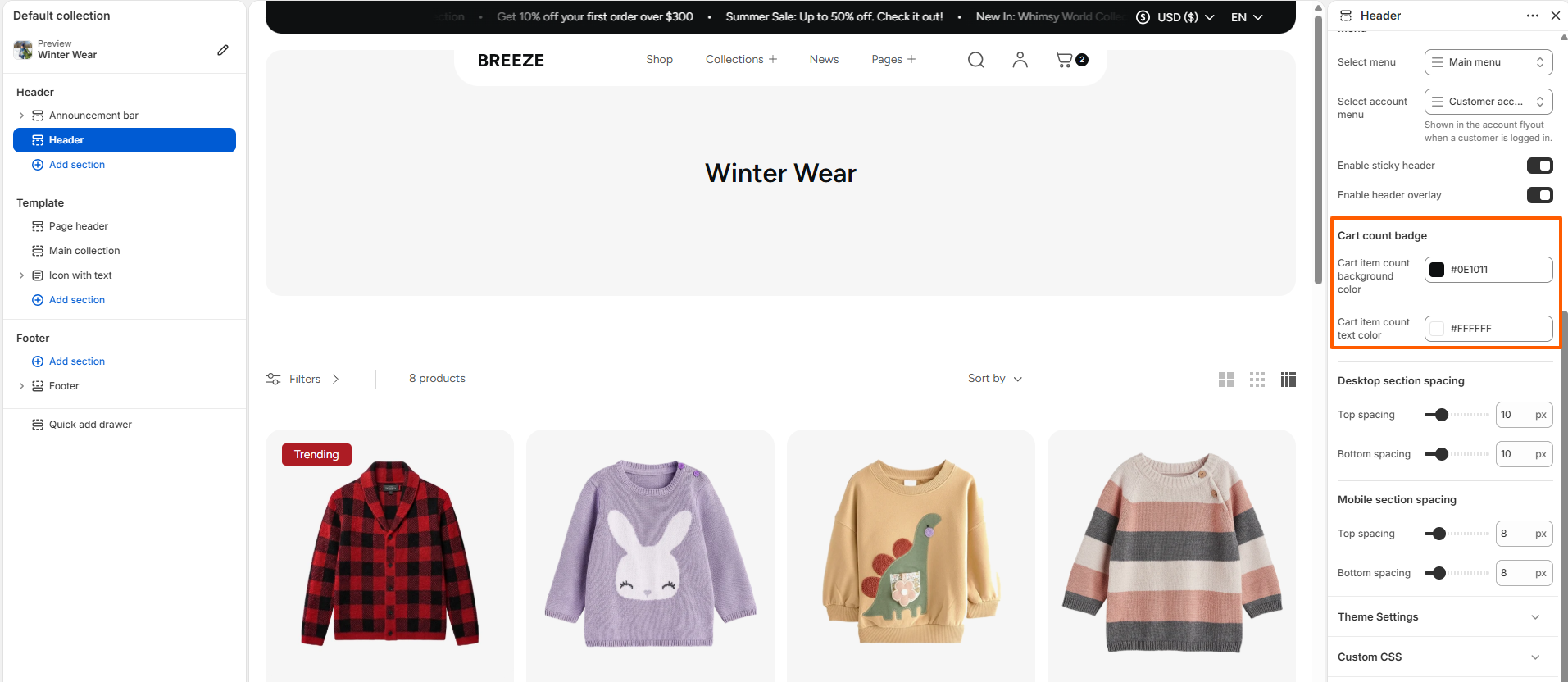
Cart Count Badge

The Cart Count Badge settings allow you to customize the appearance of the item count displayed on the cart icon. You can set separate colors for the badge background and the item count text.

Cart Count Badge Settings
  • Cart item count background color: Set the background color of the cart item count badge.
  • Cart item count text color: Set the text color displayed inside the cart item count badge.

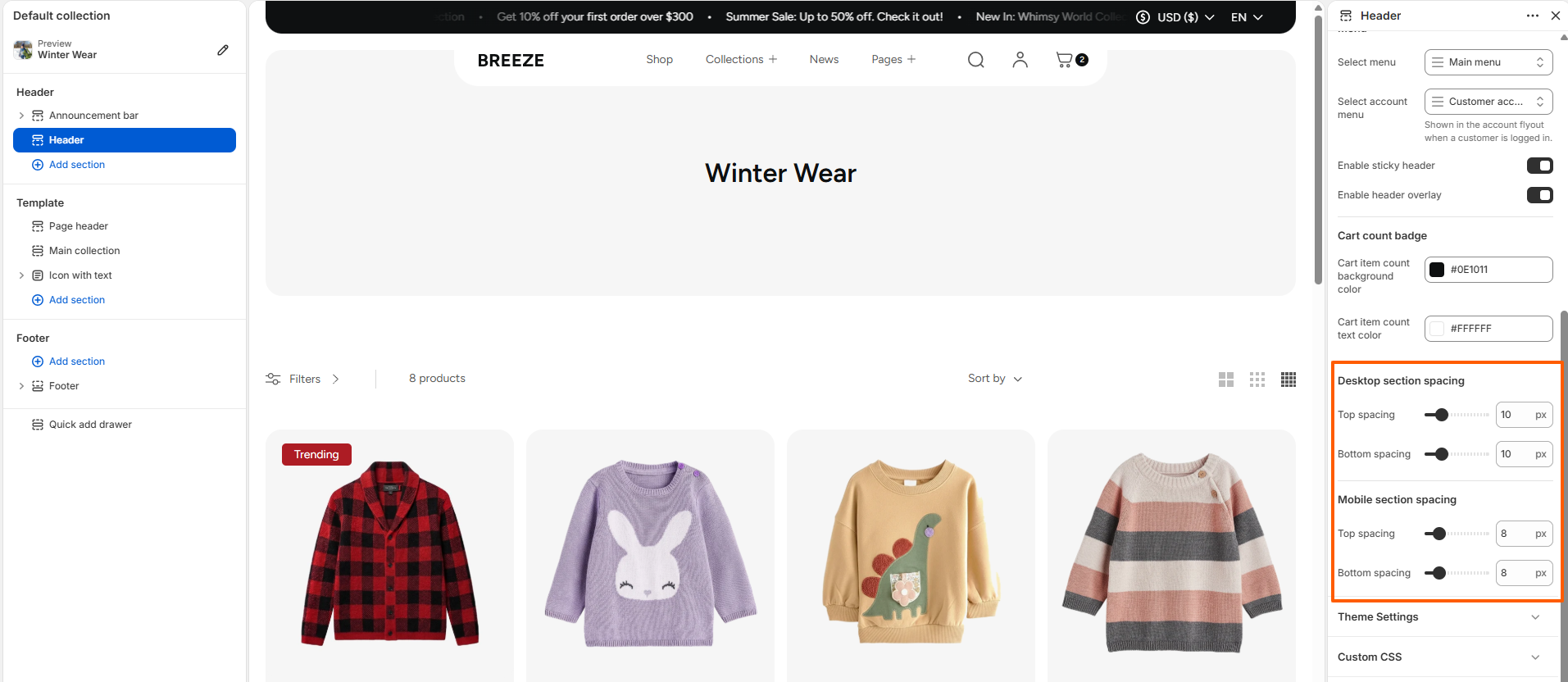
Section Spacing

The Section Spacing settings allow you to control the vertical spacing around the header on desktop and mobile devices.

Header Section Spacing Settings
  • Desktop top spacing: Set the amount of spacing above the header on desktop devices.
  • Desktop bottom spacing: Set the amount of spacing below the header on desktop devices.
  • Mobile top spacing: Set the amount of spacing above the header on mobile devices.
  • Mobile bottom spacing: Set the amount of spacing below the header on mobile devices.

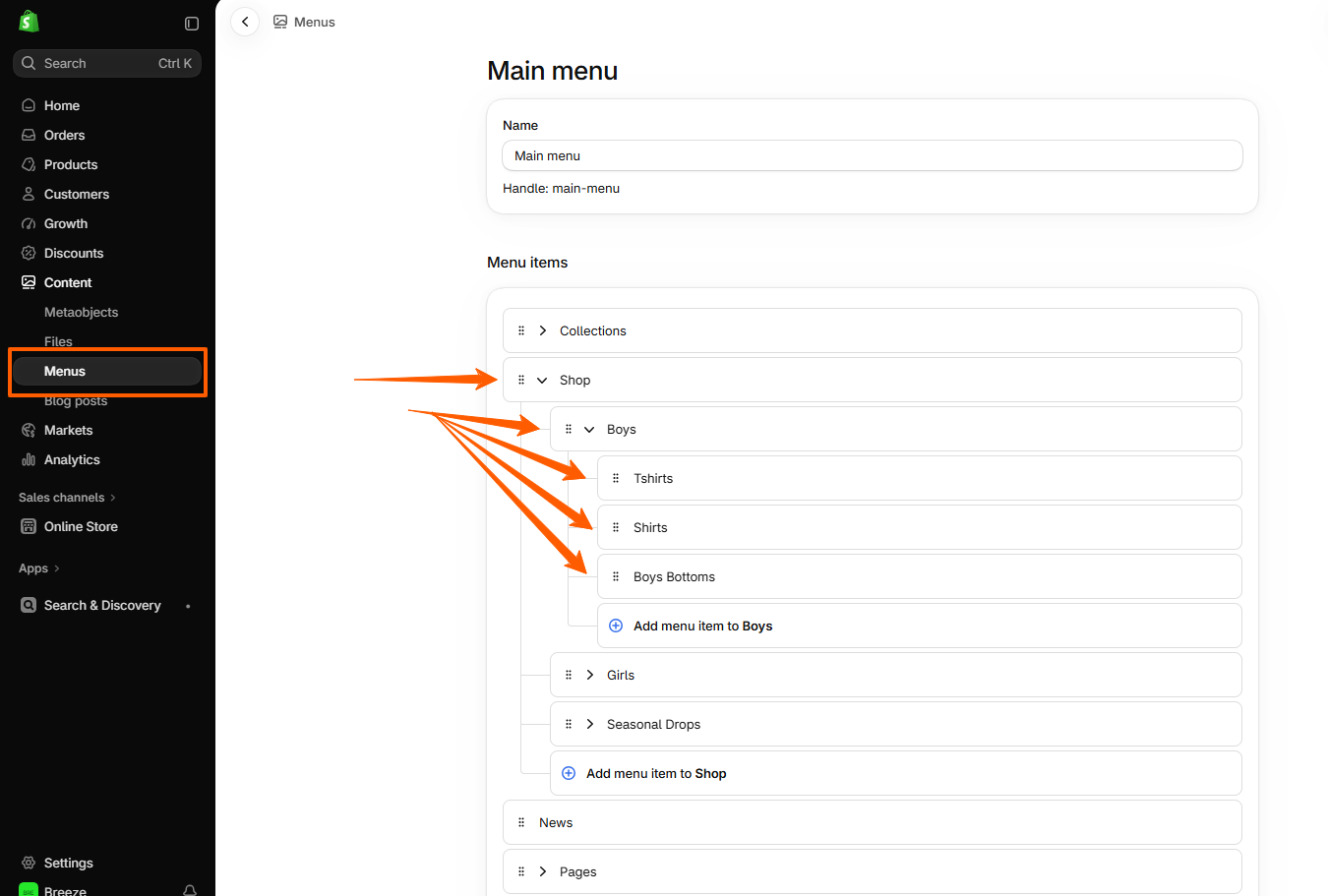
Dropdown menu

Follow these steps to configure your theme Dropdown

Steps

  • Open the Customizer: Navigate to the Header Group, and then open the Header section.
  • Choose Menu: You will see options for the menu.
  • Create dropdown menu: Go to Online Store >> Content >> Menus
Menu header
Dropdown menu admin setup

Mega Menu

Configure Mega Menu

Steps

  • Open the Customizer: Navigate to the Header Group and open the Header section.
  • Add a Mega Menu: Add either Mega menu - (Promo image) or Mega menu - Banners to the Header.
  • Set the Menu Item: Enter the exact title of the top-level menu item where you want the mega menu to appear.

Mega menu - (Promo image)

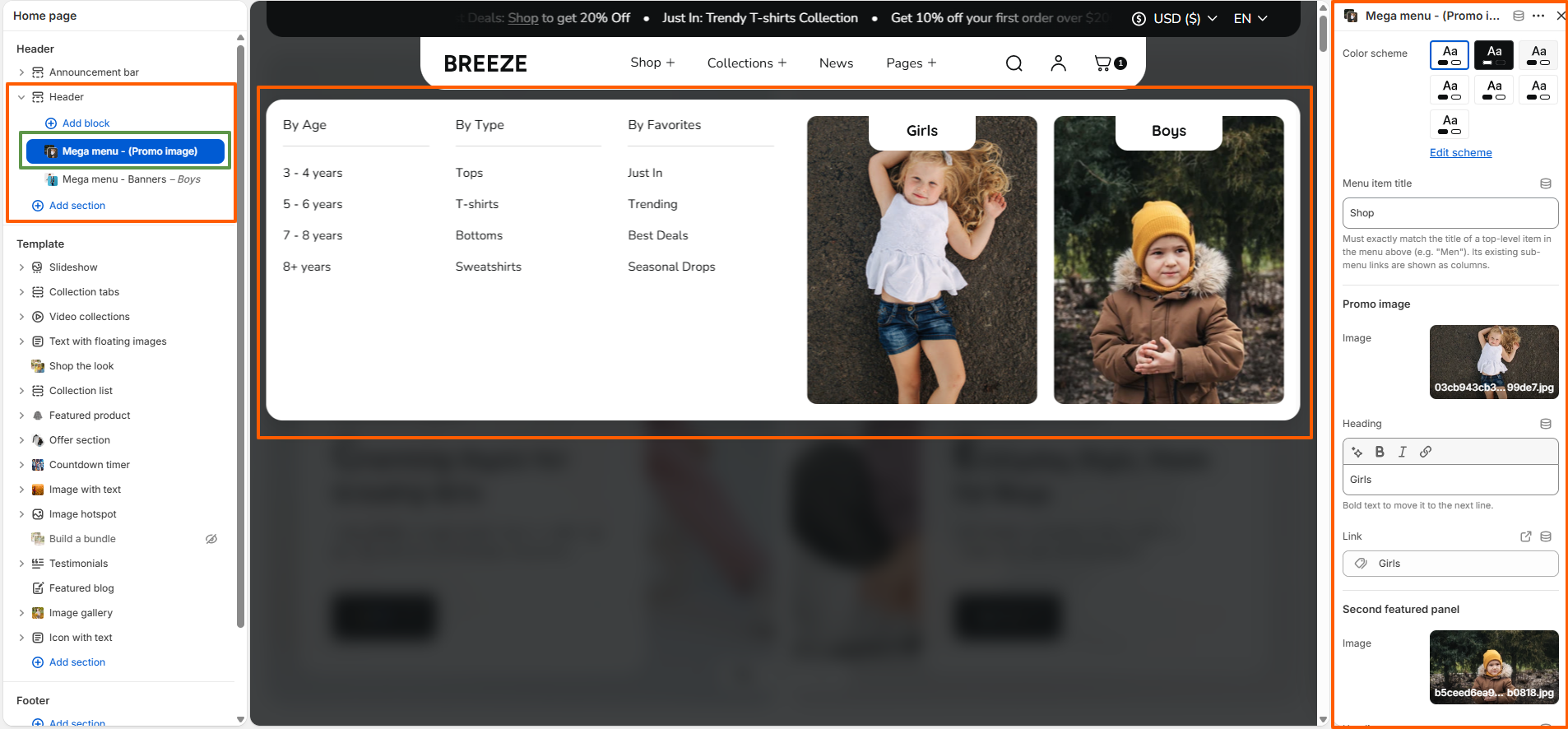
The Mega menu - (Promo image) layout allows you to display multiple menu link columns along with two featured promotional image panels. Each panel can have an image, heading, and link, making it useful for highlighting specific collections, categories, or promotions.

  • Menu Item Title: Enter the exact title of the top-level menu item where the mega menu should appear.
  • Menu Links: Add links under the selected menu item to display them as navigation columns.
  • Promo Image: Add an image, heading, and link for the first featured panel.
  • Second Featured Panel: Add an image, heading, and link for the second promotional panel.
Mega menu promo image settings

Mega menu - Banners

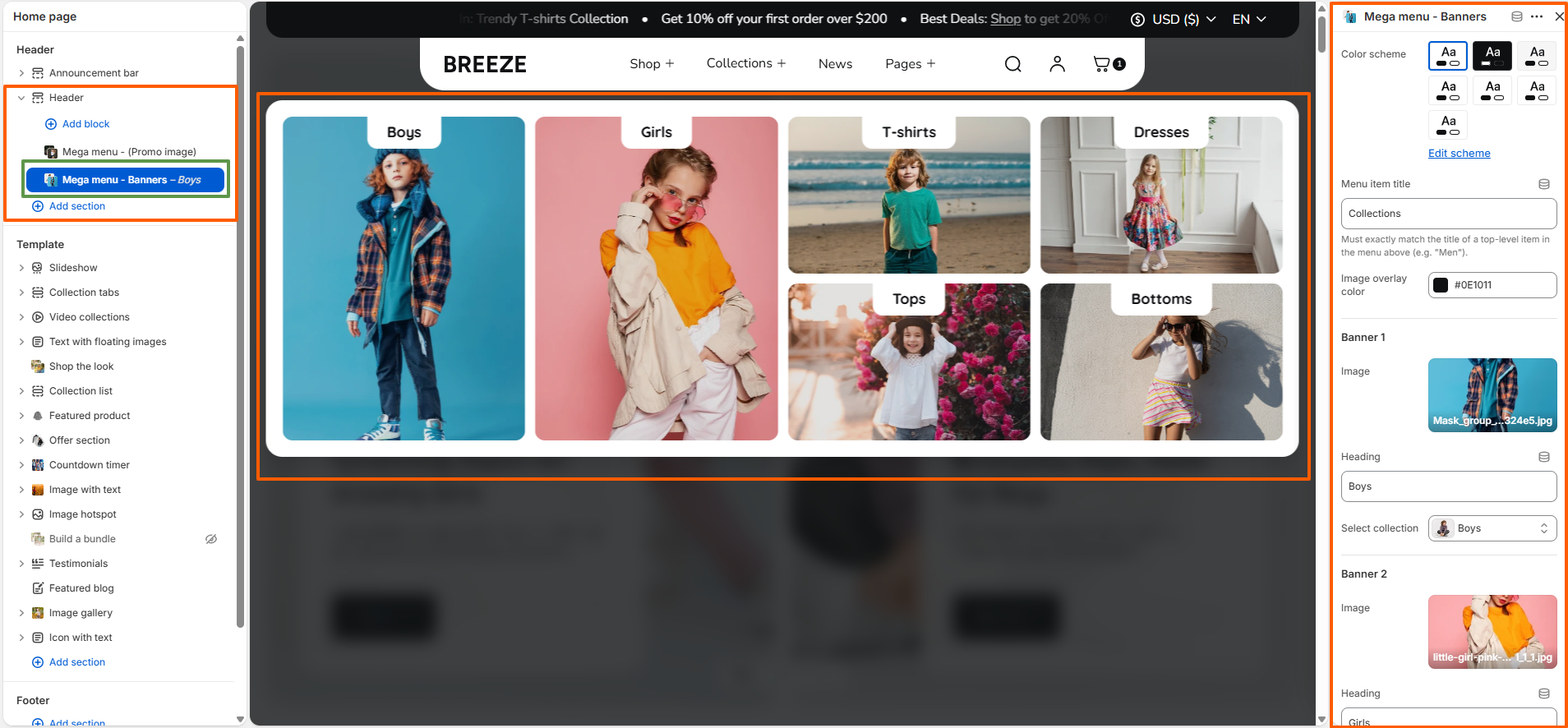
The Mega menu - Banners layout displays collections as image-based navigation banners. Each banner can be assigned an image, heading, and collection. The banner arrangement changes automatically based on the number of collections added.

  • Menu Item Title: Enter the exact title of the top-level menu item where the mega menu should appear.
  • Image: Upload an image for the collection banner.
  • Heading: Add the title that will be displayed over the banner.
  • Select Collection: Assign the collection that the banner should link to.
  • Layout: The mega menu automatically uses a different banner arrangement depending on the number of collection banners added.

Banner Layouts

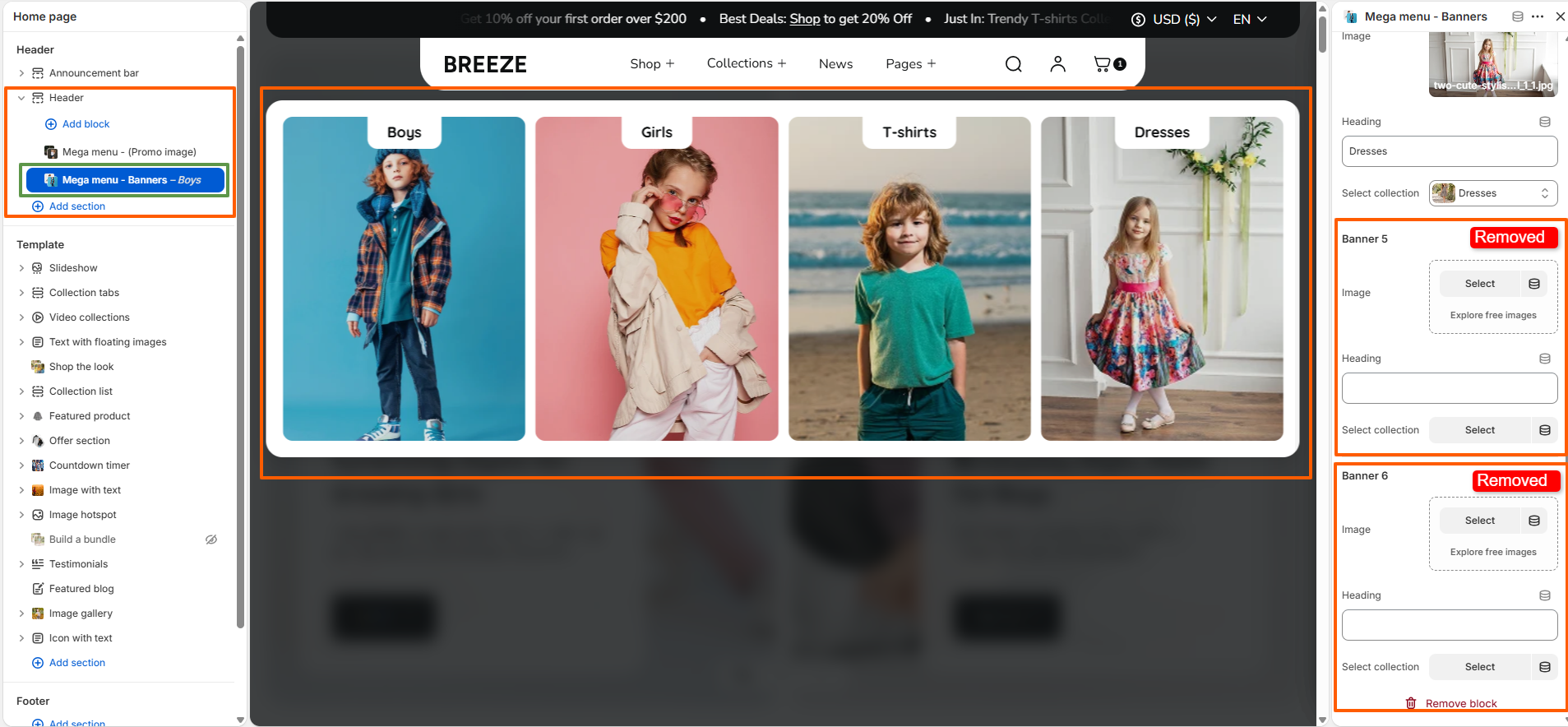
  • 4 Collections: Displays the collection banners in a four-column layout.
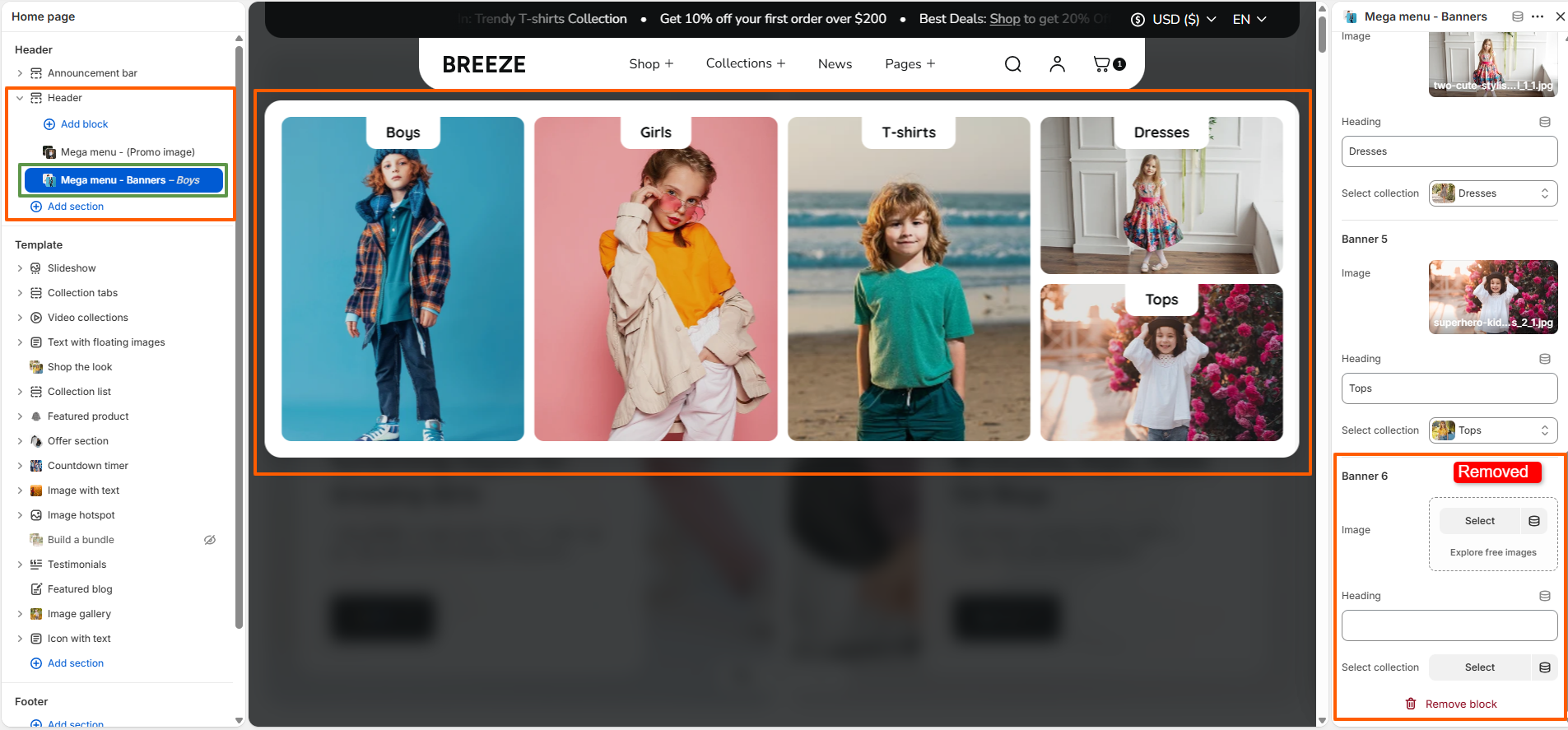
  • 5 Collections: Uses a combination of larger and smaller banners to create a varied layout.
  • 6 Collections: Uses an expanded multi-row banner layout to display all six collections.
Mega menu banners settings

Mega menu - Banners: 4 collection layout

Mega menu banners four collection layout

Mega menu - Banners: 5 collection layout

Mega menu banners five collection layout

Mega menu - Banners: 6 collection layout

Mega menu banners six collection layout

What is the contact page?

The Contact Page allows customers to get in touch with your store by submitting their queries through the contact form. It provides a dedicated space for customers to share their questions or messages and helps you respond to their inquiries.

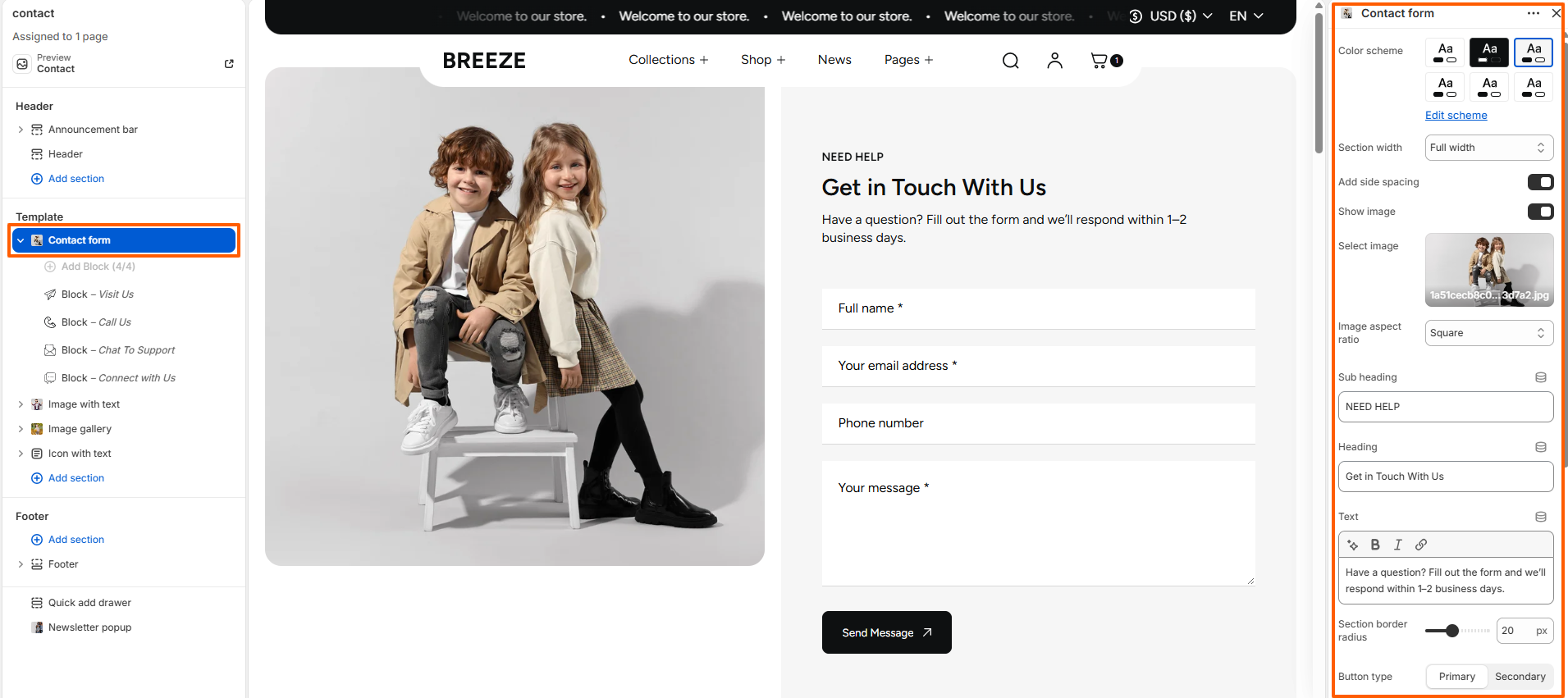
The Contact Form section includes several customization options to adjust its appearance and layout according to your store design.

  • Color Scheme – Controls the overall color scheme of the Contact Form section.
  • Section Width – Controls the width of the Contact Form section.
  • Add Side Spacing – Adds spacing on the sides of the section.
  • Show Image – Controls whether the image is displayed alongside the contact form.
  • Select Image – Allows you to select the image displayed in the Contact Form section.
  • Image Aspect Ratio – Controls the aspect ratio of the selected image.
  • Sub Heading – Adds a smaller supporting text above the main heading.
  • Heading – Sets the main heading displayed in the Contact Form section.
  • Text – Adds descriptive content below the heading.
  • Section Border Radius – Controls the corner radius of the section.
  • Button Type – Controls the style of the form submission button.
  • Block Content Alignment – Controls the alignment of the content within the Contact Form section.
  • Desktop Section Spacing – Controls the top and bottom spacing of the section on desktop devices.
  • Mobile Section Spacing – Controls the top and bottom spacing of the section on mobile devices.
Contact Us

How to set up the contact page

Steps

  1. Open the Theme Editor.
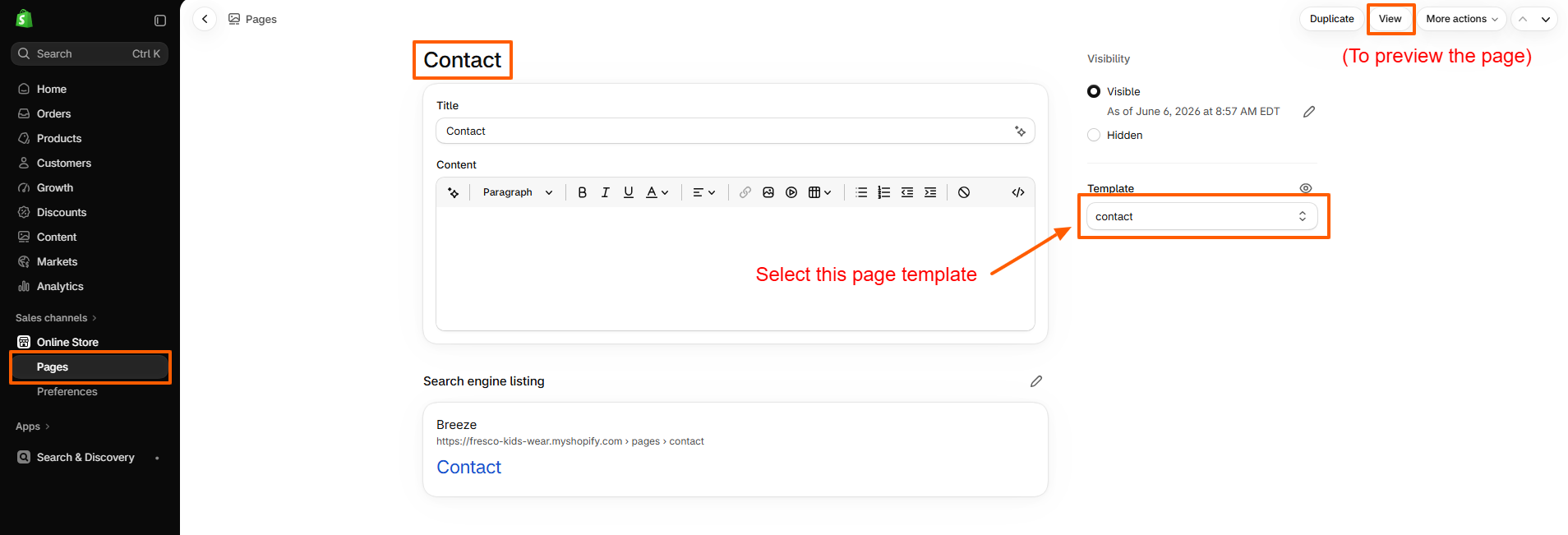
  2. Select Pages > Contact from the dropdown at the top.
  3. This page comes prebuilt with several blocks, listed in the Template section of the left-hand side of the screen. Select Add block or use the existing blocks available.
  4. The Email input block is required for the contact form to work.
  5. It is important to ensure that all blocks have unique labels.
  6. Click Add section to insert a section either above or below the page content..
Contact Us
Contact Us

About Us

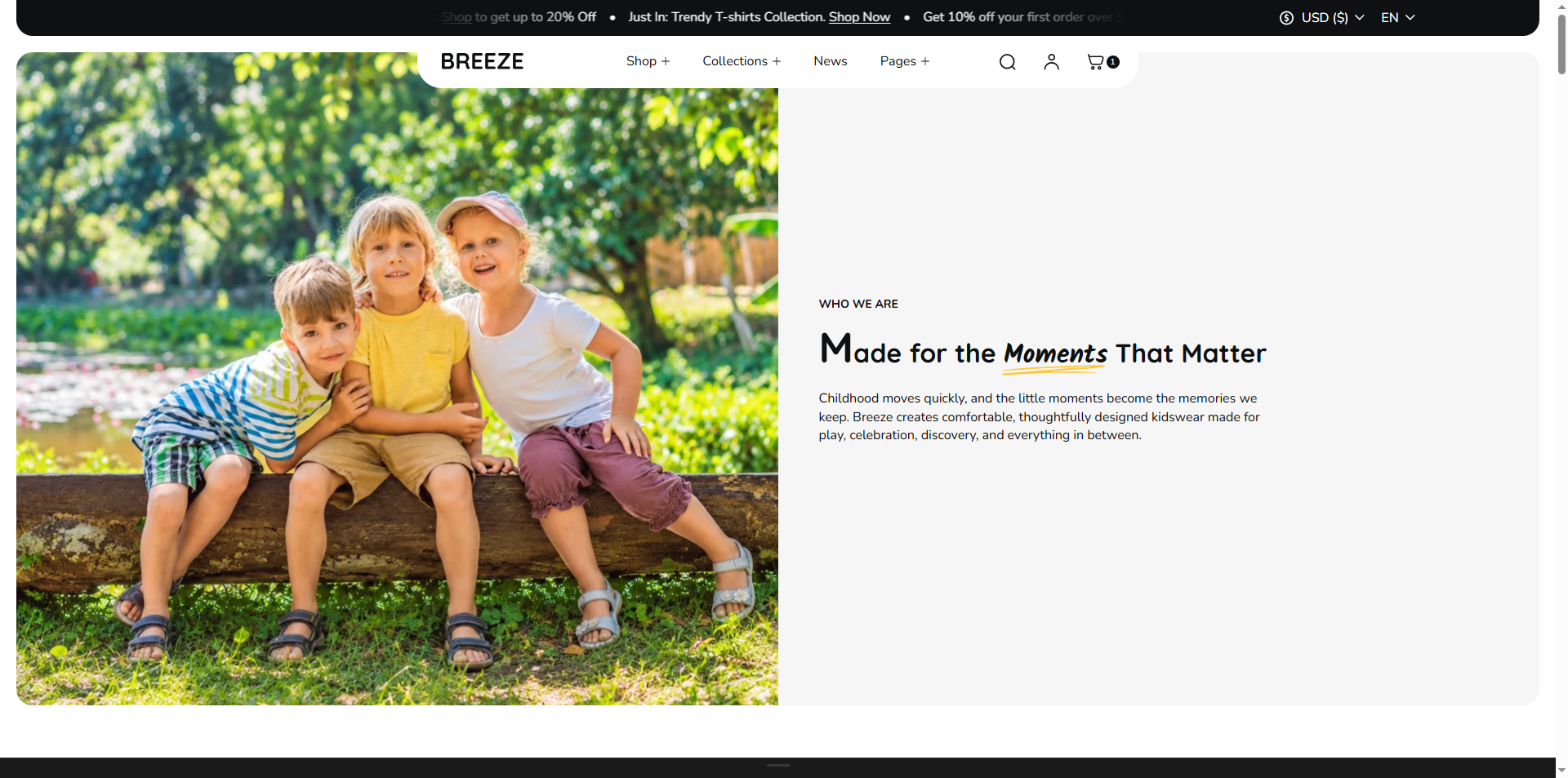
The Breeze theme includes a predefined About Us page template that allows you to showcase your brand story, mission, values, and images. You can customize the existing content and images directly through the Shopify Theme Editor without creating the page layout from scratch.

About Us

How to Edit the About Us Page

Steps

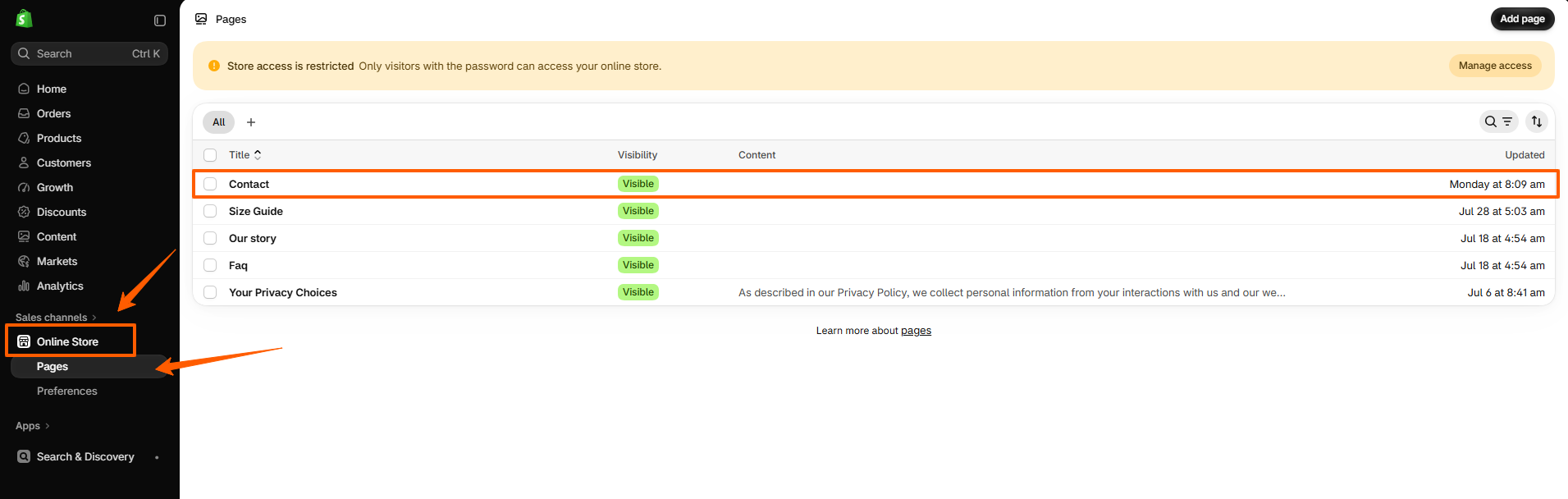
  • Go to Shopify Admin → Online Store → Pages.
  • Open the existing About Us page.
  • Under the Theme template setting, select the predefined About Us template provided by the Breeze theme, if it is not already assigned.
  • Save the page if you change its template.
  • Go to Online Store → Themes → Customize.
  • Open the About Us page using the page selector in the Theme Editor.
  • Select the relevant sections to update headings, text, images, and other available settings.
  • Click Save to publish your changes.

How to Set Up Pages in Shopify

Setting up pages in Shopify is a straightforward process that allows you to add important informational content—such as About Us, Contact, FAQ, and policy pages—to your online store.

Create Pages

Steps

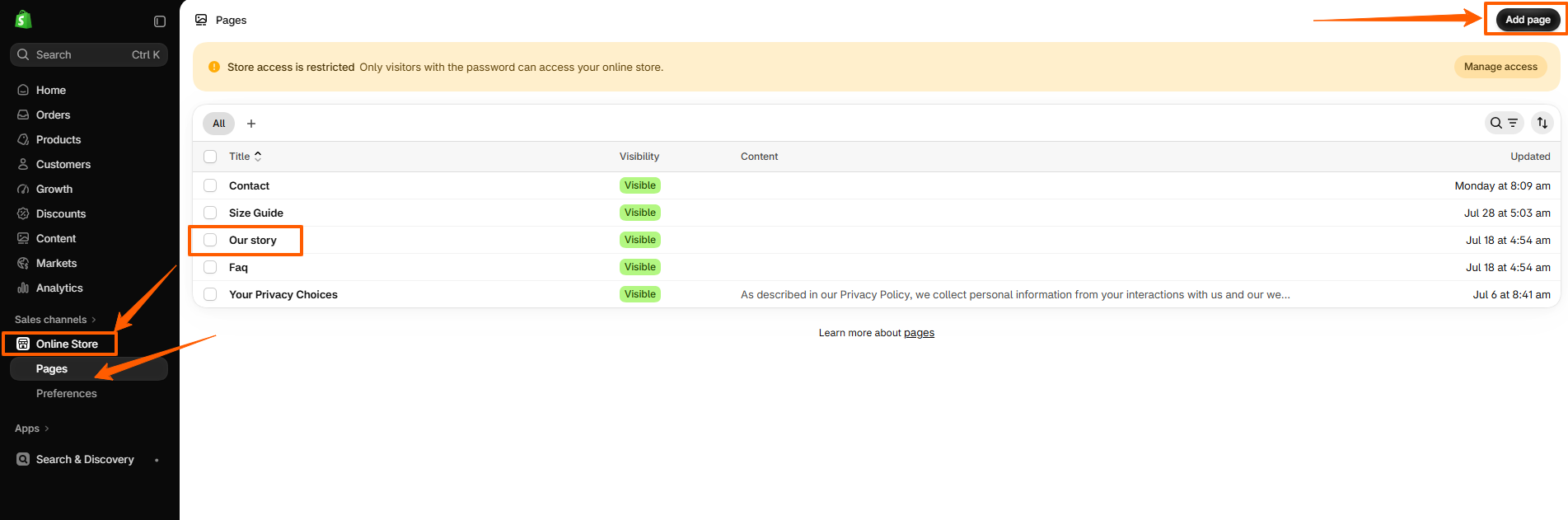
  • 1. Access Admin Online Store > Pages
  • 2. Add Page Click "Add page"
  • 3. Enter Details Title, content, select template (optional)
  • 4. Set Visibility Choose Visible/Hidden, set publish date if desired
  • 5. Save Click "Save"

Favicon

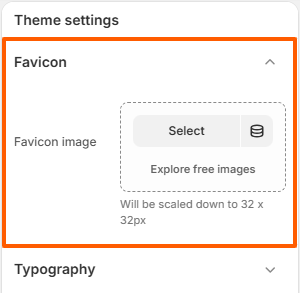
A favicon is the small icon shown in the browser tab that represents your store.

Favicon Image: Upload a small square logo or icon (recommended 32x32).

favicon setting

Typography

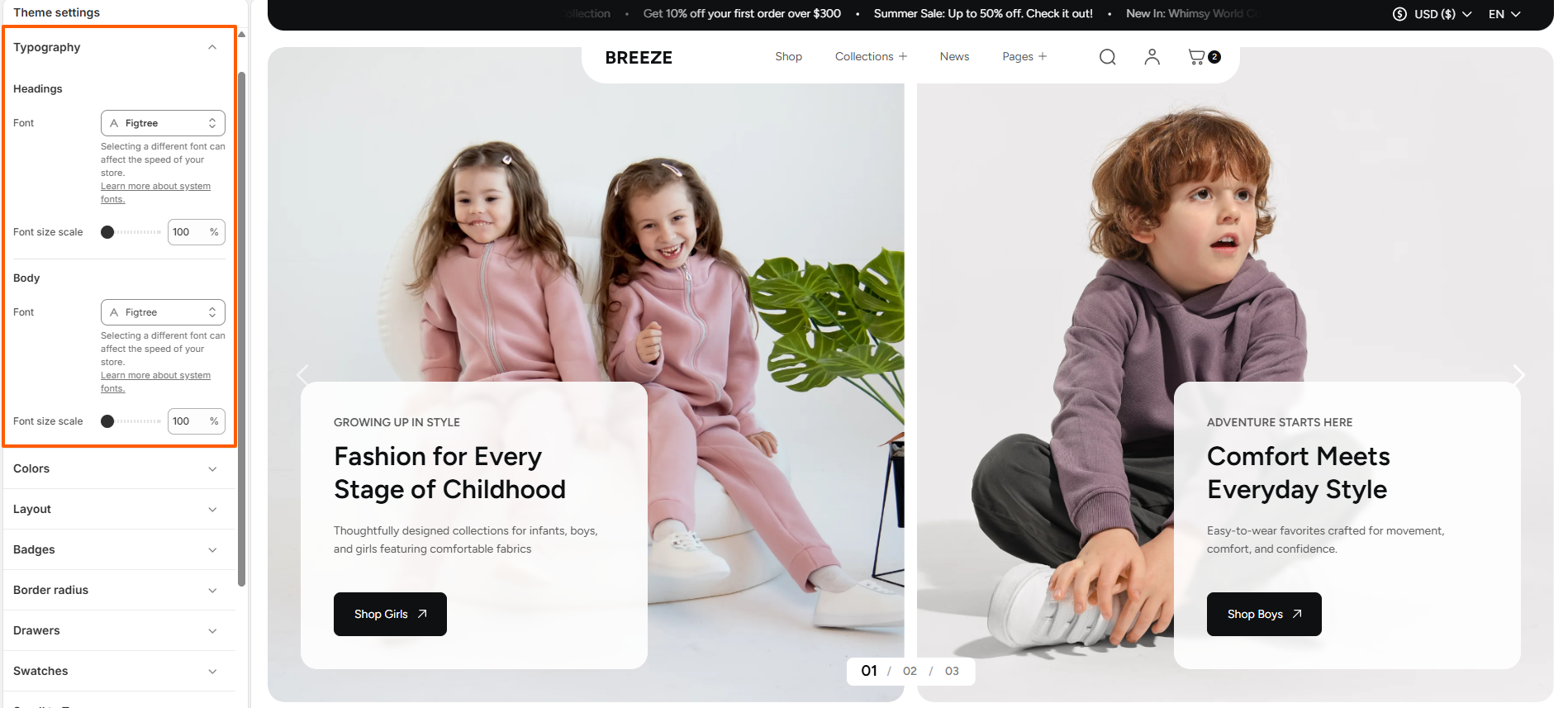
Customize your store’s typography to create a consistent brand identity and improve readability across your storefront. The theme allows you to configure fonts and font sizes for headings & body text.

typography setting

Settings

  • Headings — Select a font family and adjust the font size used for section titles, page headings, and prominent text elements.
  • Body — Choose the font family and font size for product descriptions, paragraphs, navigation links, and other standard content.
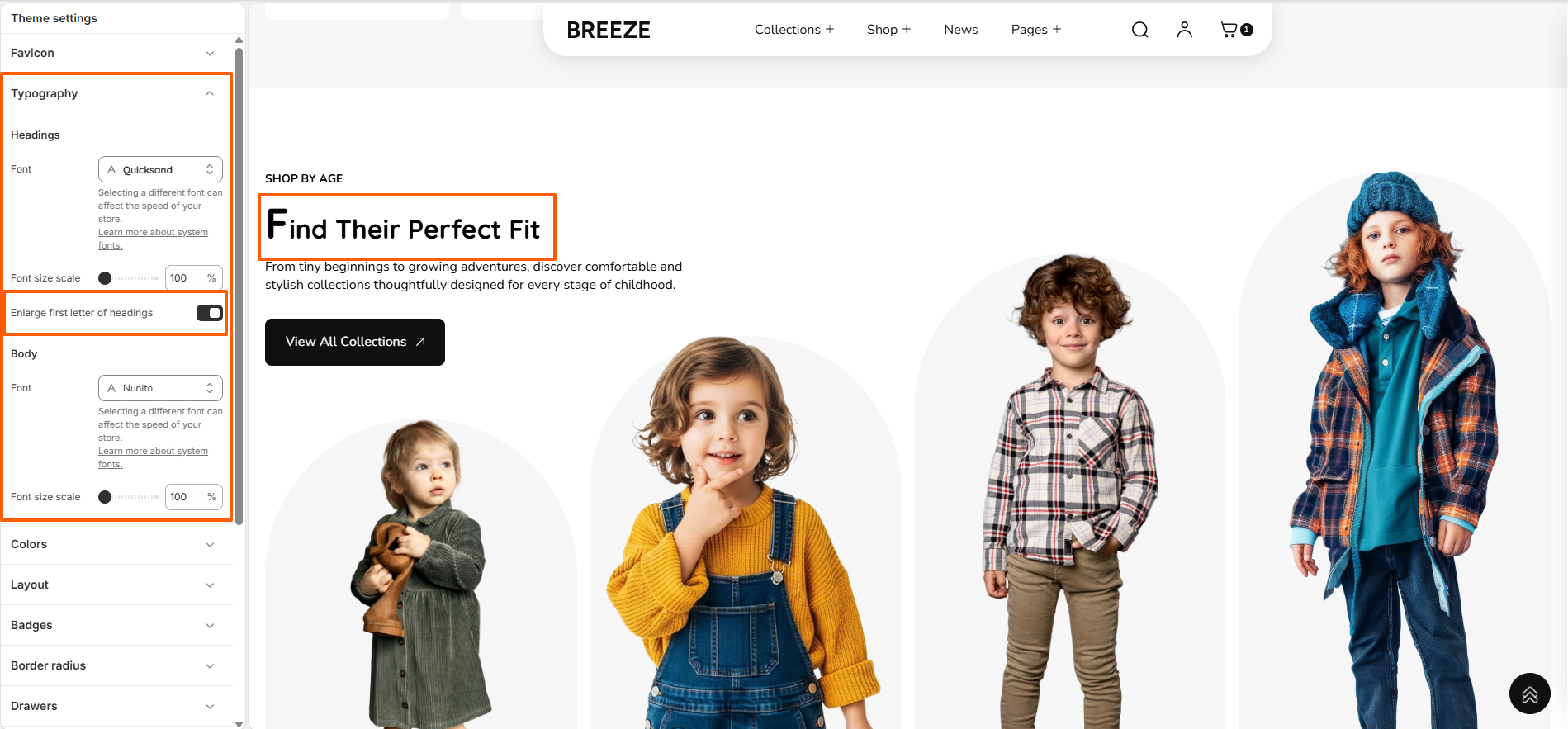
  • Enlarge first letter of headings — Choose whether to enlarge the first letter of headings and customize its appearance.
  • Enlarged first letter of a heading

Customize Your Typography to Match Your Brand

Steps

  • Open the Customizer.
  • Click on the "General Settings" icon.
  • Select the "Typography" option.

Colors

One of the most important components of designing a visually appealing, functional, and accessible theme is color.
Not only does a well-designed color system reinforce a merchant’s branding, but it also has the power to enhance and improve user experiences.
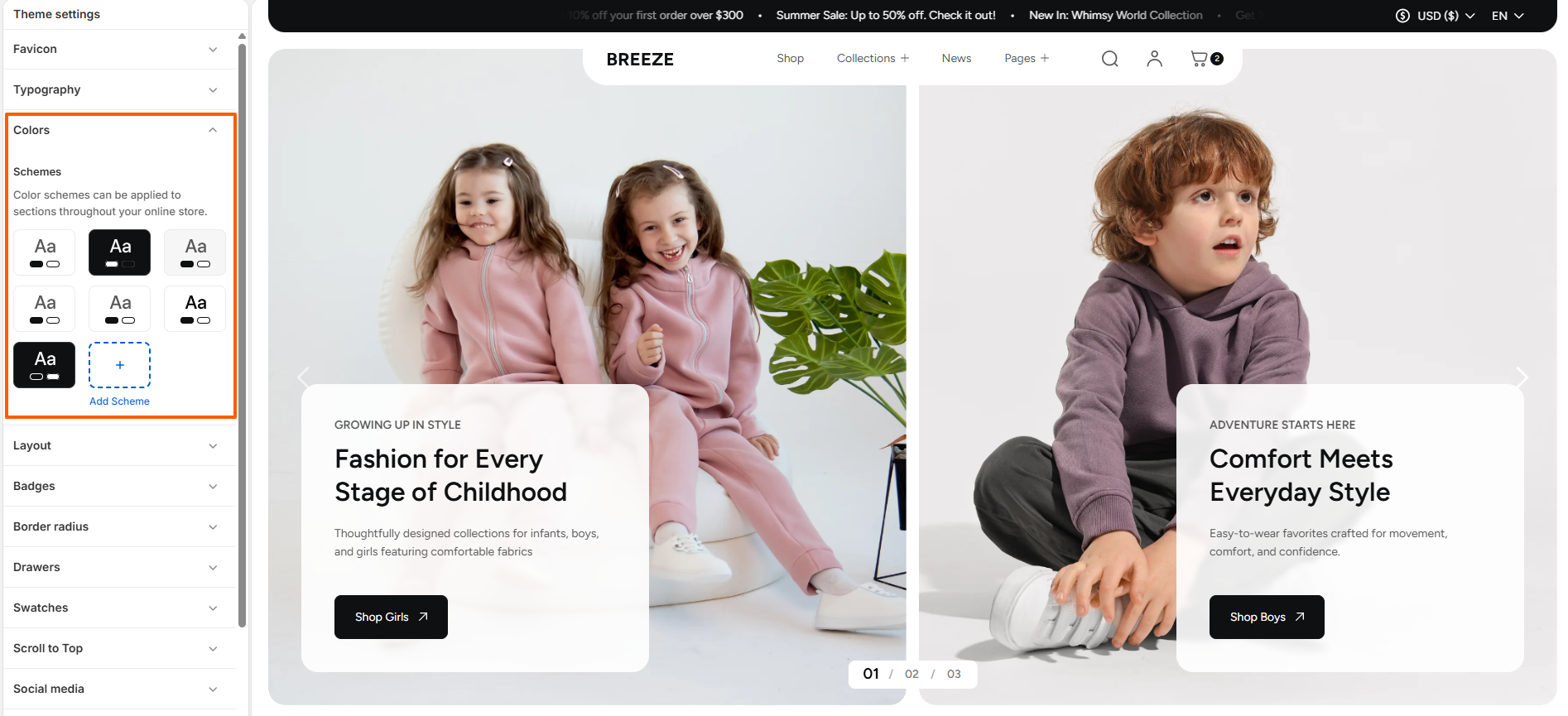
Configure your brand colors in the color settings. These color elements are used in all the general sections, header, and footer.

Color setting

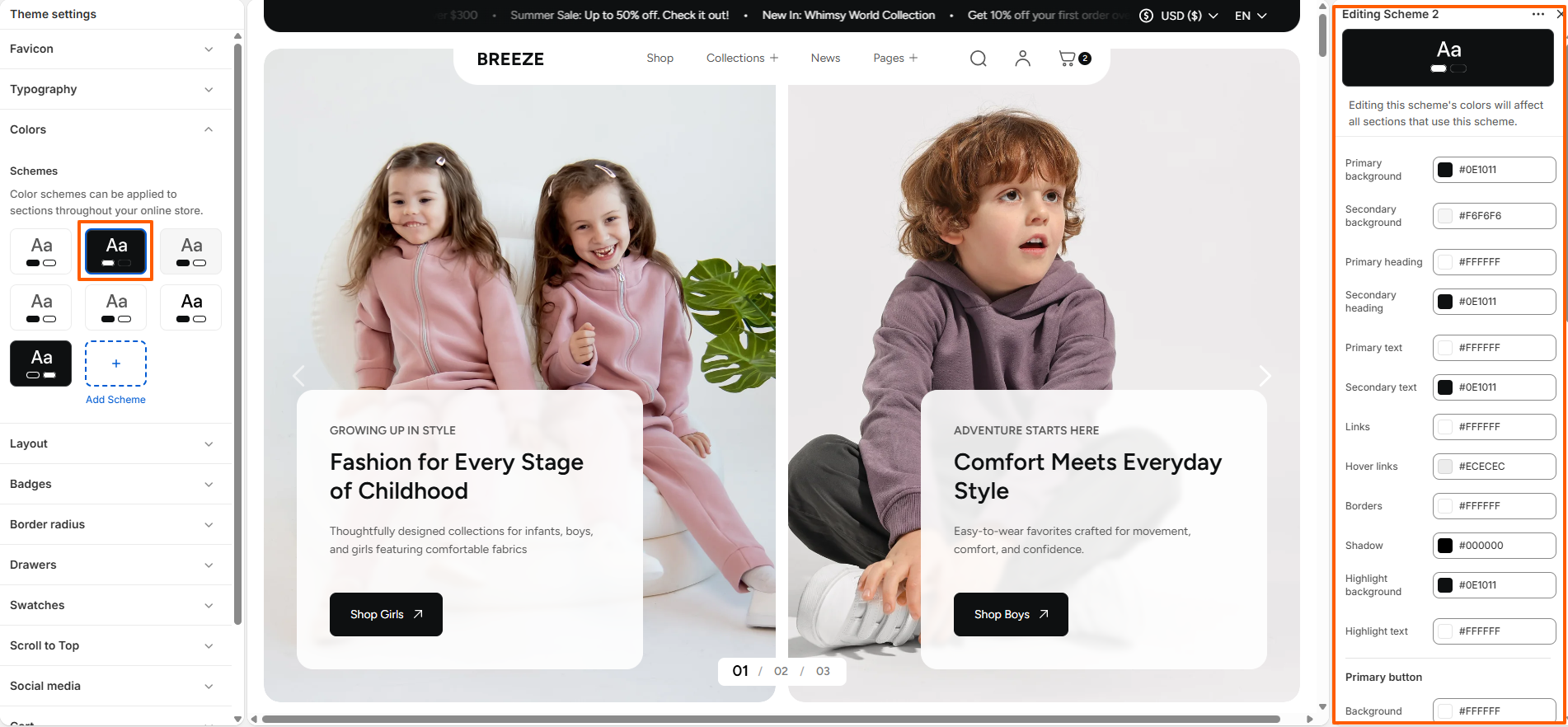
Customize Your Colors to Match Your Brand

Personalizing your theme’s colors is a breeze with Breeze! Tailor your site to reflect your brand identity effortlessly.

Steps

  • Open the Customizer.
  • Click on the "General Settings" icon.
  • Select the "Colors" option.
Color setting preview

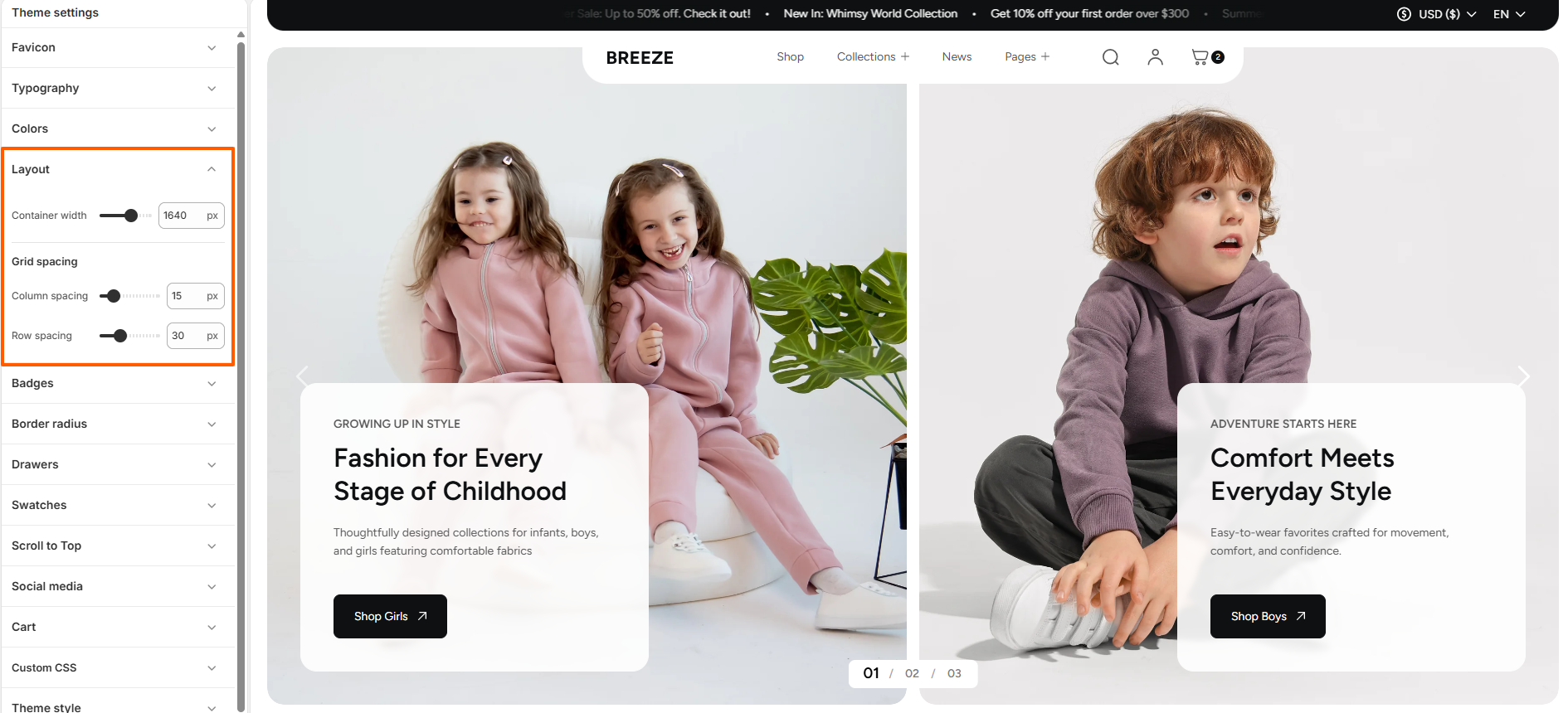
Layout & Border radius

Layout settings

Breeze provides flexible layout settings.

layout setting

Steps

  • Container width — adjust the maximum width of the page
  • Column spacing — set spacing between elements side-to-side
  • Row spacing — set spacing between elements top-to-bottom

Border radius

Breeze includes a customizable border-radius setting for Buttons, allowing you to adjust the button shape and styling according to your design requirements.

border setting

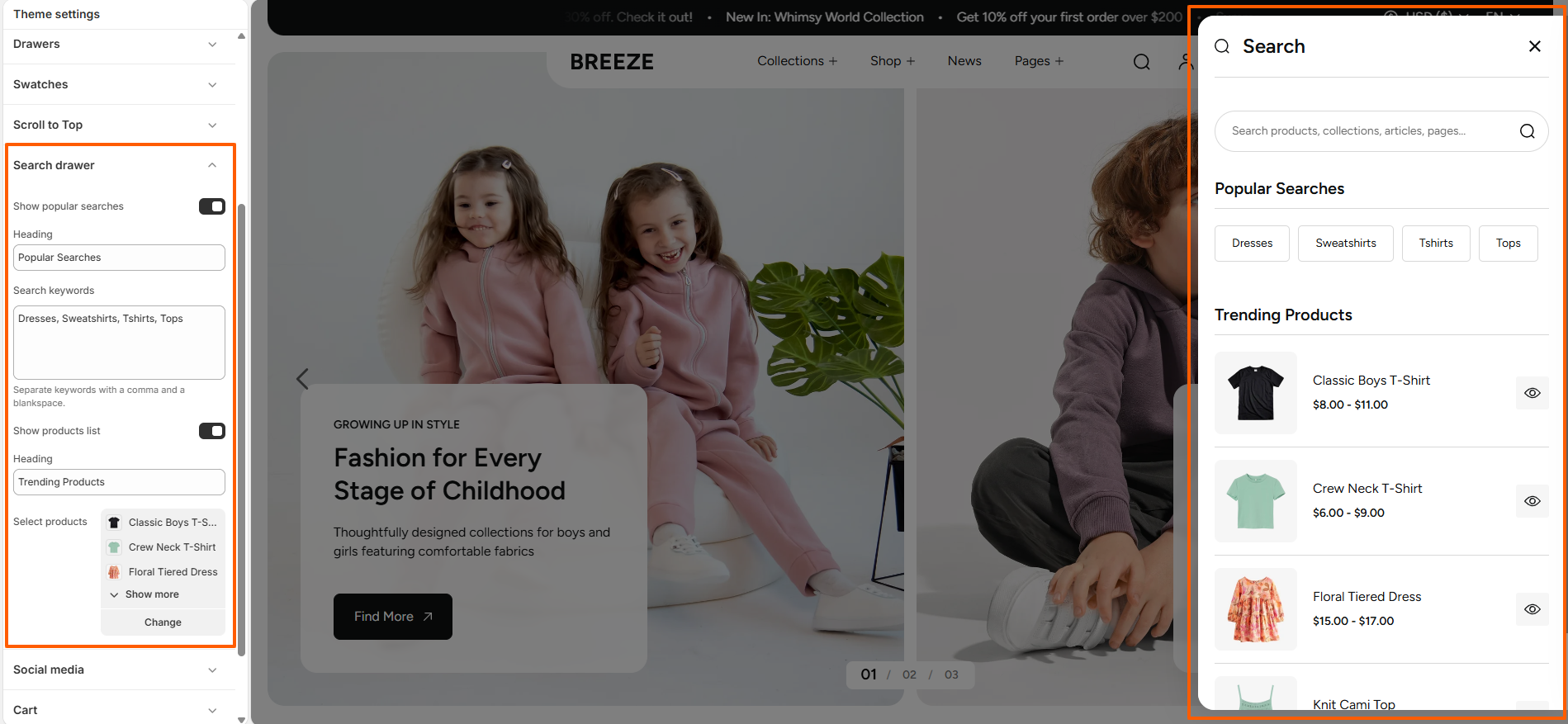
Search Drawer

The Search Drawer provides customers with a quick and convenient way to search your store. You can customize popular search suggestions and display selected products & collections to help customers discover products more easily.

Search Drawer Preview

Search Drawer Settings
Customize the Search Drawer directly from the Theme Editor.

How To Configure Search Drawer

  • From your Shopify admin, go to Online Store → Themes.
  • Click Customize on the Breeze theme.
  • Navigate to Theme Settings → Search Drawer.
  • Configure the available Search Drawer settings according to your store's requirements.
  • Click Save to apply the changes.

Customize Search Drawer
The Search Drawer includes the following customization options:

  • Show Popular Searches — Enable or disable the Popular Searches section in the Search Drawer.
  • Heading — Customize the heading displayed above the popular search keywords.
  • Search Keywords — Add the search keywords that will be displayed as popular search suggestions. Separate multiple keywords with a comma.
  • Show Products List — Enable or disable the product list displayed in the Search Drawer.
  • Heading — Customize the heading displayed above the selected products.
  • Select Products — Choose the products to display in the Search Drawer.

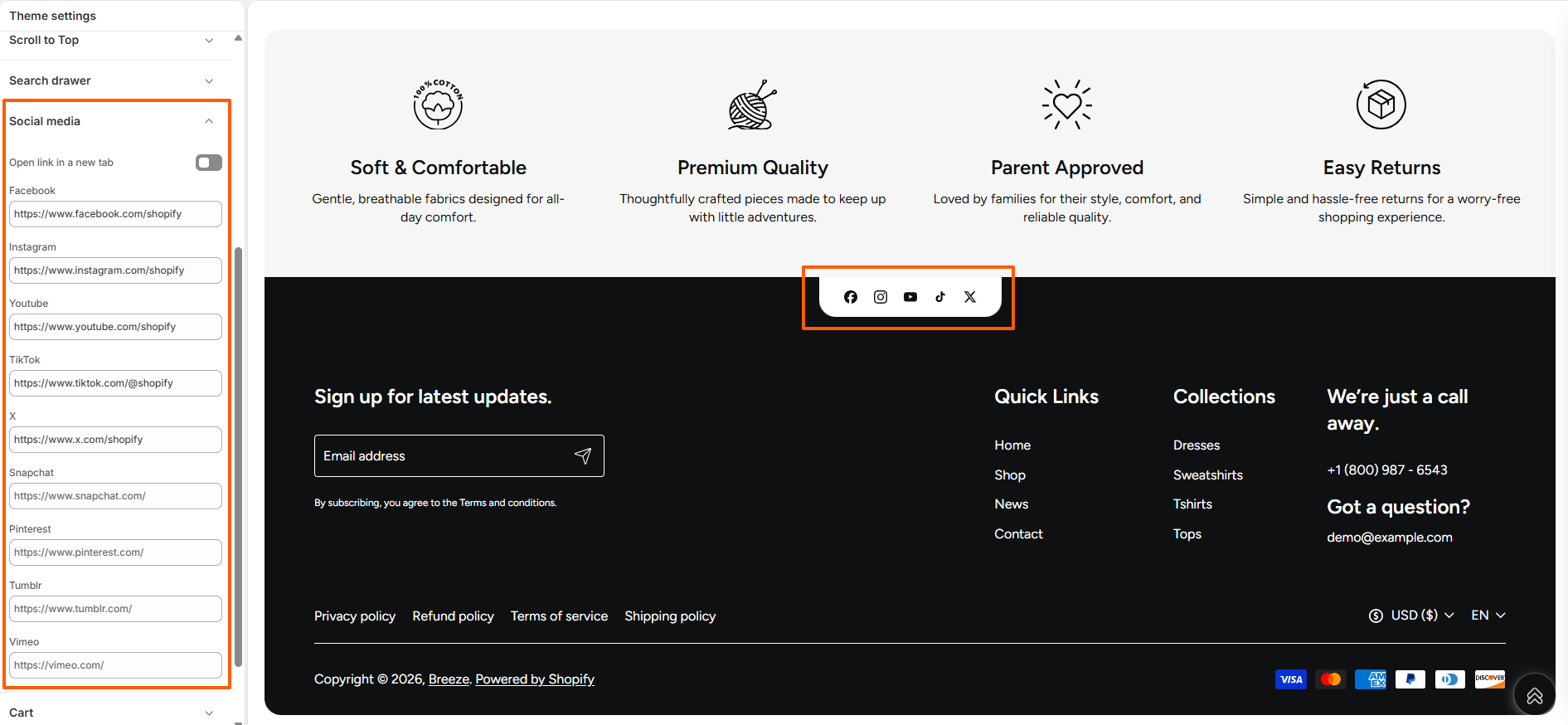
Social Media

Breeze’s Social Media feature allows you to connect your store with popular social platforms to increase engagement and brand visibility.

  • Add links to your social media profiles.
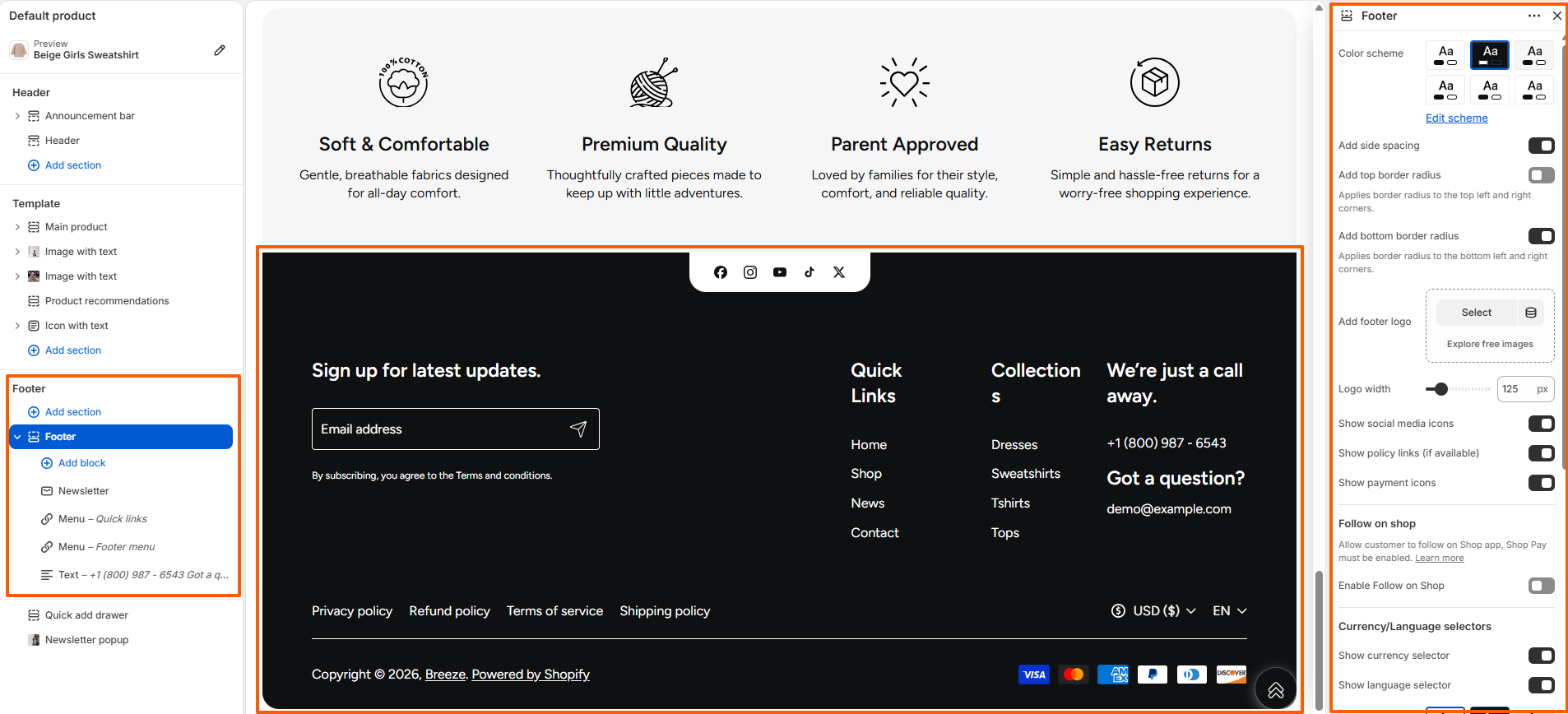
  • Display social icons in the header or footer.
  • Improve brand presence and customer engagement.
  • Allow customers to easily follow and share your store.
Social Media Settings

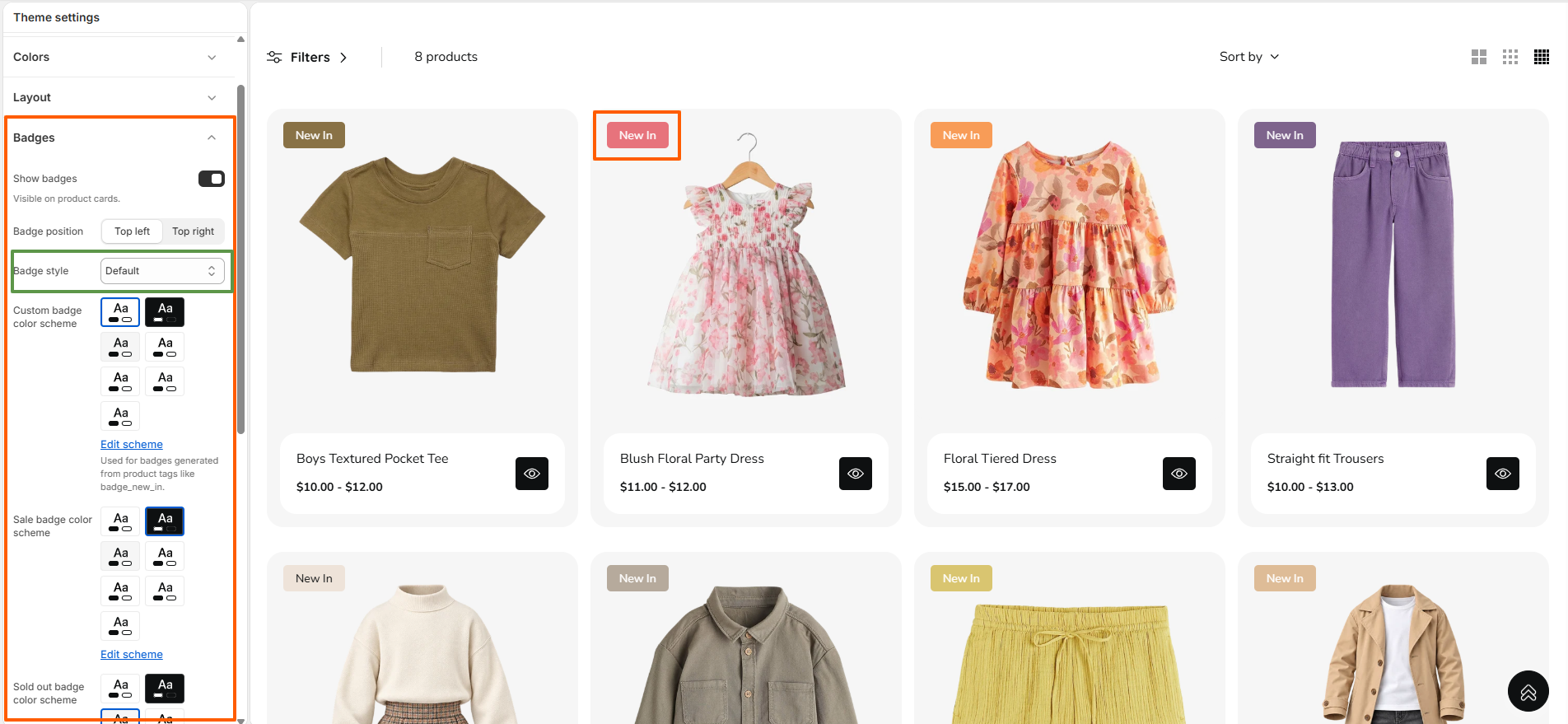
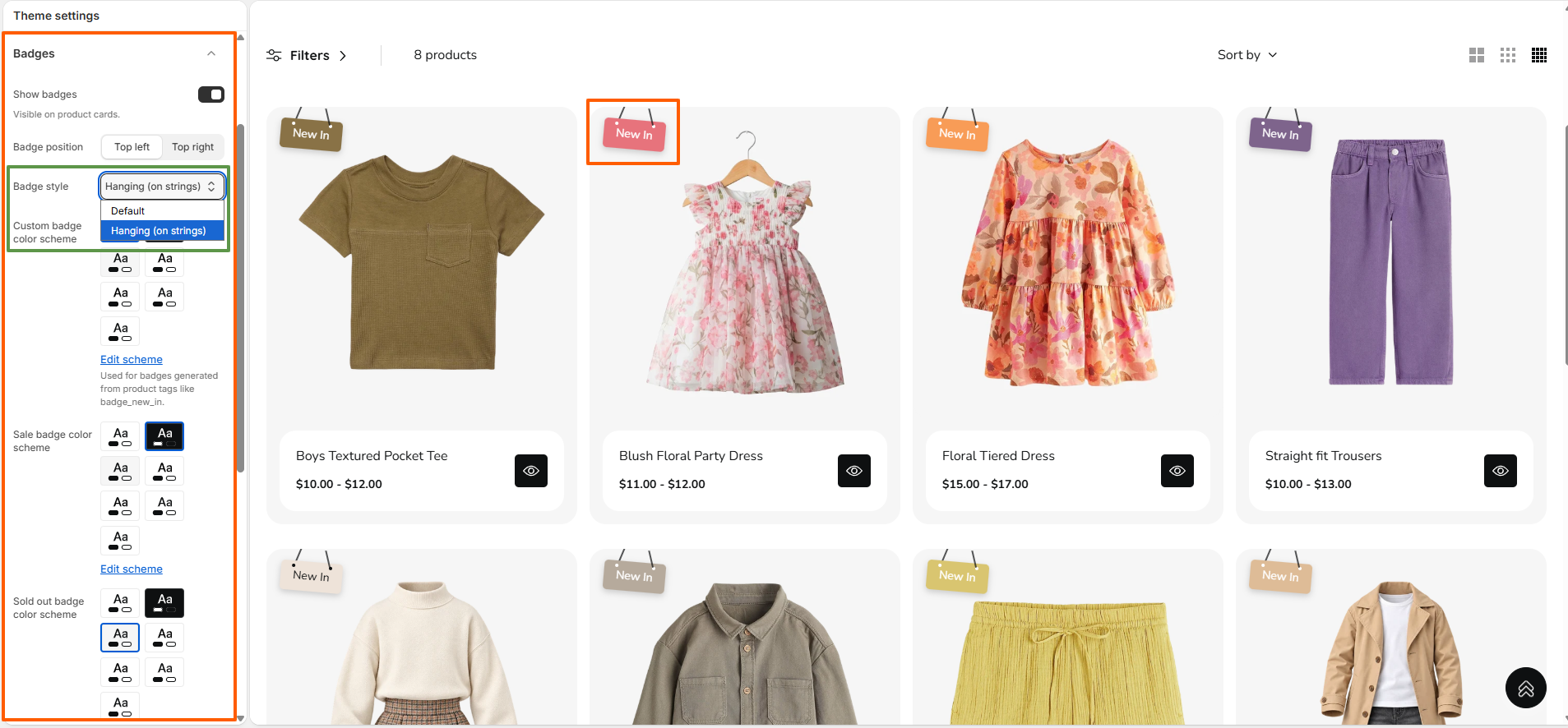
Badges

Breeze Product Badges help highlight important product information such as new arrivals, sale items, and sold-out products. You can customize the badge visibility, position, style, and color schemes to match your store's design.

How to Configure Badges

  • From your Shopify admin, go to Online Store → Themes.
  • Click Customize on the Breeze theme.
  • In the Theme Editor, open Theme Settings.
  • Select the Badges option.
  • Configure the available badge settings according to your requirements.
  • Click Save to apply the changes.
Badges Settings in Breeze Theme

Customize Badges
The Badges settings include the following customization options:

  • Show Badges — Enable or disable badges displayed on product cards.
  • Badge Position — Choose whether badges appear in the Top Left or Top Right position on product cards.
  • Badge Style — Choose the appearance of the badges. Select Default for standard badges or Hanging (on strings) to display badges with a hanging string-style design.

    Hanging Style

    Badges Hanging style Settings in Breeze Theme
  • Custom Badge Color Scheme — Select a color scheme for custom badges generated from product tags, such as New In or other custom badge labels.
  • Sale Badge Color Scheme — Select a color scheme for sale badges displayed on products.
  • Sold Out Badge Color Scheme — Select a color scheme for badges displayed when a product is sold out.
  • Sale Badge Style — Choose how the sale discount is displayed on product badges. Select Text to display the sale badge as text or % Off to display the discount as a percentage.

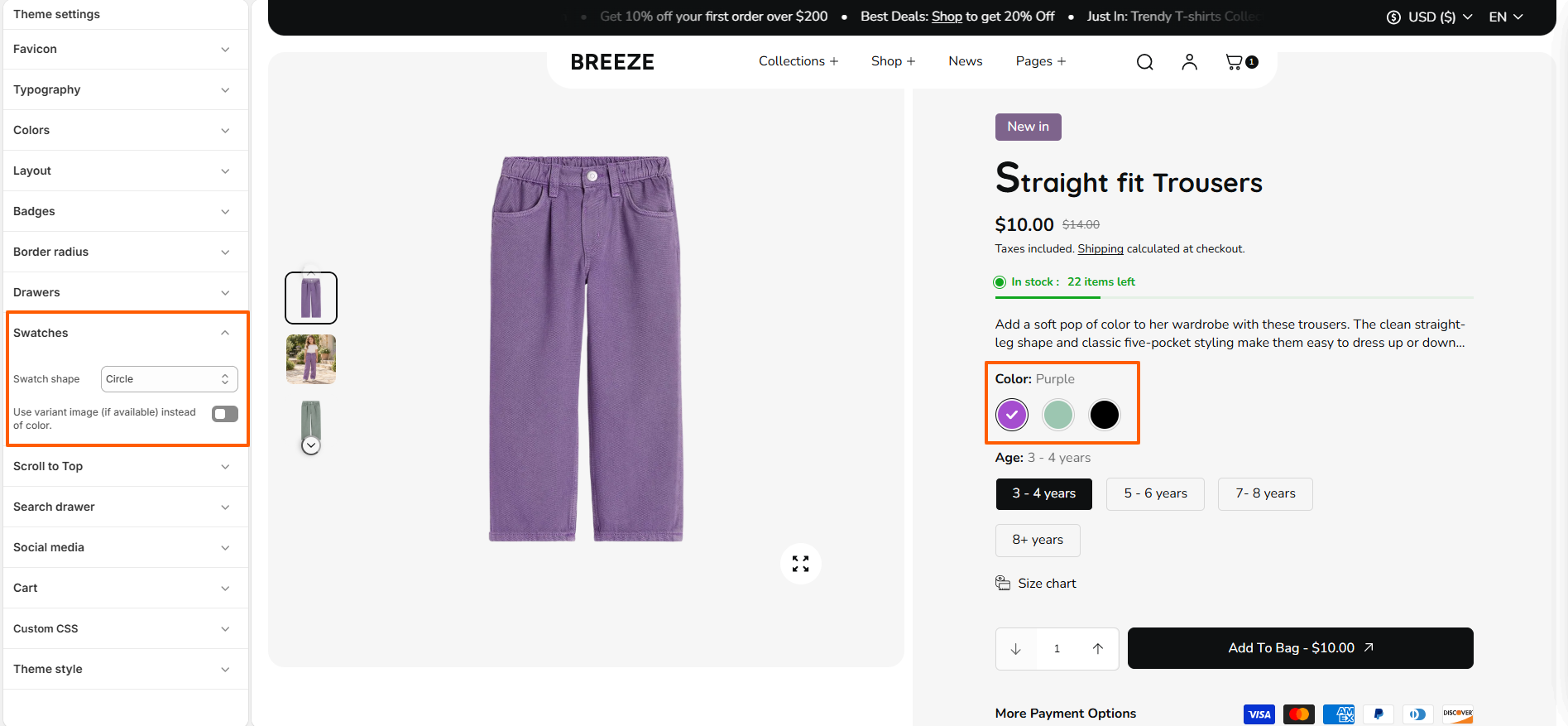
Swatches

The Product Swatches feature in the Breeze theme transforms product options like colors into interactive visual swatches. Instead of relying on text-based selections, customers can easily view and choose options through intuitive, clickable samples.

Swatches Settings in Breeze Theme

Step 1: Assign a Product Category

Shopify enables native color swatches only when a product category is assigned. Categories provide access to Shopify's standard metafields such as Color and Size.

  • From your Shopify admin, go to Products.
  • Click the product you want to edit.
  • In the Category section, click Select category.
  • Choose a category that supports color metafields, for example: Apparel & Accessories > Clothing > Shirts.
  • Click Save.

Note: Shopify category metafields will not appear until a valid category is assigned.

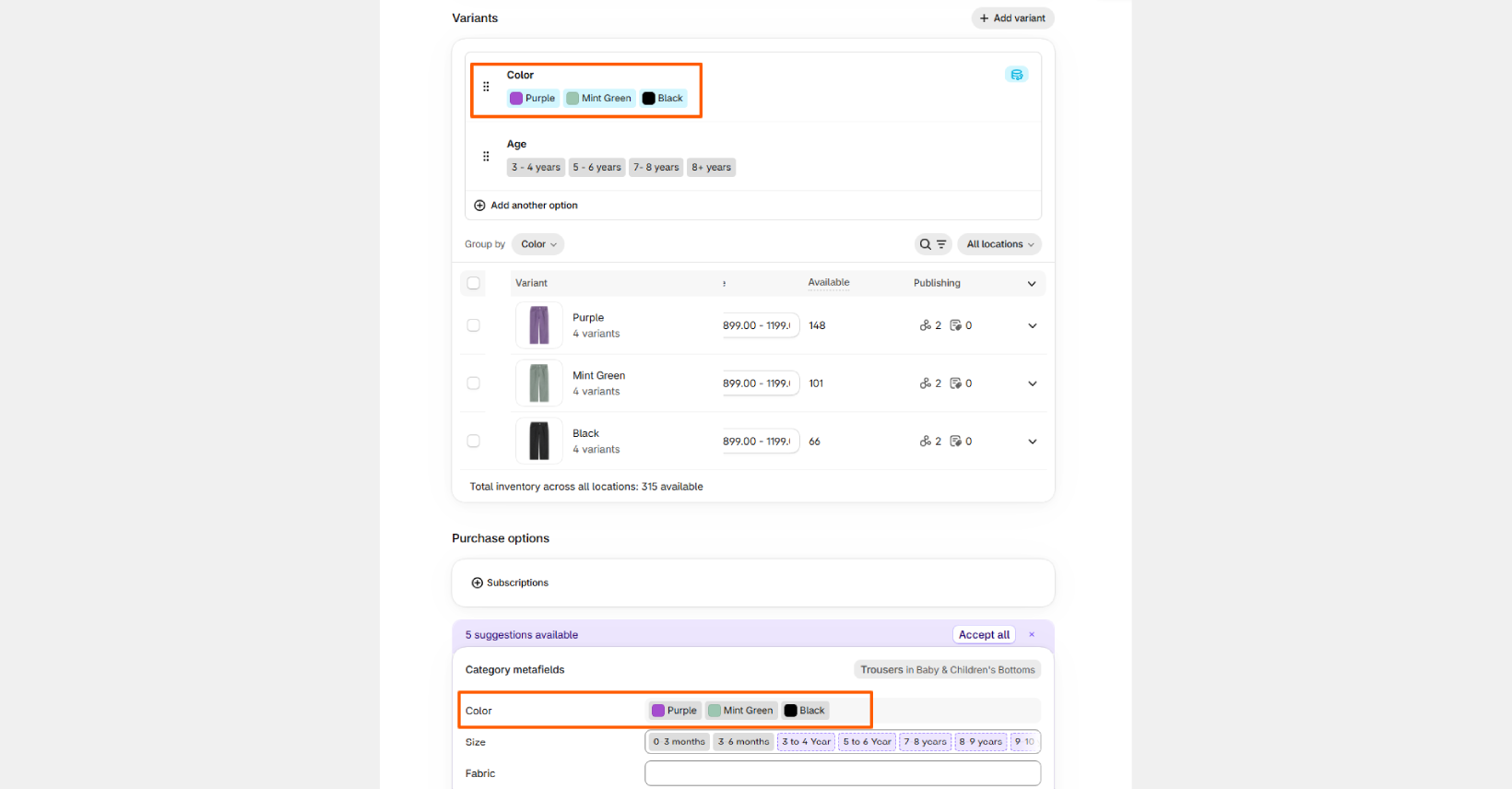
Step 2: Add Color Values

After assigning a category, Shopify automatically provides the Color category metafield.

  • Open the same product from the Products section.
  • Scroll down to the Category metafields section.
  • Locate the Color metafield.
  • Click inside the Color field to add available color values.
  • Select existing standard colors such as: Black, Blue, Red
  • To create a custom color:
    • Type the custom color name such as Ivory or Graphite.
    • Click Add new entry when the option appears.
    • In the popup window, configure the color details:
      • Add the color label/name.
      • Optionally upload a swatch image.
      • Optionally add a hex color code.
    • Click Save to create the color entry.
  • After adding all required colors, click Save on the product.

Step 3: Connect Color Values to Variants

Connect the Shopify Color metafield to your product variants to display swatches properly.

  • Open your product in the Products section.
  • Scroll to the Variants section.
  • Click Add options like size or color.
  • Select the suggested Color option.
  • Shopify automatically fills the available color values.
  • Assign the correct color to each variant.
  • Click Save.

Refer to Shopify's Color option with swatches documentation for more.

Also, refer to the Adding color swatches using category metafields

Step 4: Set Up Swatch Shape

You can configure the global swatch shape for product swatches across your store.

  • From your Shopify admin, go to Online Store → Themes.
  • Click Customize on the Breeze theme.
  • In the Theme Editor, navigate to Theme Settings → Color Swatches Selectors.
  • Select your desired swatch shape from the available options:
    • Circle — Circular swatch.
    • Square — Perfect square swatch.
    • Pills — Pill shape swatch.
    • Default — Uses the theme's default swatch styling.
  • Click Save to apply your changes.
Color variant setup

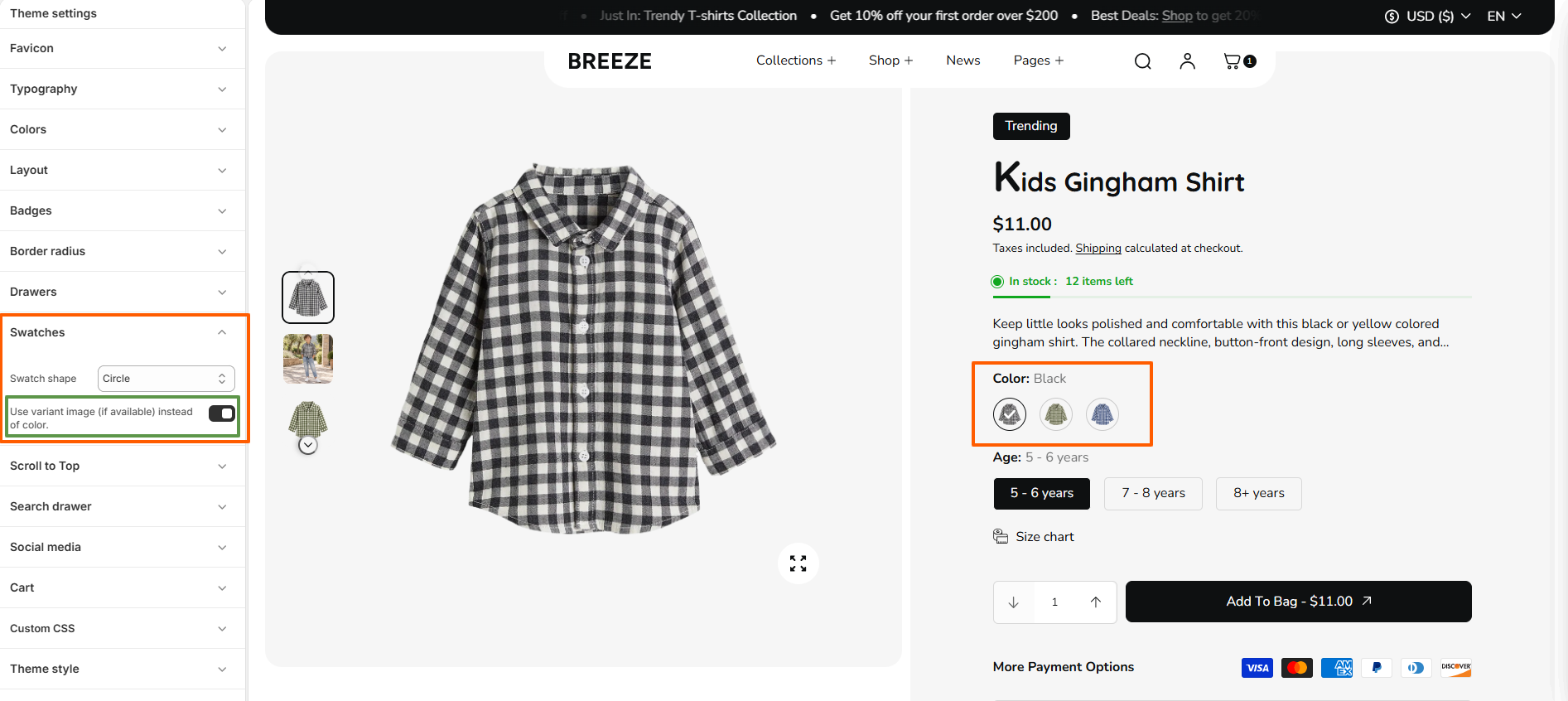
Step 5: Use Variant Images for Swatches

You can choose to display the product variant image instead of the color swatch for each variant. This allows customers to preview the actual product image when selecting a variant.

    Variant Images for Swatches
  • From your Shopify admin, go to Online Store → Themes.
  • Click Customize on the Breeze theme.
  • In the Theme Editor, navigate to Theme Settings → Swatches.
  • Enable Use variant image (if available) instead of color.
  • When enabled, the variant image will be displayed in place of the color swatch whenever an image is assigned to the variant.
  • If a variant does not have an assigned image, the color swatch will be used instead.
  • Click Save to apply your changes.

Customize Product Card Option Colors

You can customize the colors used for product options displayed when hovering over a product card.

    • Product Card Option Text Color — Set the text color of the product options displayed when hovering over a product card.
    • Product Card Option Glass Color — Set the tint of the frosted glass background behind the product options displayed when hovering over a product card.
  • Click Save to apply your changes.

Search Page

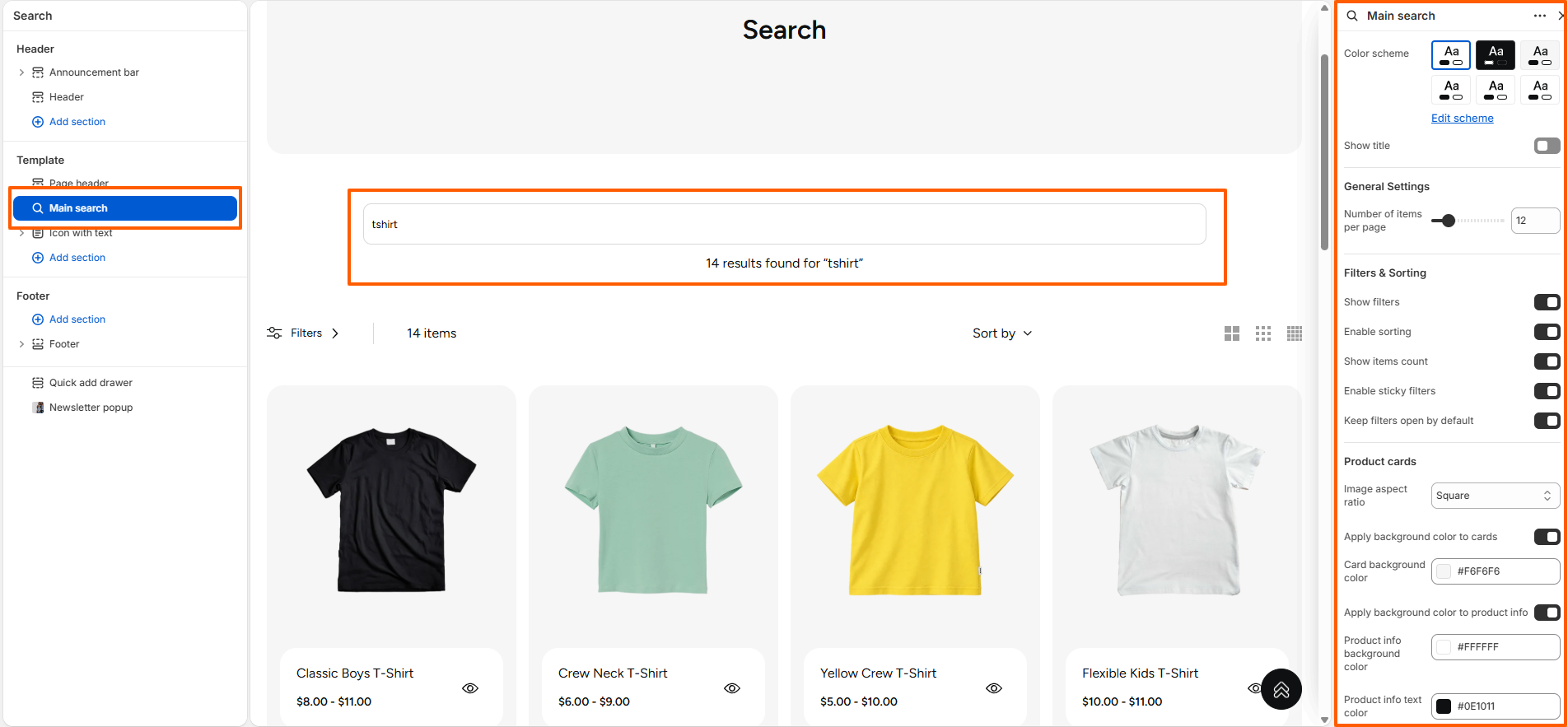
Breeze’s Search page allows you to customize the appearance and functionality of the search results page. You can control the number of products displayed, filters and sorting options, product card appearance, pagination, and section spacing.

Search Page

Search Page Settings
The Search page can be customized directly from the Theme Editor. To access these settings:

  • From your Shopify admin, go to Online Store → Themes.
  • Click Customize on the Breeze theme.
  • Open the Search template and select the Main search section.
  • Configure the available settings according to your requirements.
  • Click Save to apply the changes.

General Settings
The General Settings section includes options to control the search results display.

  • Color Scheme — Select a predefined color scheme for the Search page.
  • Show Title — Show or hide the title displayed at the top of the Search page.
  • Number of Items per Page — Set the number of products displayed on each page of search results.

Filters & Sorting
Use these settings to control the filtering and sorting options available to customers.

  • Show Filters — Show or hide product filters on the Search page.
  • Enable Sorting — Allow customers to sort the search results.
  • Show Items Count — Display the total number of search results.
  • Enable Sticky Filters — Keep the filter controls visible while customers scroll through the search results.
  • Keep Filters Open by Default — Keep the available filter options expanded by default.

Product Cards
Customize the appearance and behavior of product cards displayed in the search results.

  • Image Aspect Ratio — Select the aspect ratio for product images.
  • Apply Background Color to Cards — Enable a background color for the product cards.
  • Card Background Color — Select the background color used for product cards.
  • Apply Background Color to Product Info — Enable a separate background color for the product information area.
  • Product Info Background Color — Select the background color for the product information area.
  • Product Info Text Color — Set the color of the product information text.
  • Card Border Radius — Adjust the corner radius of product cards.
  • Show Secondary Image on Hover — Display the product's secondary image when hovering over a product card.
  • Show Quick View Button — Show or hide the Quick View button on product cards.

Pagination
Customize the appearance and alignment of the pagination controls used for search results.

  • Color Scheme — Select a predefined color scheme for the pagination controls.
  • Pagination Alignment — Set the pagination alignment to Left, Center, or Right.

Section Spacing
Adjust the spacing around the Search page section independently for desktop and mobile devices.

  • Desktop Top Spacing — Set the top spacing for desktop screens.
  • Desktop Bottom Spacing — Set the bottom spacing for desktop screens.
  • Mobile Top Spacing — Set the top spacing for mobile screens.
  • Mobile Bottom Spacing — Set the bottom spacing for mobile screens.

Collection Page

Breeze's Collection Page consists of two major sections: Page Header and Collection. These sections work together to present collection information and provide customers with an organized product browsing experience.

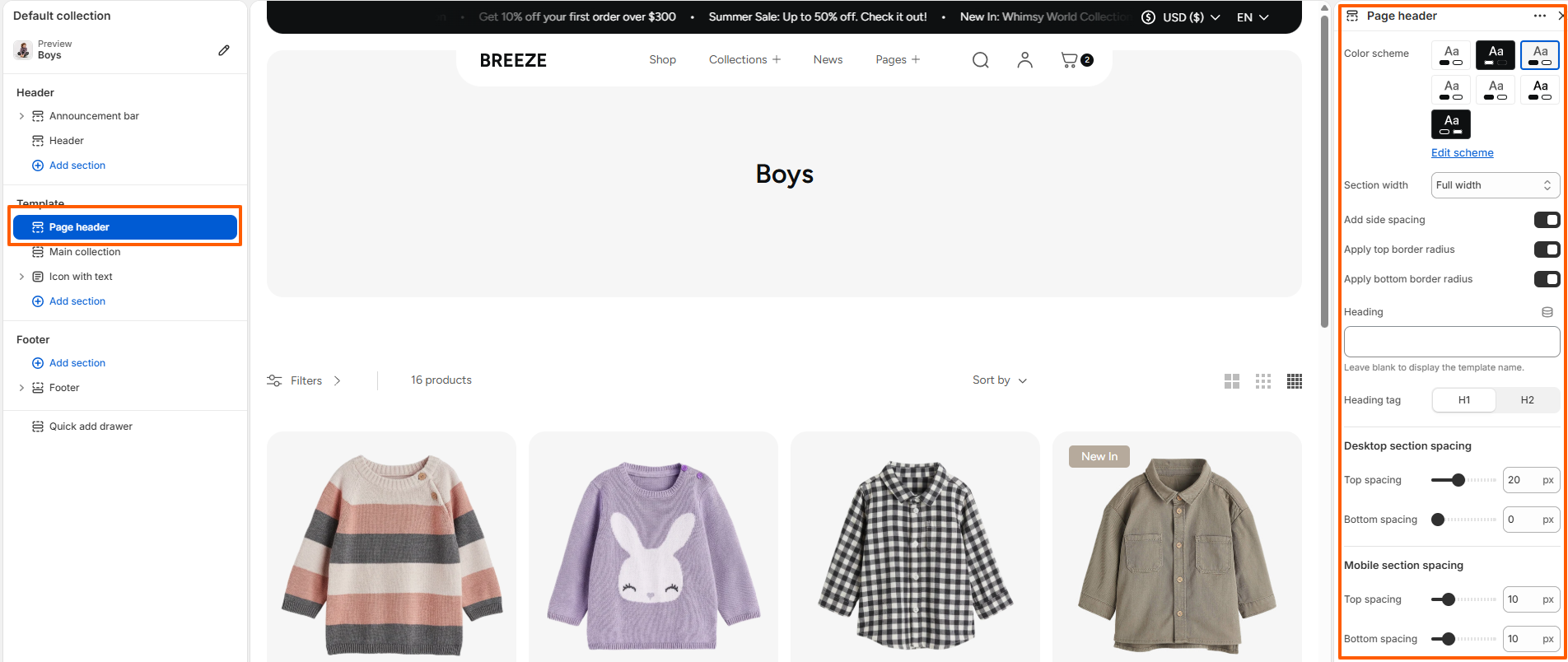
Page Header

The Page Header section displays the collection or page heading at the top of the page. It provides customization options for the section appearance, heading content, width, border radius, and responsive spacing.

Available settings include:

  • Color Scheme – Select the color palette for the page header.
  • Section Width – Choose the width of the page header section.
  • Add Side Spacing – Add spacing to the sides of the section.
  • Apply Top Border Radius – Apply a border radius to the top corners of the section.
  • Apply Bottom Border Radius – Apply a border radius to the bottom corners of the section.
  • Heading – Enter a custom heading. Leave blank to display the template name.
  • Heading Tag – Select the heading HTML tag, either H1 or H2.
  • Desktop Section Spacing – Set the top and bottom spacing for desktop devices.
  • Mobile Section Spacing – Set the top and bottom spacing for mobile devices.
page header section

Collection

The Collection section displays products from the current collection and provides customers with options to view collection information, filter and sort products, and navigate through the available products. It also includes customization options for product cards, Quick View, pagination, and responsive spacing.

Collection Title Settings include:

  • Color Scheme – Select the color palette for the collection title area.
  • Show Collection Title – Display or hide the collection title.
  • Title / Collection Image Width – Set the width of the collection title and image area.
  • Show Collection Image – Display or hide the collection image.

General Settings include:

  • Color Scheme – Select the color palette for the main collection content.
  • Number of Products Per Page – Set the number of products displayed on each page.

Filters & Sorting Settings include:

  • Show Filters – Display or hide the product filtering options.
  • Enable Sorting – Allow customers to sort products using the available sorting options.
  • Show Products Count – Display the total number of products available in the collection.
  • Enable Sticky Filters – Keep the filter controls visible while browsing the collection.
  • Keep Filters Open by Default – Keep the filter options expanded when the collection page loads.

Product Card Settings include:

  • Image Aspect Ratio – Select the aspect ratio for product images.
  • Apply Background Color to Cards – Enable or disable the background color applied to product cards.
  • Card Background Color – Select the background color for product cards.
  • Apply Background Color to Product Info – Enable or disable a separate background color for the product information area.
  • Product Info Background Color – Select the background color for the product information area.
  • Product Info Text Color – Set the color of the product information text.
  • Card Border Radius – Adjust the corner radius of product cards.
  • Show Secondary Image on Hover – Display the secondary product image when hovering over a product card.
  • Show Quick View Button – Enable or disable the Quick View button on product cards.
  • Quick View Button Background – Select the background color of the Quick View button.
  • Quick View Button Icon Color – Set the icon color of the Quick View button.

Pagination Settings include:

  • Color Scheme – Select the color palette for the pagination.
  • Pagination Alignment – Align the pagination to the left, center, or right.

Spacing Settings include:

  • Desktop Section Spacing – Configure the top and bottom spacing for desktop devices.
  • Mobile Section Spacing – Configure the top and bottom spacing for mobile devices.
collection section settings

Setting Up Product Filters

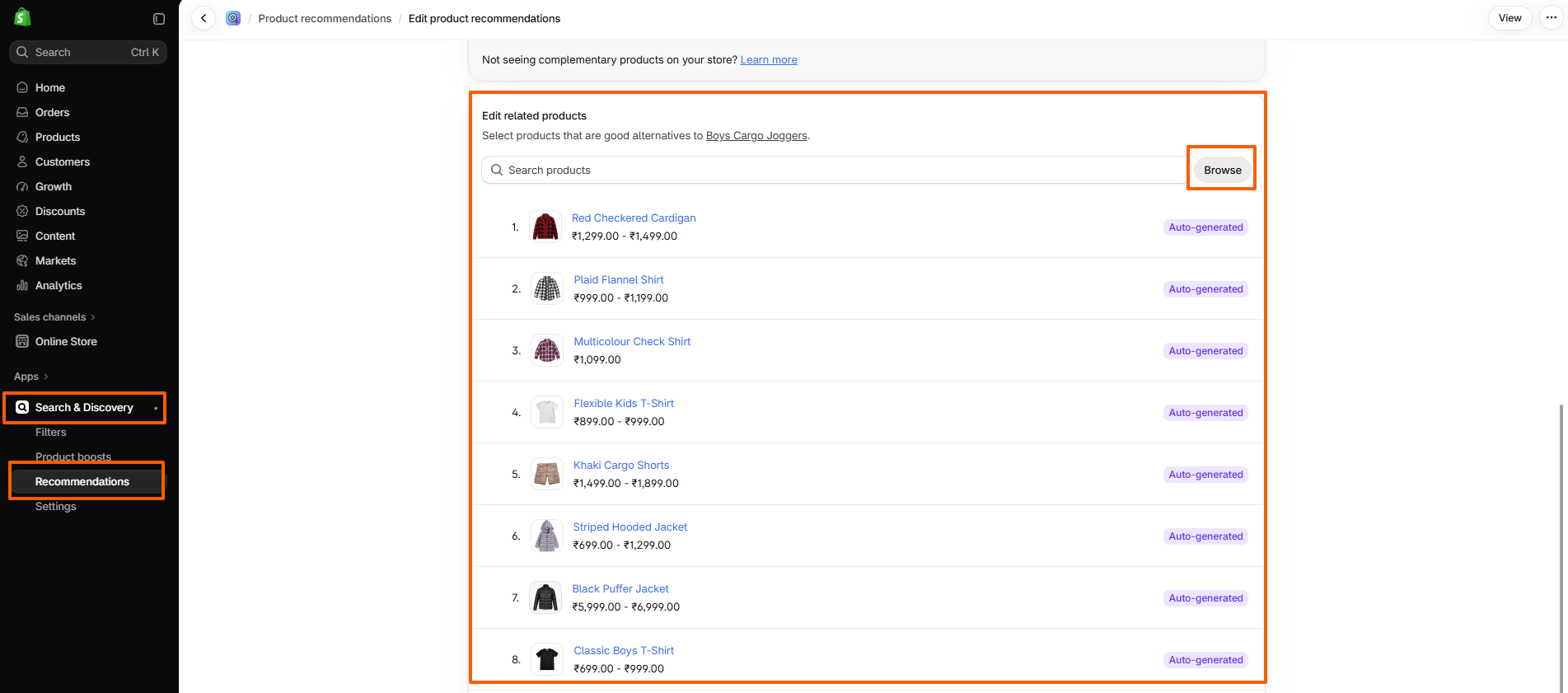
Product filtering is powered by Shopify's Search & Discovery app. Before filters appear on the collection page, they must be configured within Shopify.

  1. From your Shopify Admin, go to Apps → Search & Discovery.
  2. Open Filters and click Add Filters.
  3. Select the filters you want to display, such as Availability, Price, Product Type, Vendor, Variant Options, or Metafields.
  4. Save your changes.
  5. Return to the theme editor and enable filtering in the Collection section settings.

Once configured, customers can use these filters on collection pages to quickly narrow down products and find relevant items.

collection section

Customers can browse products using advanced filtering and sorting options such as availability, price, size, color, category, and other Shopify-supported filters. Combined with sorting options like Best Selling, Featured, Price, and Newest, the Collection page helps shoppers quickly find the products they need.

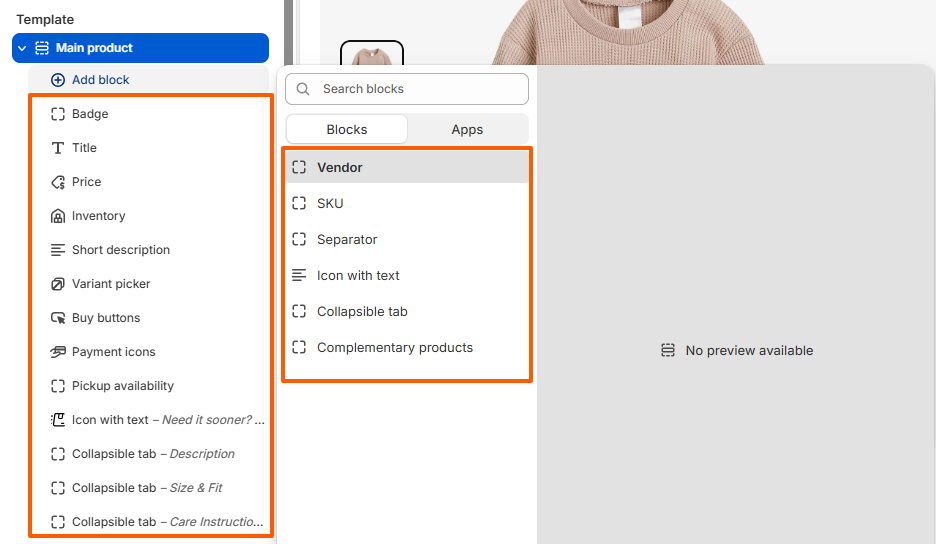
Product Page Blocks

Product Page Blocks

1. Badge : Displays product badges that highlight important product information such as sale offers, discounts, or other promotional labels. Badges help customers quickly identify key product statuses.

2. Title : Displays the product title on the product page, allowing customers to quickly identify the product they are viewing.

3. Price : Displays the product price along with compare-at pricing and sale pricing when applicable. This provides customers with clear pricing information before purchasing.

4. Vendor : Displays the vendor or brand name associated with the product. This can help customers identify the product manufacturer or brand.

5. SKU : Displays the product's Stock Keeping Unit (SKU), allowing customers to view the product's unique inventory reference when available.

6. Separator : Adds a horizontal separator between product content blocks to create visual separation and improve the overall organization of the product information.

7. Inventory : Displays the current inventory status of the product and can communicate stock availability or low-stock information to customers.

8. Short Description : Displays a brief product description that provides customers with key information about the product without requiring them to read the full product description.

9. Variant Picker : Allows customers to select available product variants such as size, color, material, or style before adding the product to the cart.

  • Picker Type – Controls how product variants are displayed. Available options include:
    • Button – Displays variant options as selectable buttons.
    • Dropdown – Displays variant options inside dropdown selectors.
    • Mixed – Uses a combination of variant selection styles based on the product options.
  • Show Selected Value – Displays the currently selected variant value alongside the corresponding product option.

10. Buy Buttons : Displays the quantity selector and Add to Cart button, allowing customers to select the desired quantity and add the product to their cart.

  • Layout Style – Controls how the quantity selector and Add to Cart button are arranged.
    • Inline – Displays the quantity selector and Add to Cart button on the same line.
    • Stack – Displays the quantity selector and Add to Cart button in a stacked layout.
  • Show Dynamic Checkout Button – Displays a dynamic checkout button that allows customers to proceed directly to checkout using an available accelerated payment method.
  • Enable Gift Recipient Form – Displays a form that allows customers to enter recipient information when purchasing a gift.

11. Payment Icons : Displays available payment method icons on the product page, helping customers understand which payment methods are supported by the store.

12. Pickup Availability : Displays local pickup availability for the selected product and provides customers with information about available pickup locations.

13. Icon with Text : Displays an icon alongside custom text to highlight additional product information, services, or useful messages.

  • Select Icon – Select an icon to display alongside the text.
  • Text – Add the content that should be displayed with the selected icon. The text editor supports formatting and links.
  • Text Alignment – Controls the alignment of the icon and text. Available options include Left, Center, and Right.

14. Collapsible Tab : Displays additional product information inside an expandable and collapsible content area. This is useful for organizing information such as descriptions, size and fit details, care instructions, shipping information, or other product-specific content.

  • Tab Title – Defines the heading displayed for the collapsible tab.
  • Tab Content – Add the information displayed when the tab is expanded. The rich text editor supports formatting and links.
  • Show Product Description – Displays the product description within the collapsible tab.
  • Keep Open by Default – Keeps the collapsible tab expanded when the product page initially loads.

15. Complementary Products : Displays recommended products alongside the current product, helping customers discover additional items that pair well with their selected product.
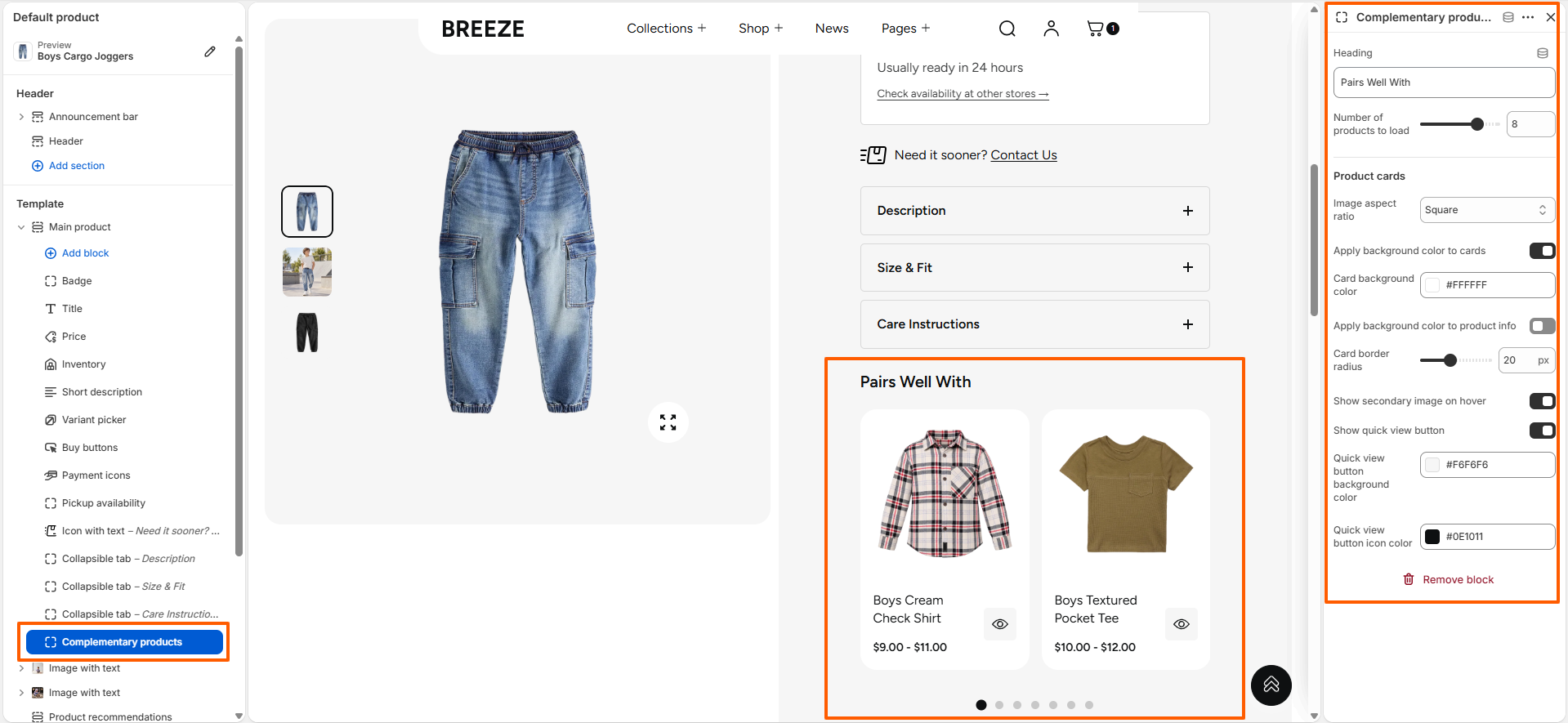
Complementary Products
  • Heading : Defines the heading displayed above the complementary products. This can be used to describe the relationship between the current product and the recommended products.
  • Number of Products to Load : Controls the number of complementary products loaded and displayed in the product recommendation slider.
  • Image Aspect Ratio : Controls the aspect ratio of product images displayed within the product cards. The available option shown is Square.
  • Apply Background Color to Cards : Enables a background color for the complementary product cards.
  • Card Background Color : Sets the background color applied to the product cards when the background color option is enabled.
  • Apply Background Color to Product Info : Enables a separate background color for the product information area within each card.
  • Card Border Radius : Adjusts the roundness of the corners of the complementary product cards.
  • Show Secondary Image on Hover : Displays the product's secondary image when the customer hovers over a product card.
  • Show Quick View Button : Displays a quick view button on the product card, allowing customers to view product details without leaving the current product page.
  • Quick View Button Background Color : Sets the background color of the quick view button.
  • Quick View Button Icon Color : Sets the color of the icon displayed inside the quick view button.

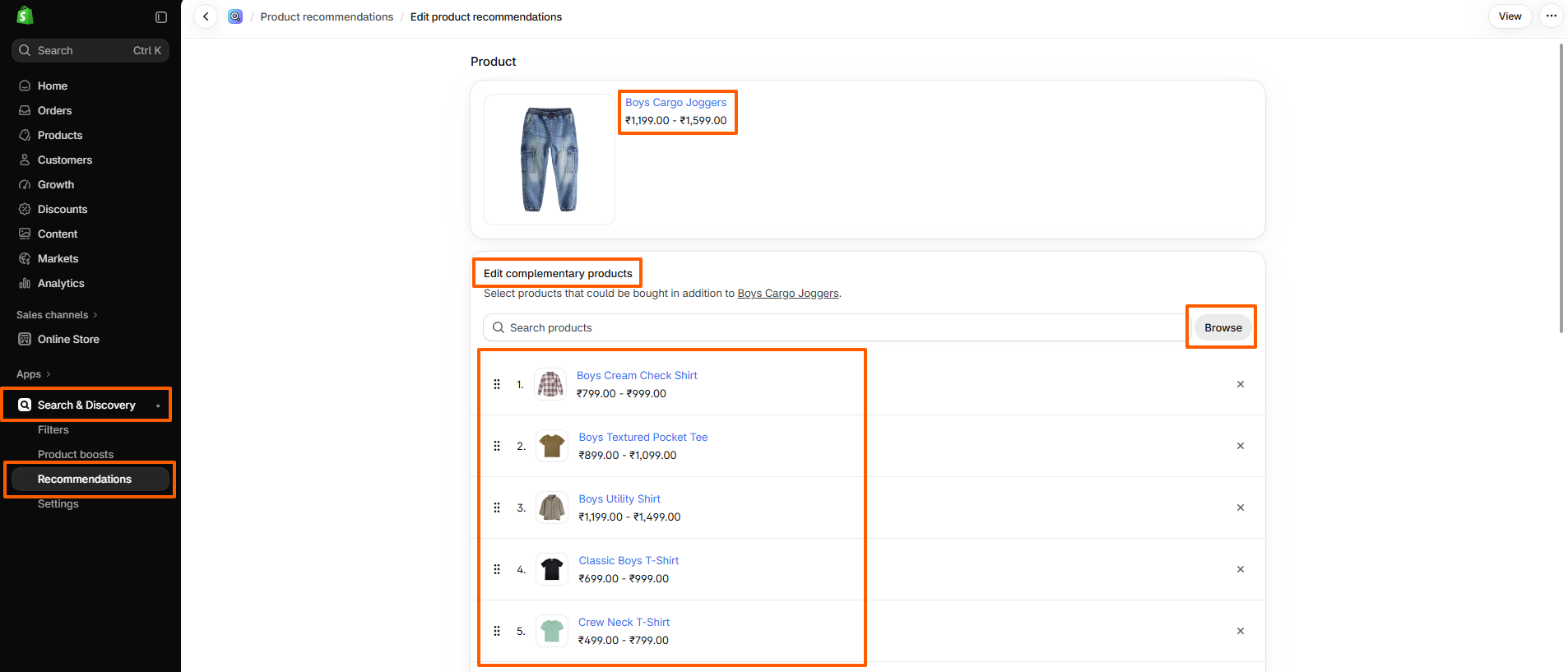
How to Configure Complementary Products:

  1. Open Shopify Admin.
  2. Go to Apps → Search & Discovery.
  3. Select the product for which you want to add recommendations.
  4. Locate the Complementary Products section.
  5. Add the products you want to recommend together.
  6. Save your changes.
  7. Return to the theme editor and ensure the Complementary Products block is enabled.

Once configured, the selected products will automatically appear in this section on the product page.

Complementory products setup

Product Recommendations Section

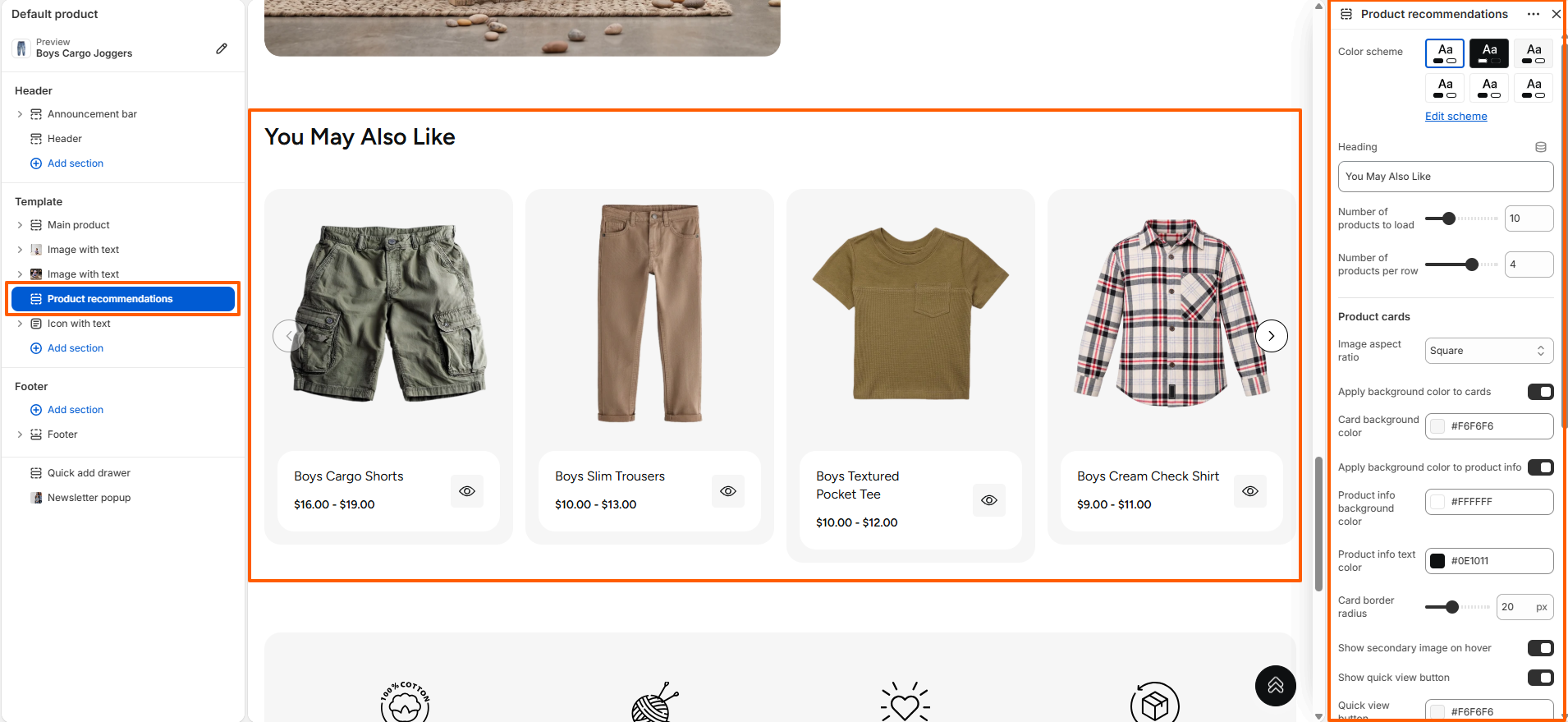
The Product Recommendations section displays recommended products on the product page to help customers discover additional items based on the product they are viewing. This section helps improve product discovery and provides customers with more shopping options.

Product recommendations are powered by Shopify's product recommendation system and can display products that are relevant to the current product.

Product Recommendations section settings

Available Settings

  • Color Scheme: Select the color scheme applied to the Product Recommendations section.
  • Heading: Customize the heading displayed above the recommended products.
  • Number of Products to Load: Define the total number of recommended products loaded in the section.
  • Number of Products Per Row: Control how many product cards are displayed in each row on desktop devices.
  • Image Aspect Ratio: Select the aspect ratio used for product images displayed within the product cards.
  • Apply Background Color to Cards: Enable or disable a background color for the product cards.
  • Card Background Color: Select the background color applied to the product cards when the card background option is enabled.
  • Apply Background Color to Product Info: Enable or disable a separate background color for the product information area within each card.
  • Product Info Background Color: Select the background color applied to the product information area when the option is enabled.
  • Product Info Text Color: Set the text color used for product information such as the product title and price.
  • Card Border Radius: Adjust the roundness of the product card corners.
  • Show Secondary Image on Hover: Display the product's secondary image when customers hover over a product card.
  • Show Quick View Button: Display a quick view button on product cards, allowing customers to preview product information without leaving the current page.
  • Quick View Button Background Color: Set the background color of the quick view button.
  • Quick View Button Icon Color: Set the color of the icon displayed inside the quick view button.
  • Mobile Layout: Choose the number of product columns displayed on mobile devices. The available options are One and Two.
  • Desktop Section Spacing: Configure the top and bottom spacing of the Product Recommendations section on desktop devices.
  • Mobile Section Spacing: Configure the top and bottom spacing of the Product Recommendations section on mobile devices.

How It Works

  • Related products are automatically generated by Shopify based on product data.
  • Merchants can override automatic recommendations using the Shopify Search & Discovery app.
  • Each product can have its own unique set of related products.
  • Any updates made in the Search & Discovery app are reflected automatically on the storefront.

Related Product Setup

Blog Setting

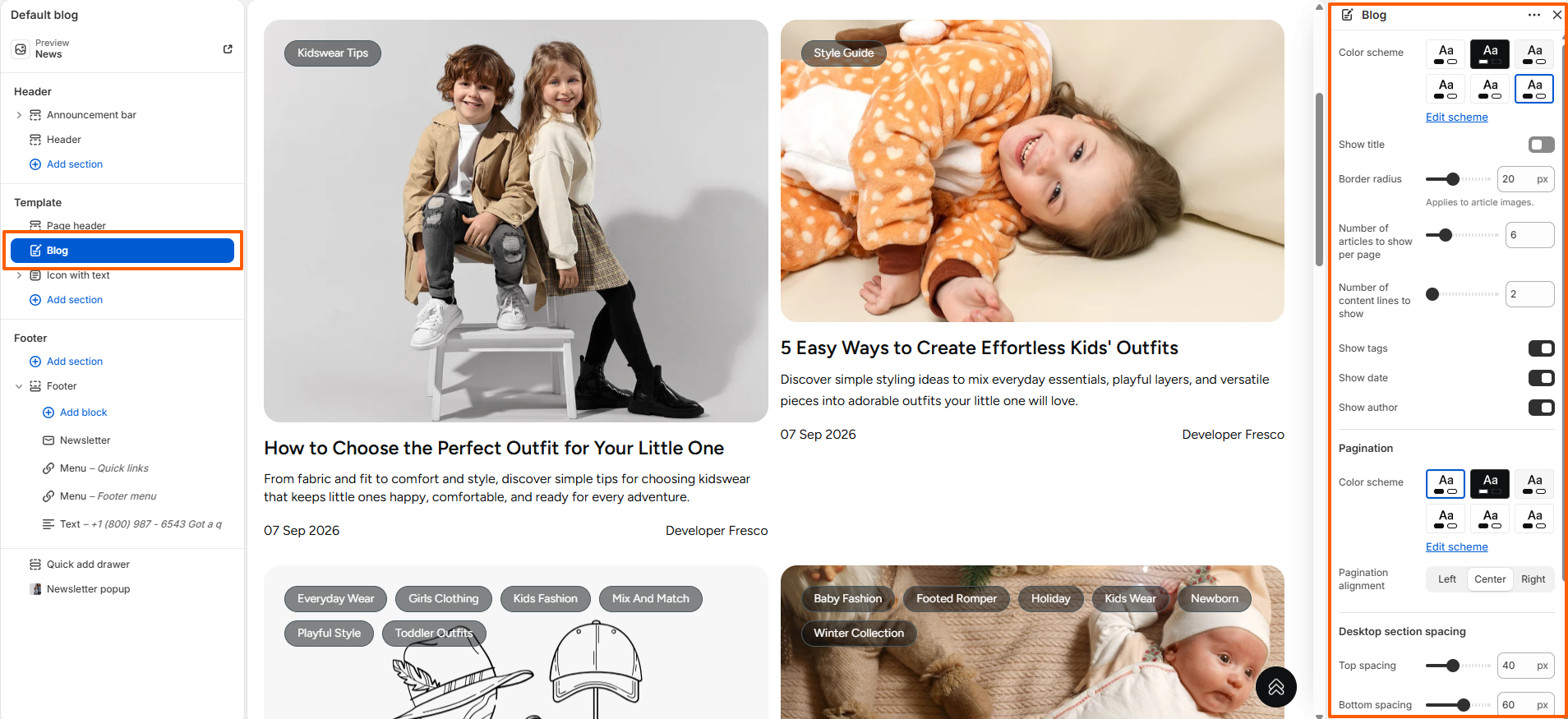
The Blog section displays your blog articles in a structured layout, allowing customers to browse your latest posts, updates, stories, and other published content.

The section provides settings to control the blog appearance and article information, including the color scheme, title visibility, article image border radius, number of articles displayed per page, and the number of content lines shown for each article.

You can also choose whether to display article tags, dates, and author information. Pagination has separate color scheme and alignment settings, while desktop and mobile section spacing can be adjusted independently using the top and bottom spacing controls.

Blog Page Settings

Blog Post

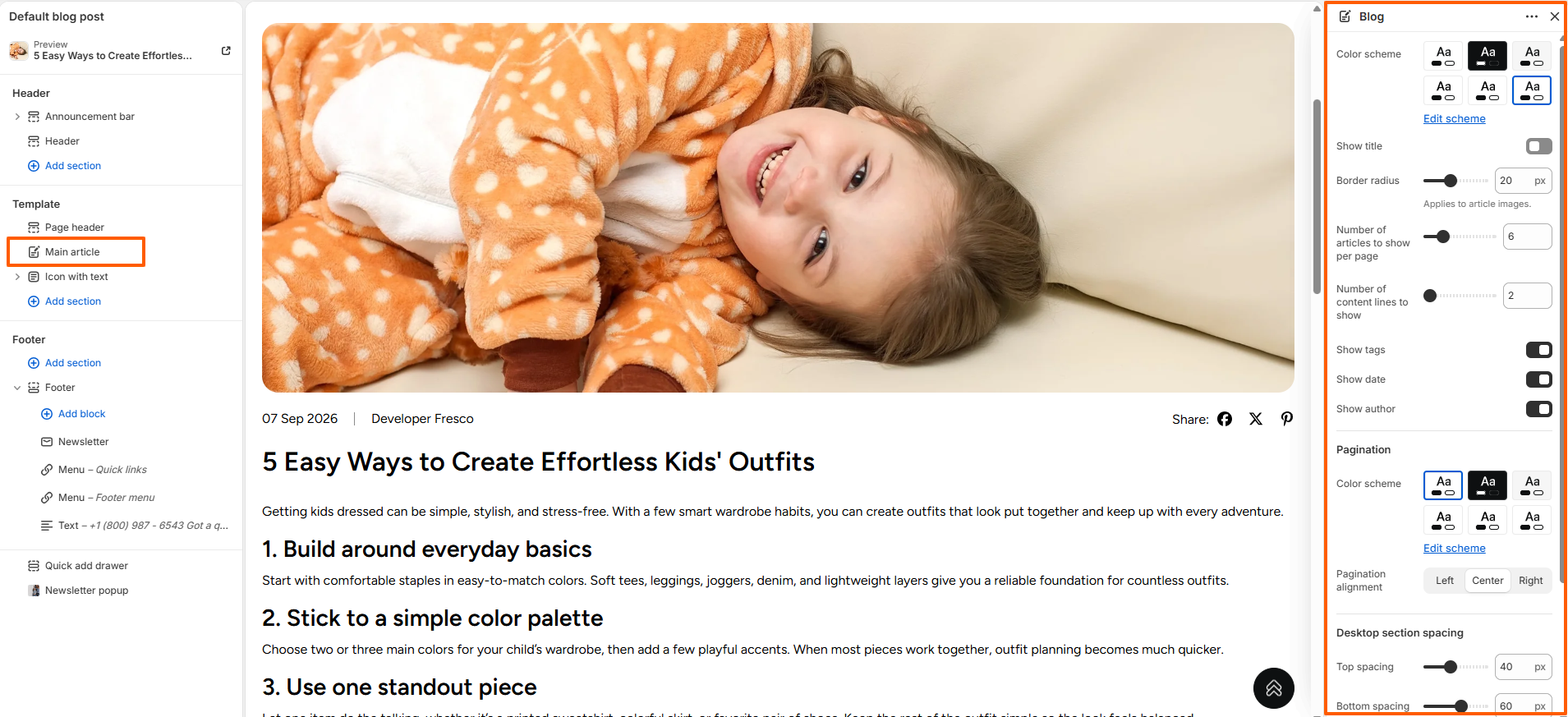
The Blog Post template displays individual blog articles in a structured layout, allowing customers to read your published content and explore article details.

The template provides settings to control the article appearance, including the color scheme, title visibility, featured image border radius, and the number of content lines displayed for article listings.

You can also choose whether to display article tags, publication date, and author information. Pagination includes separate color scheme and alignment controls, while desktop and mobile section spacing can be adjusted independently using the top and bottom spacing settings.

Blog Post Settings

Home Page Layout

A powerful homepage grabs attention, builds trust, and guides shoppers effortlessly to what they’re looking for. It sets the tone, showcases your brand, and drives conversions. The homepage typically consists of the following sections:

Announcement bar, Header & Slideshow section

section 1

Collection tabs section

section 2

Video collections

sections 3

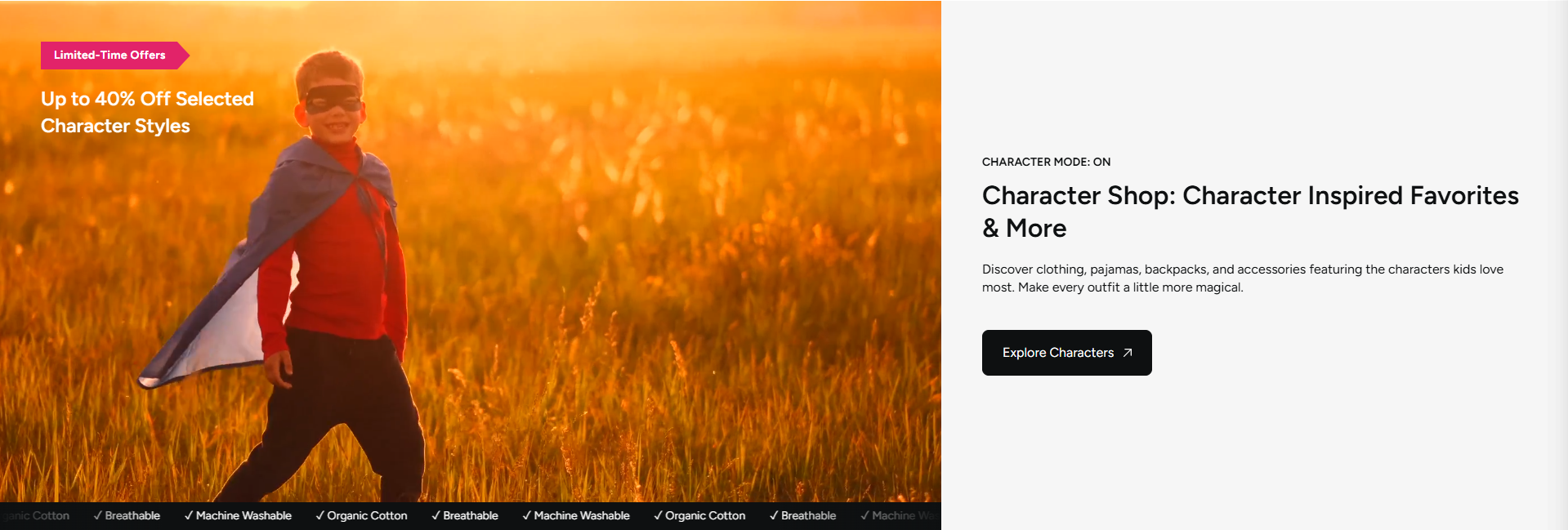
Text with floating images

sections 4

Shop the look

sections 5

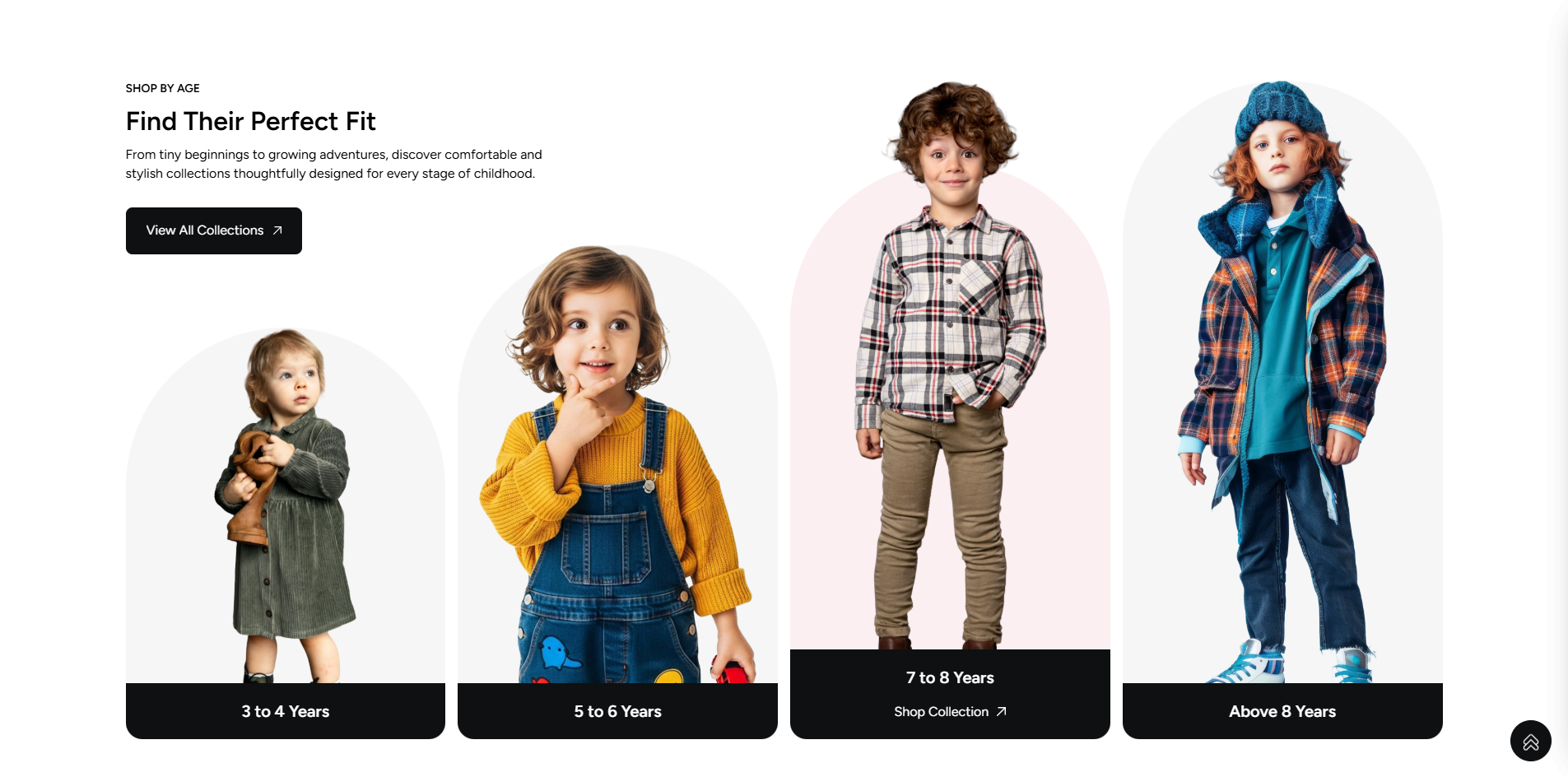
Collection list

sections 6

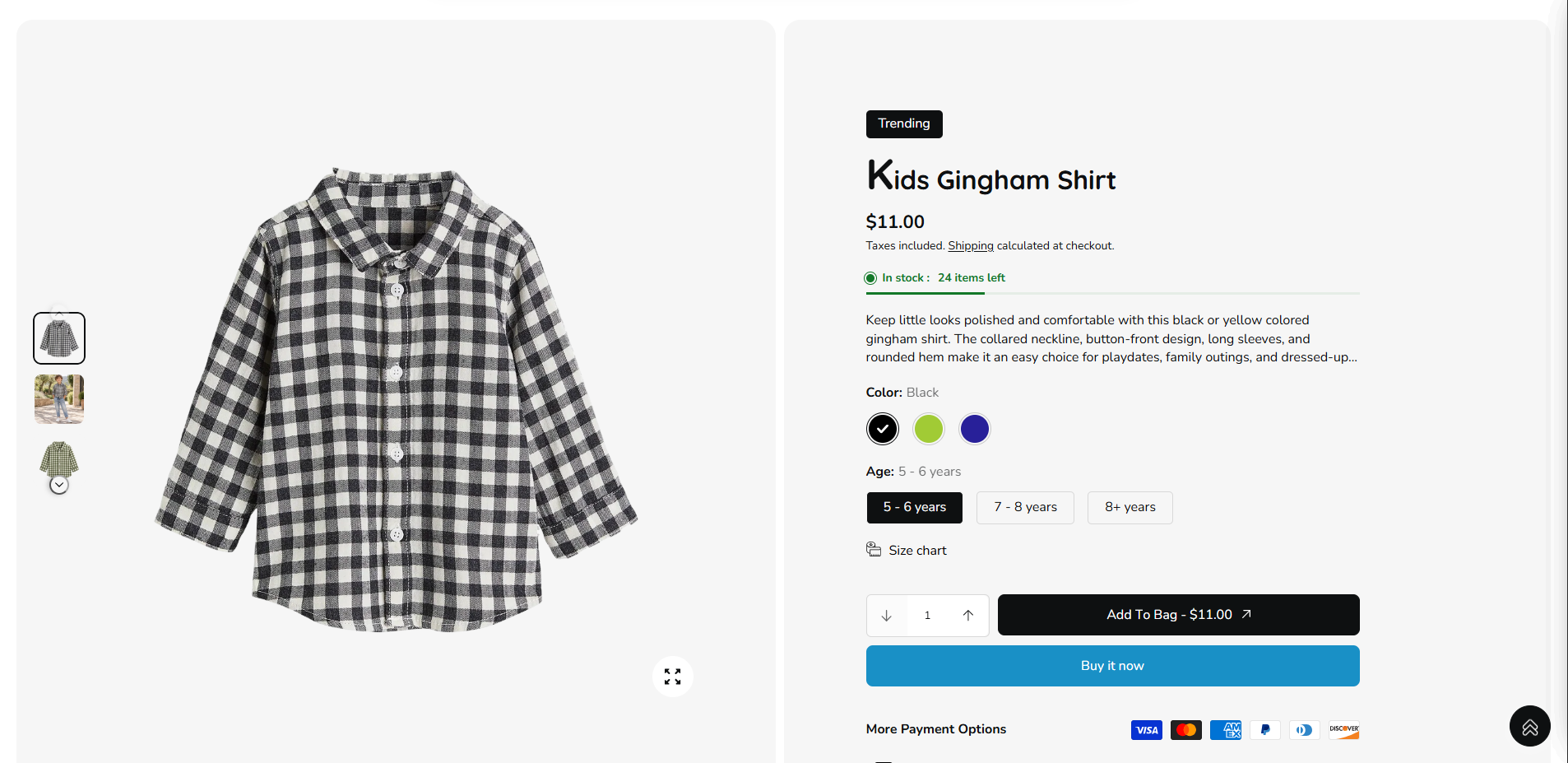
Featured product

sections 6

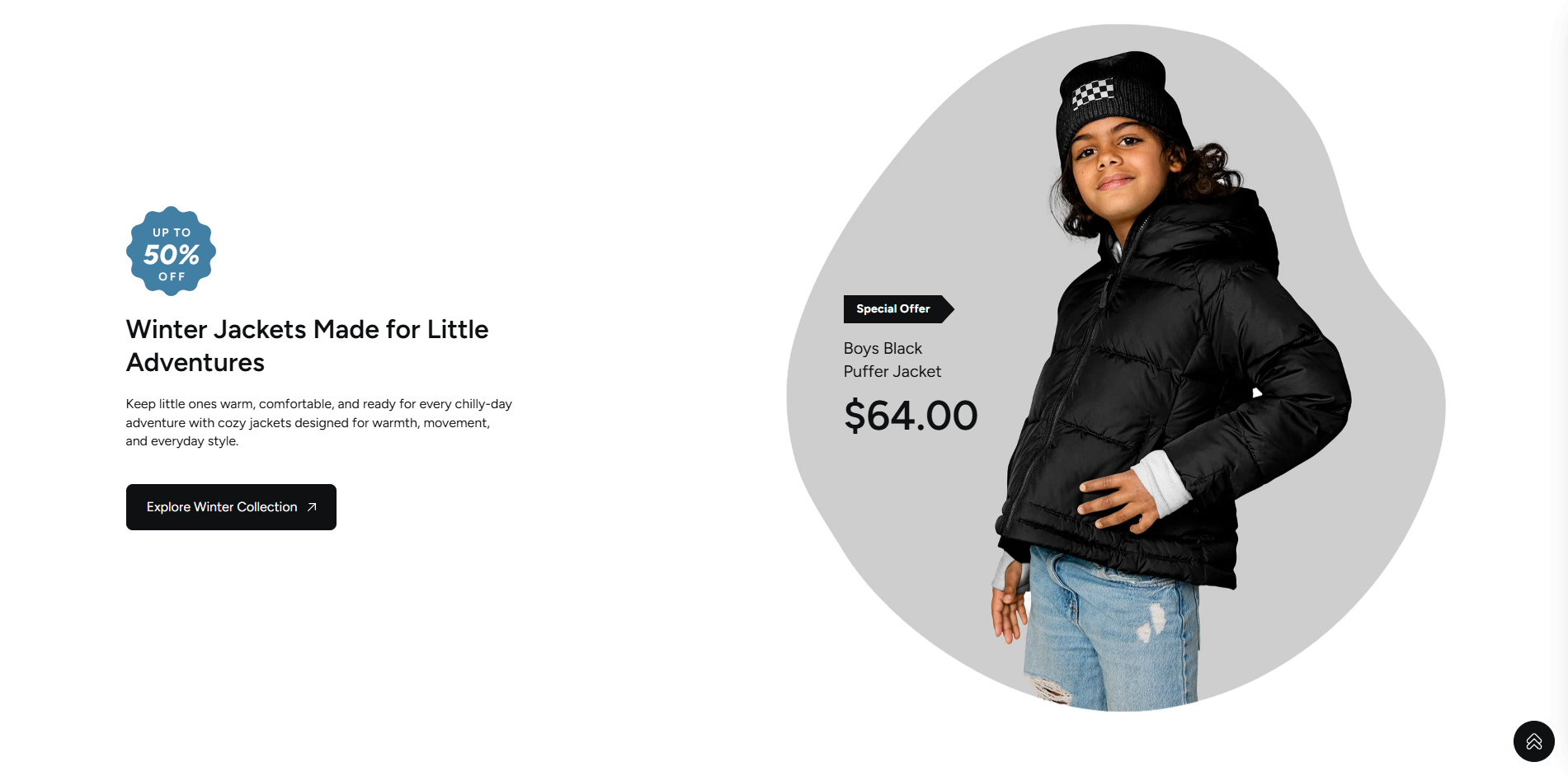
Offer section

sections 7

Countdown timer

sections 8

Image with text

sections 8

Image hotspot

sections 8

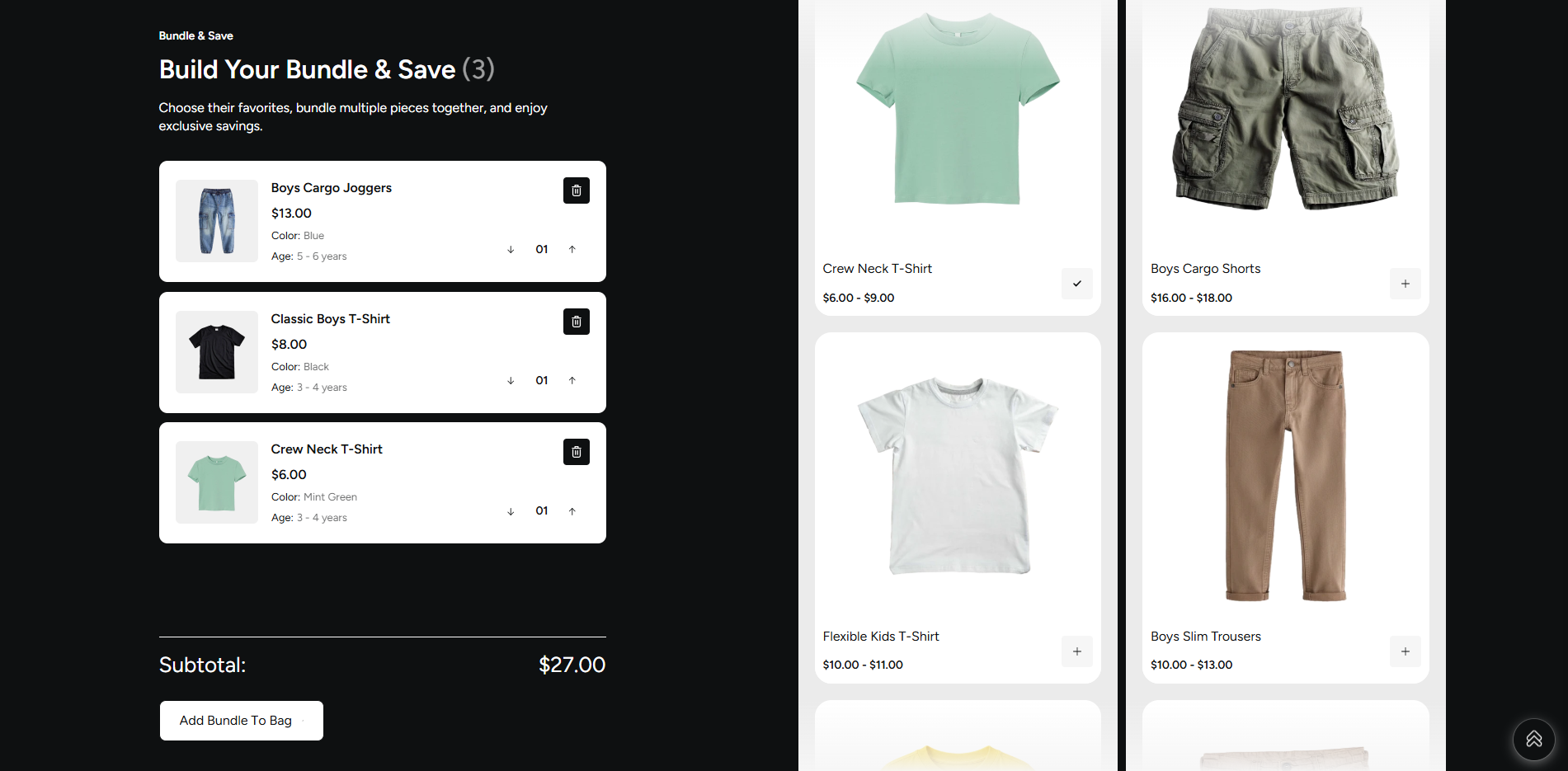
Build a bundle

section 10

Testimonials

section 11

Featured blog

section 12

Image gallery

section 14

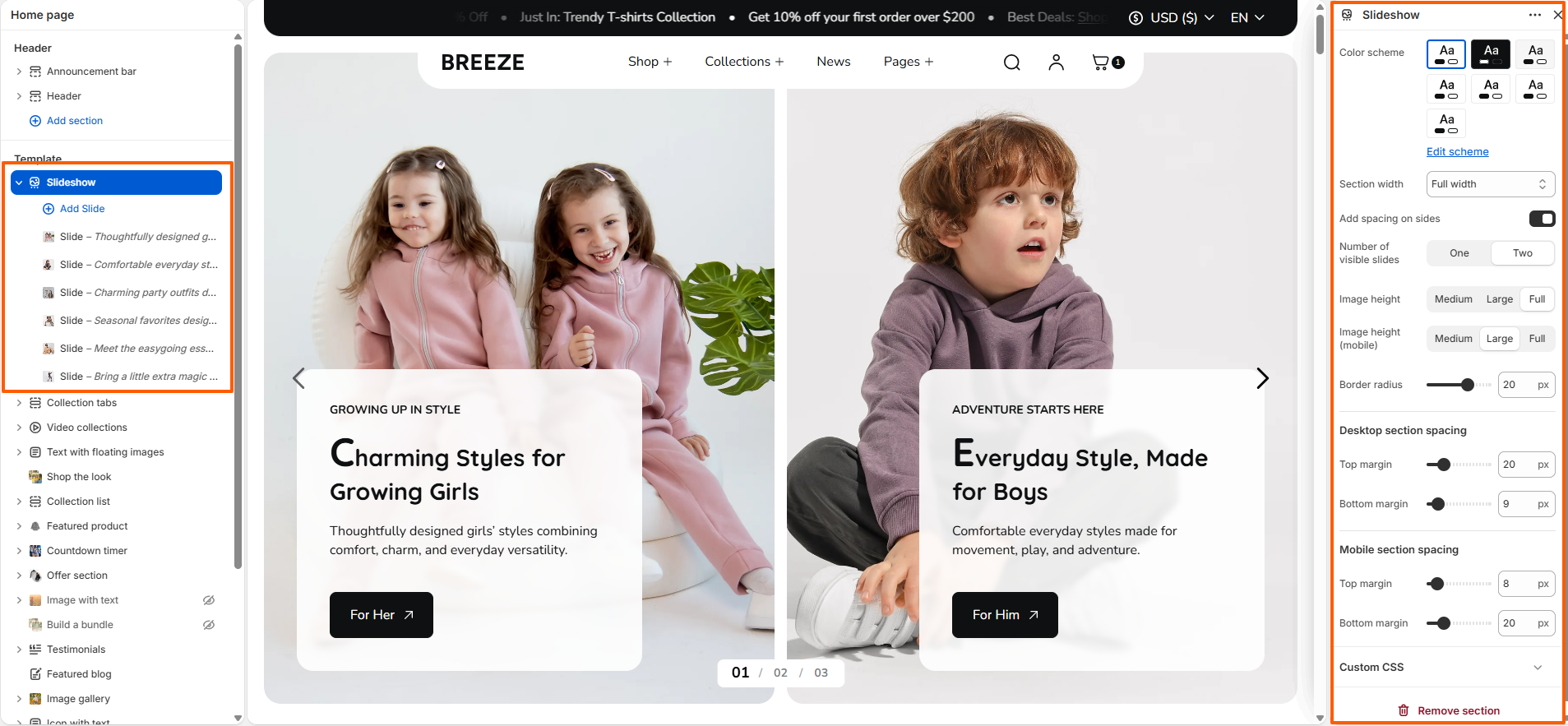
Slideshow

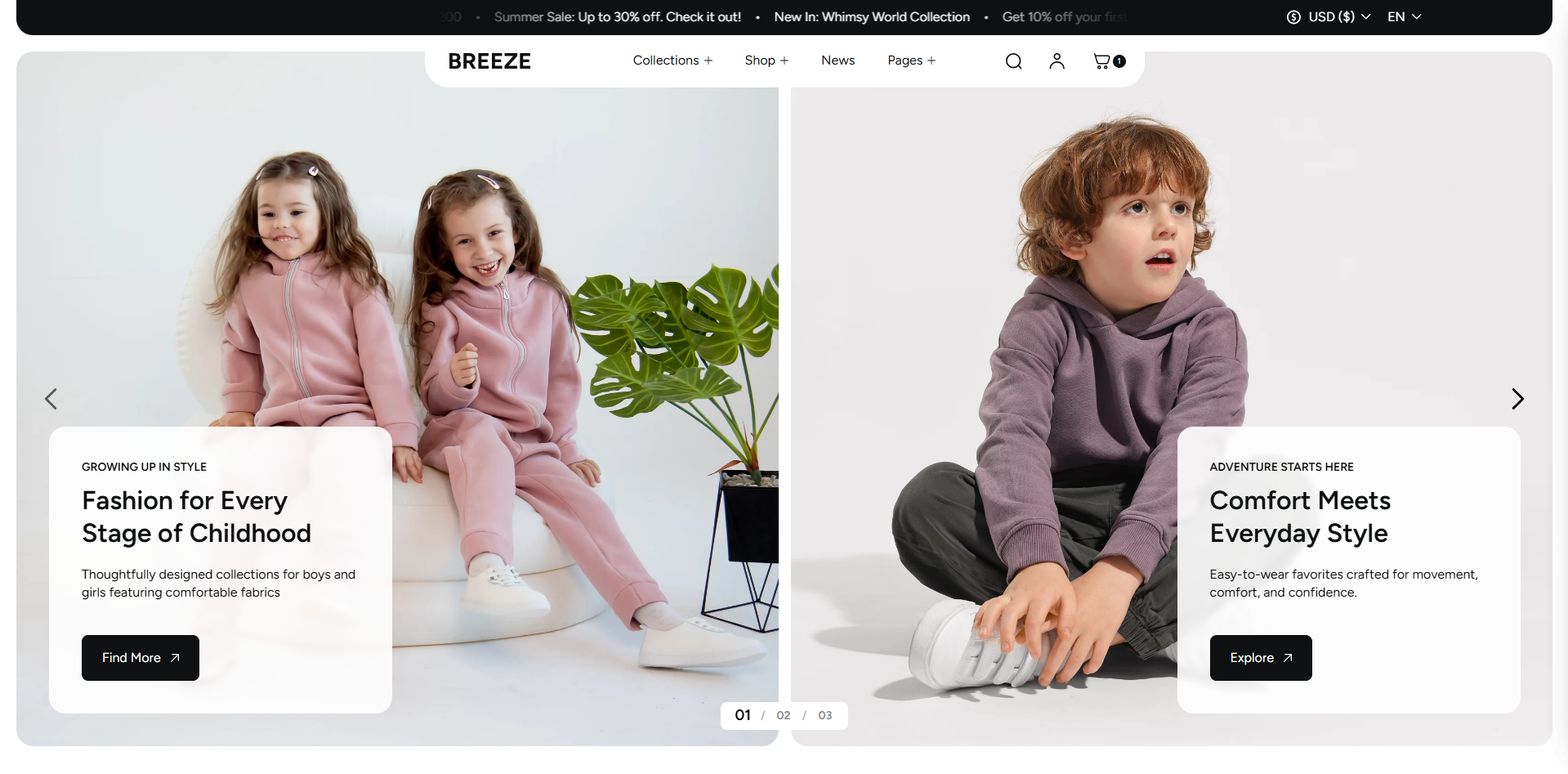
The Slideshow section allows you to showcase multiple promotional banners with images, videos, and customizable content. It includes various customization options such as color scheme, section width, side spacing, number of visible slides, image height, border radius, and desktop and mobile section spacing. You can display one or two slides simultaneously and adjust the layout to create an engaging visual experience for your store.

Slideshow section settings

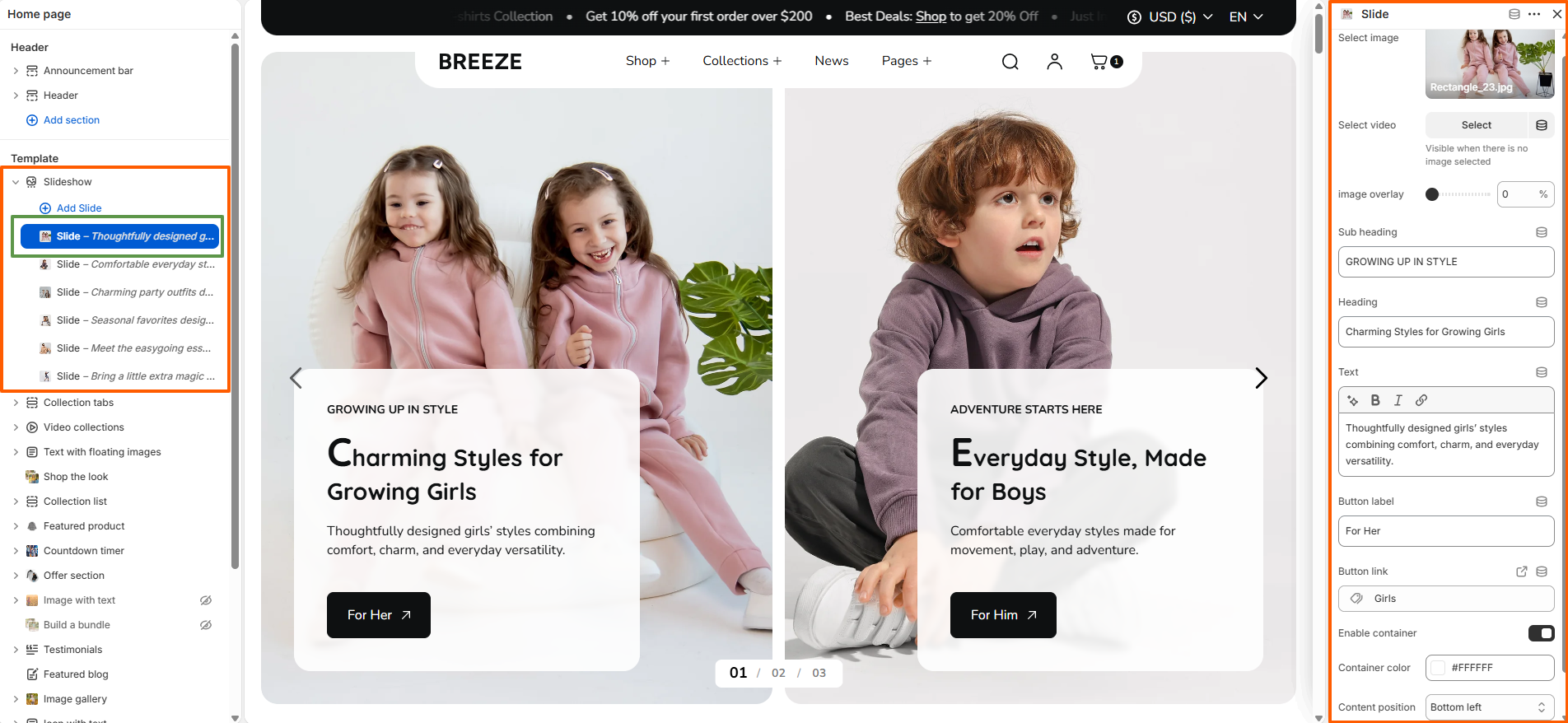
Slide (Block)

The Slide block contains the individual content displayed within the Slideshow section. You can upload an image or video, adjust the image overlay, and add a subheading, heading, and description text. It also allows you to configure a button with a custom label and link, enable or disable the content container, and customize its background color and content position to match your store's design.

Slide block content settings

Video Collections

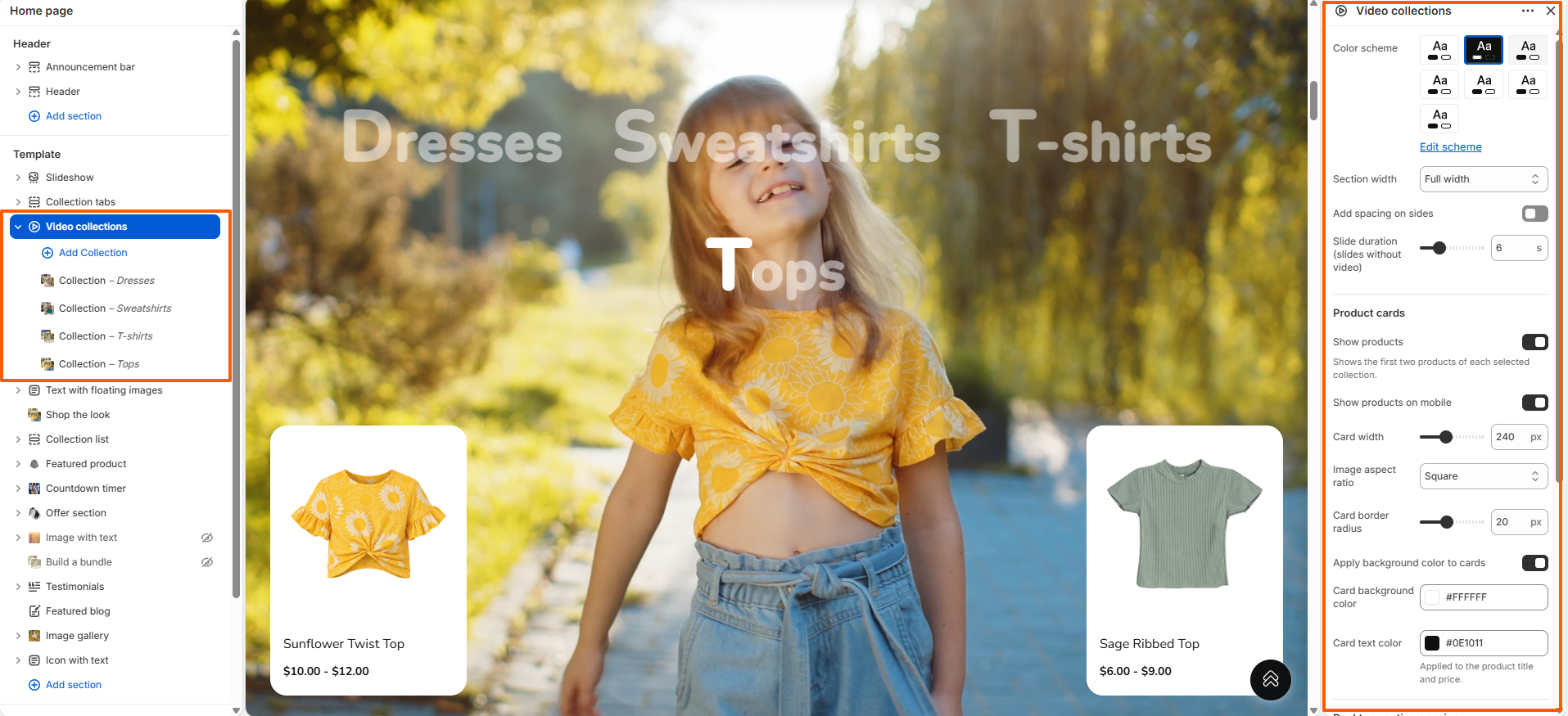
The Video Collections section allows you to showcase multiple collections using background videos, creating an engaging and visually appealing shopping experience. It includes customization options such as color scheme, section width, side spacing, slide duration for slides without videos, and product card settings. You can show or hide products, control product visibility on mobile, adjust card width and image aspect ratio, and customize card border radius, background color, and text color to match your store's design.

Video collections section settings

Collection (Block)

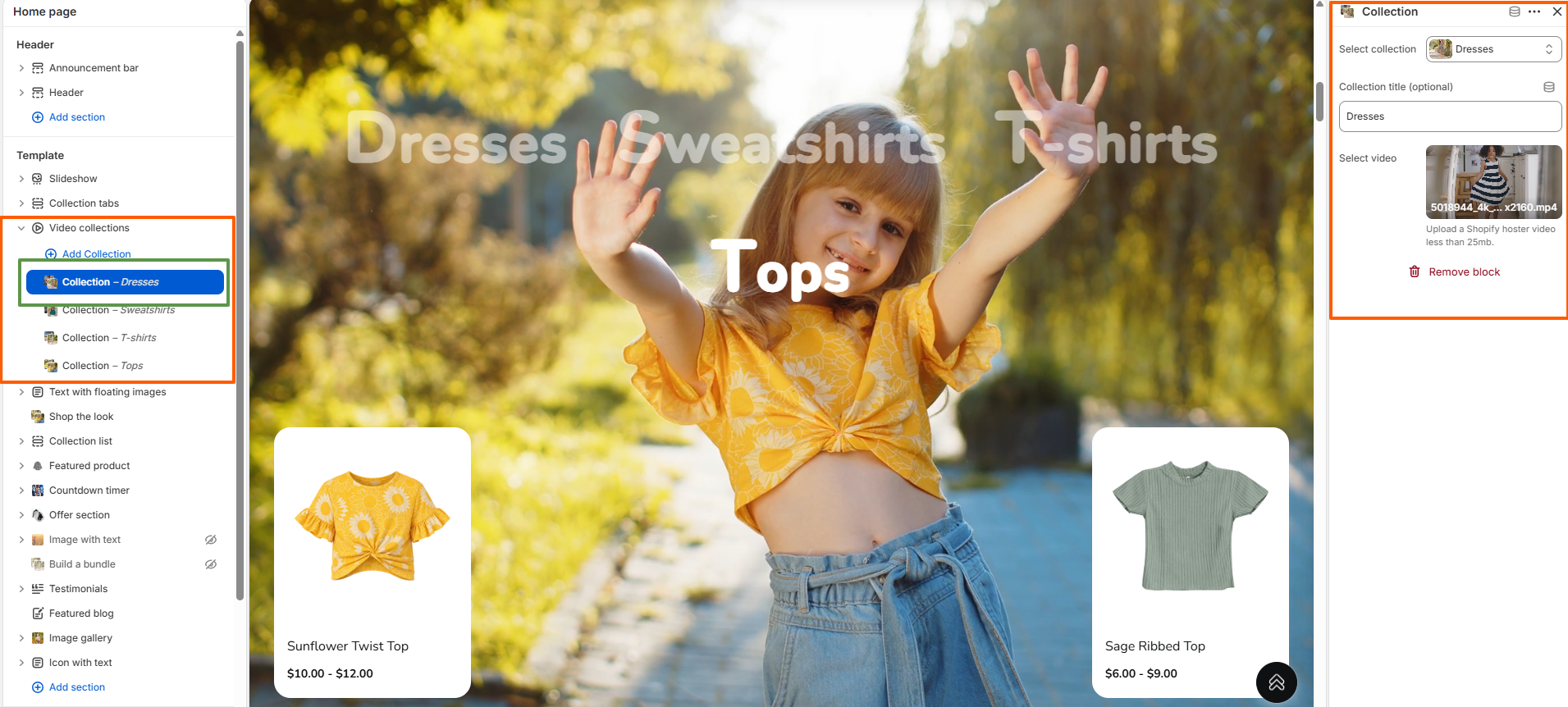
The Collection block allows you to add individual collections to the Video Collections section. You can select a collection, customize its displayed title, and upload a video to represent the collection. Each collection block provides its own video content, allowing you to create a dynamic collection showcase where customers can explore different categories through video backgrounds and featured products.

Video collection block settings

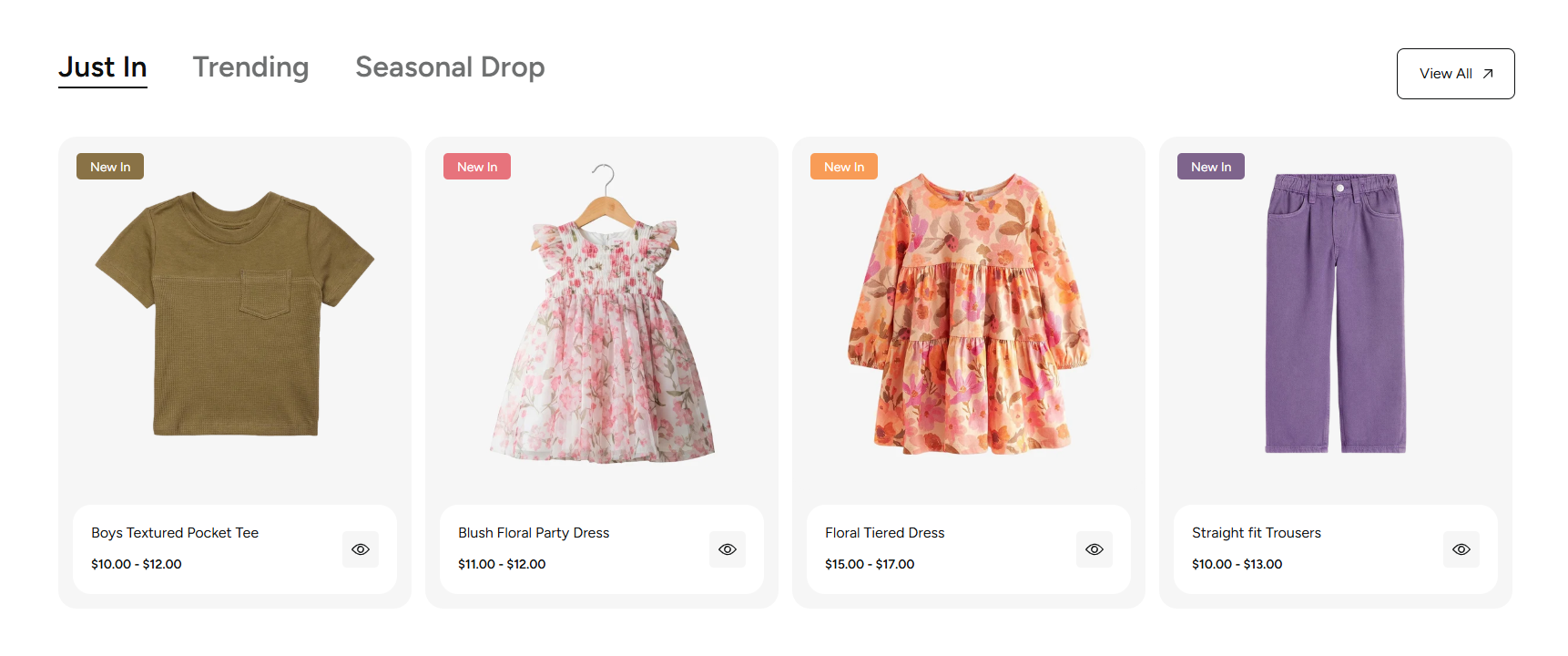
Collection Tabs

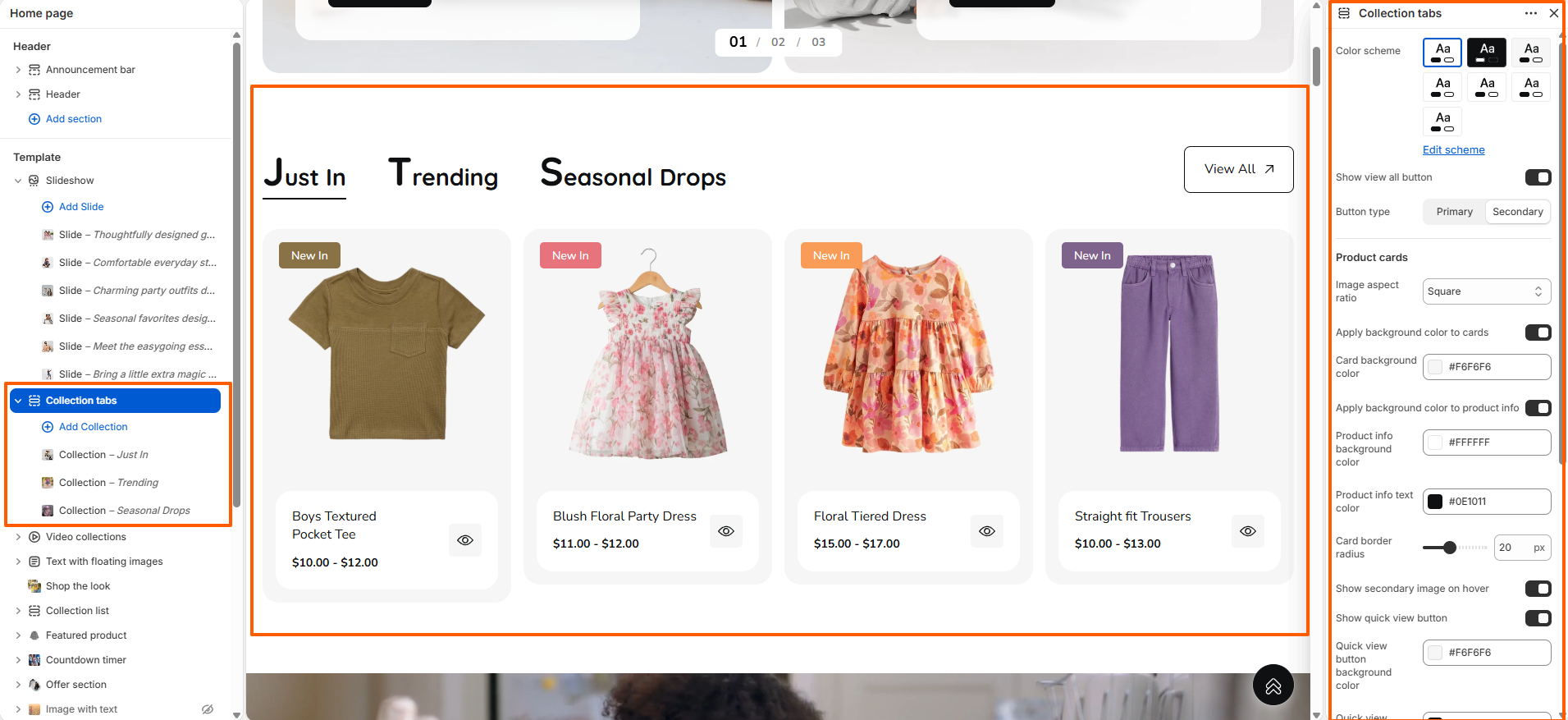
The Collection Tabs section allows you to display products from multiple collections in separate tabs, making it easier for customers to explore different product categories within a single section. It includes customization options such as color scheme, View All button visibility and style, product image aspect ratio, card background color, product information background and text colors, card border radius, secondary image on hover, and quick view button settings. These options help you customize the appearance and functionality of product cards according to your store's design.

Collection tabs section settings

Collection (Block)

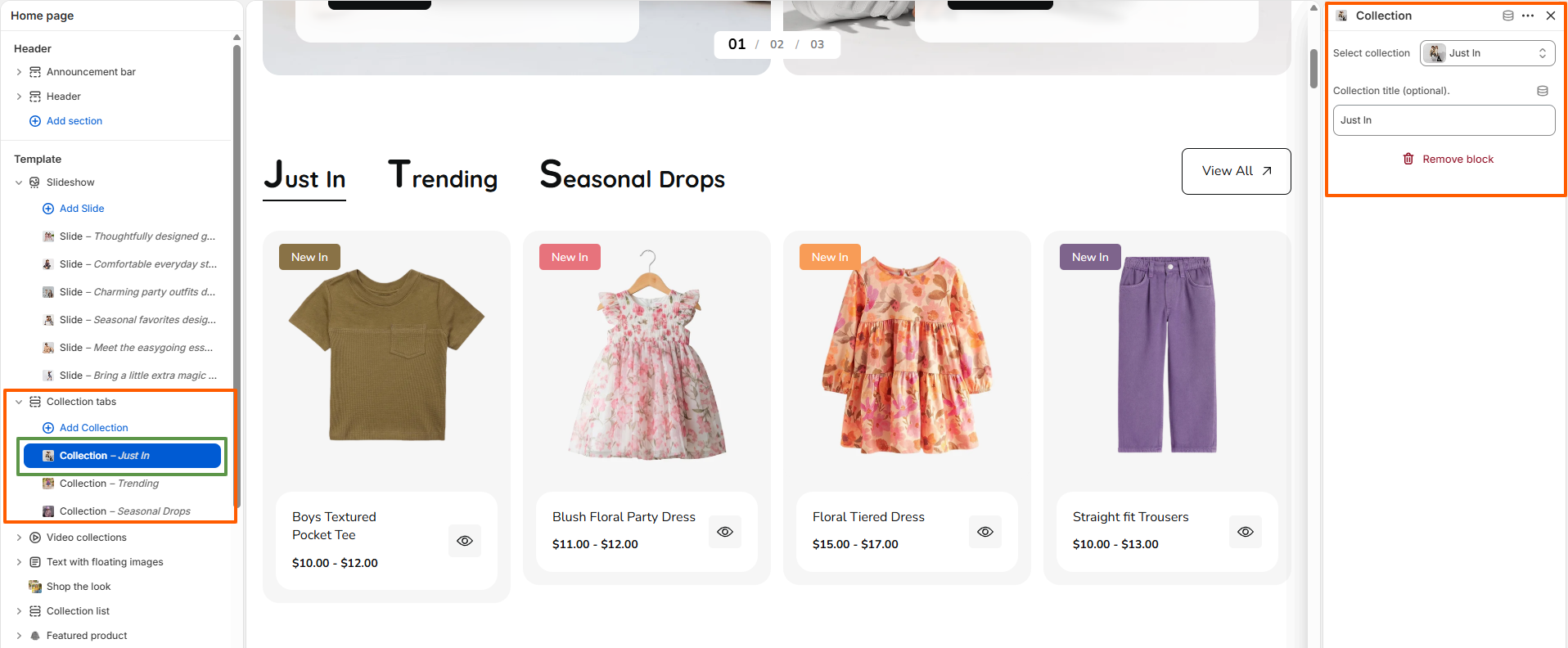
The Collection block allows you to add individual collections as tabs within the Collection Tabs section. You can select a collection from your store and optionally customize its title to control the label displayed for that tab. Multiple collection blocks can be added to showcase different product categories and allow customers to switch between them easily.

Collection block settings

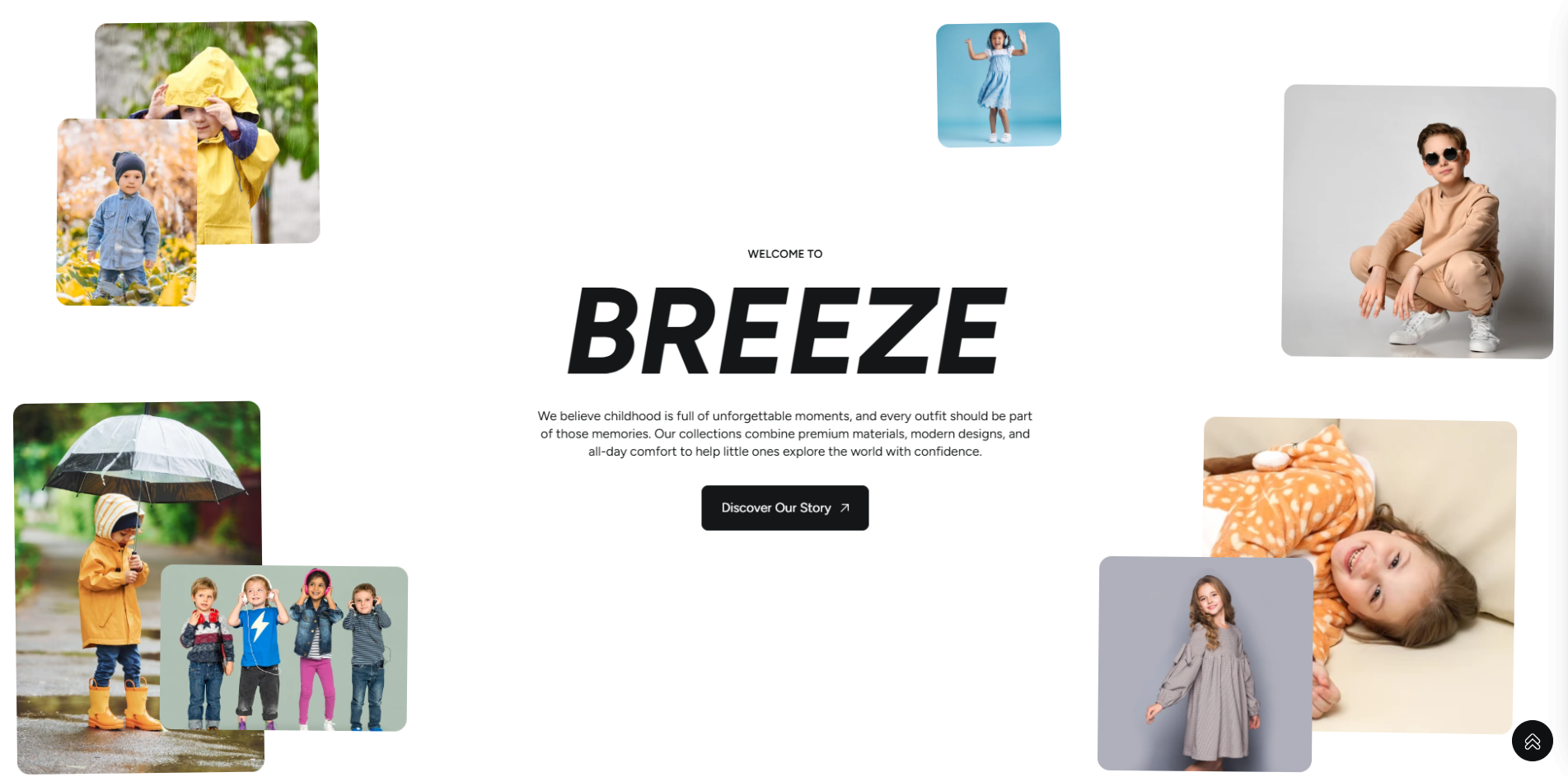
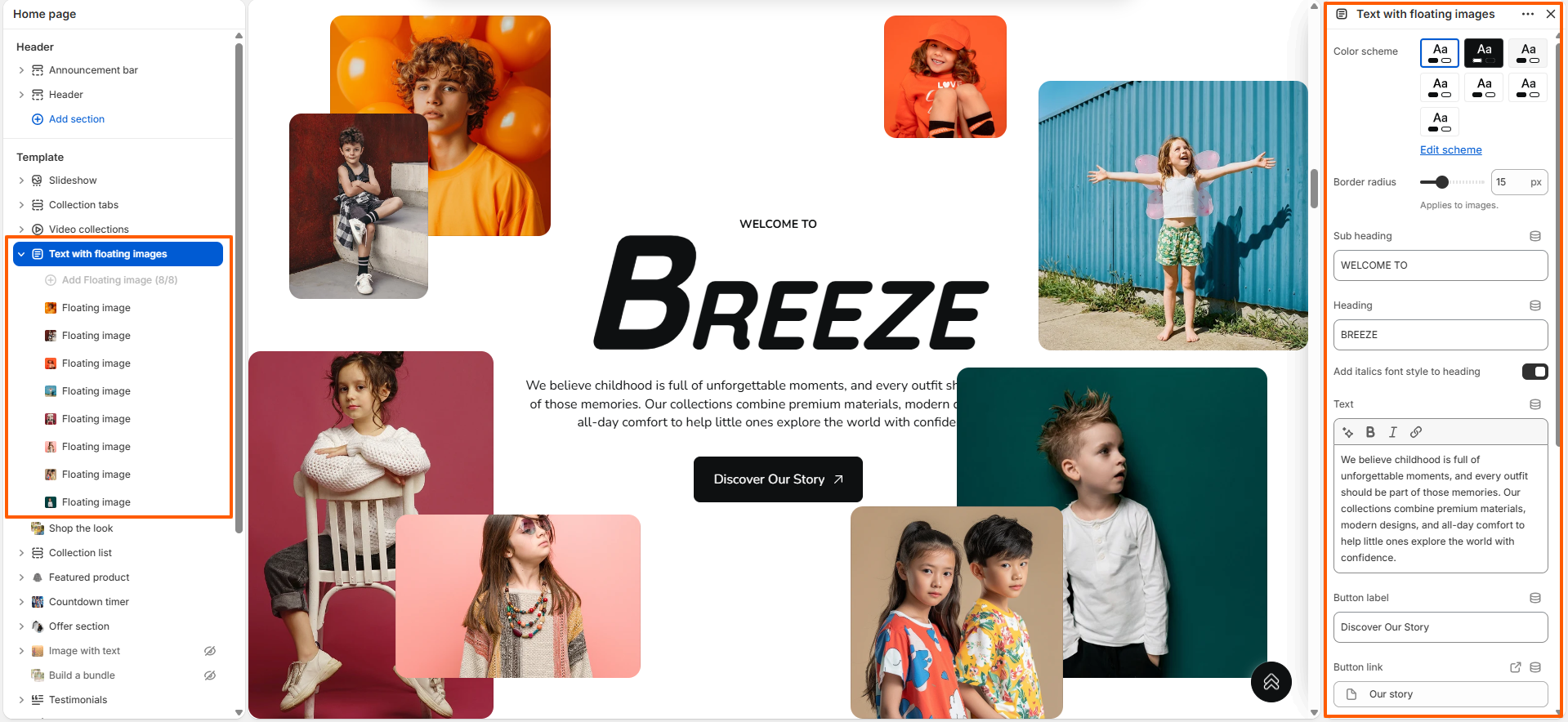
Text with Floating Images

The Text with Floating Images section allows you to create an engaging content layout by combining central text and call-to-action content with multiple floating images arranged around it. It includes customization options such as color scheme, image border radius, subheading, heading, heading font style, description text, and button label and link. This section is ideal for showcasing your brand story, introducing your store, or highlighting important messages through a visually appealing combination of text and imagery.

Text with floating images section settings

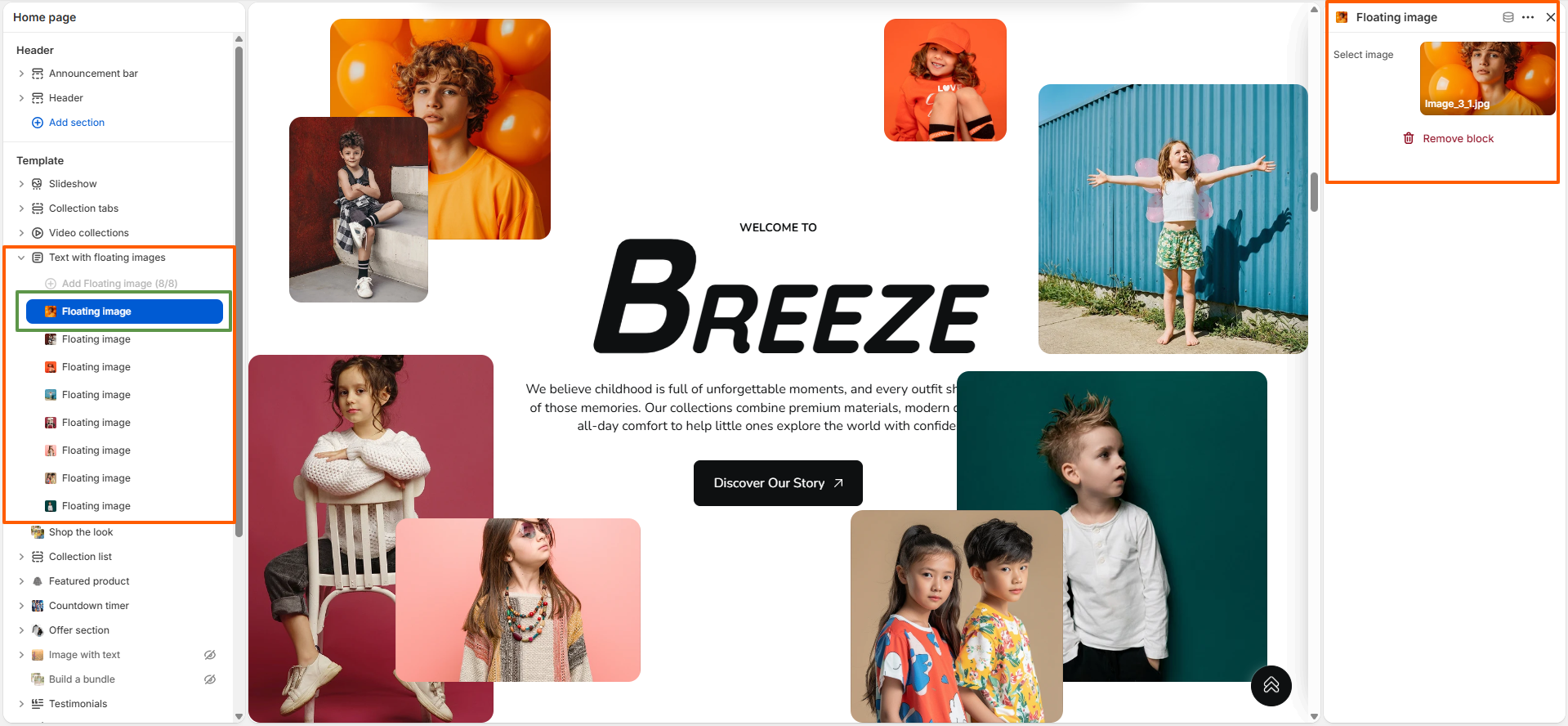
Floating Image (Block)

The Floating Image block allows you to add individual images around the central content of the section. You can select an image for each block and add multiple floating images to create a layered visual arrangement. These images help enhance the overall presentation and bring more visual interest to your brand story or promotional content.

Floating image block settings

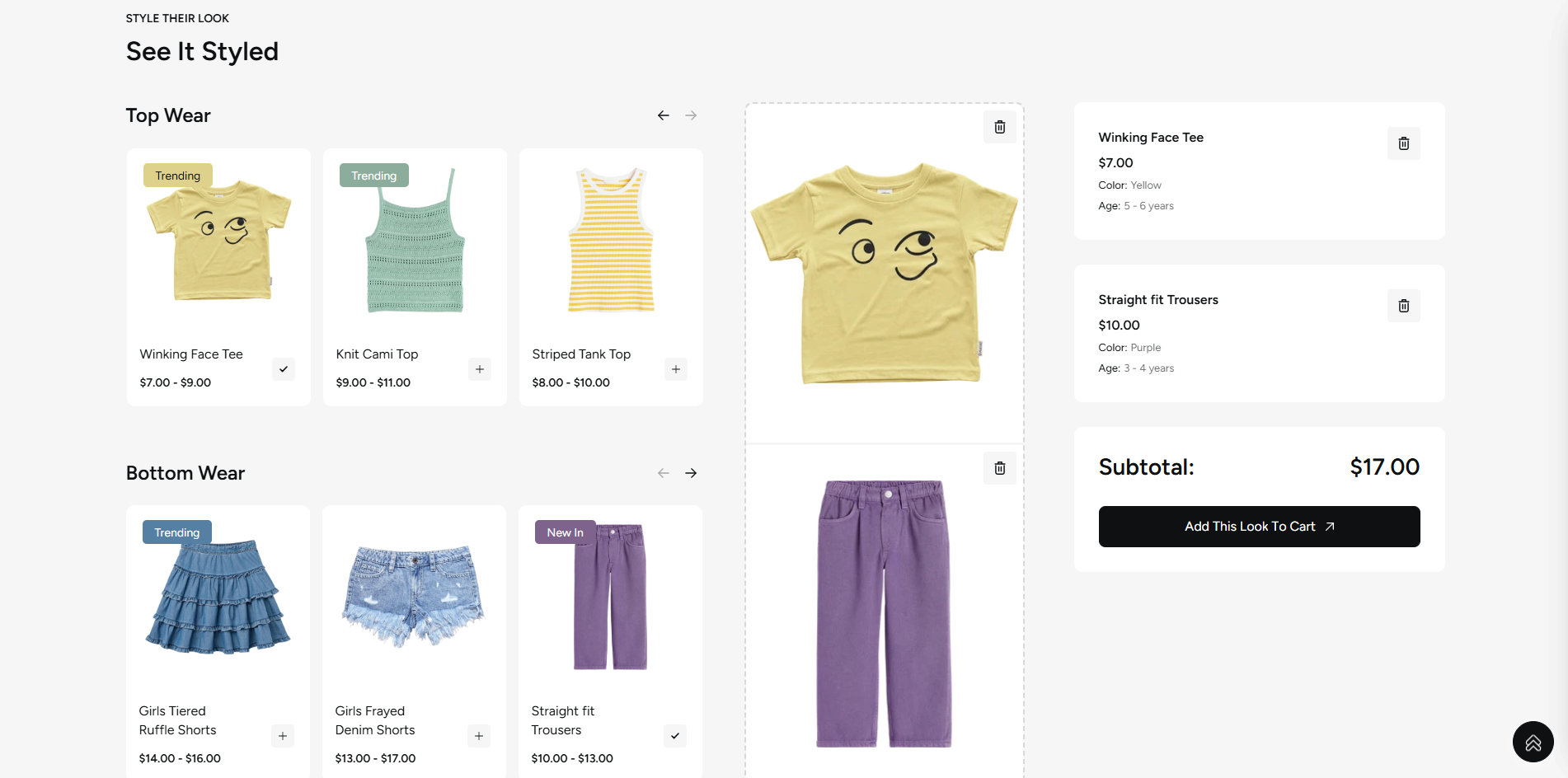
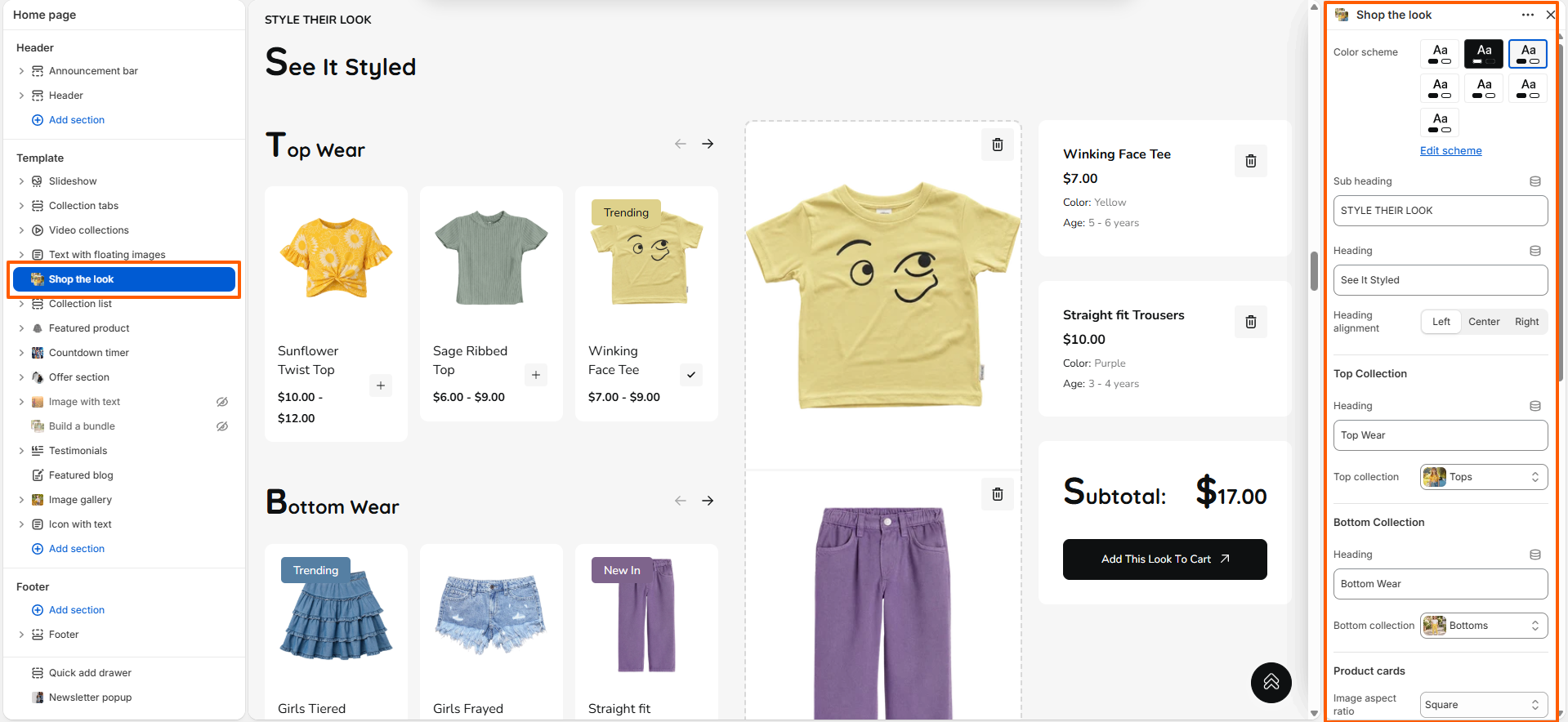
Shop the Look

The Shop the Look section allows you to showcase coordinated product collections and help customers explore complete outfits or styled combinations. It includes customization options such as color scheme, subheading, heading, heading alignment, and separate heading and collection selection for top and bottom categories. You can also customize product card appearance, including image aspect ratio, card background color, product information background, card border radius, secondary image on hover, and select button colors. Additionally, desktop and mobile spacing controls allow you to adjust the section layout according to your store's design.

Shop the Look section settings

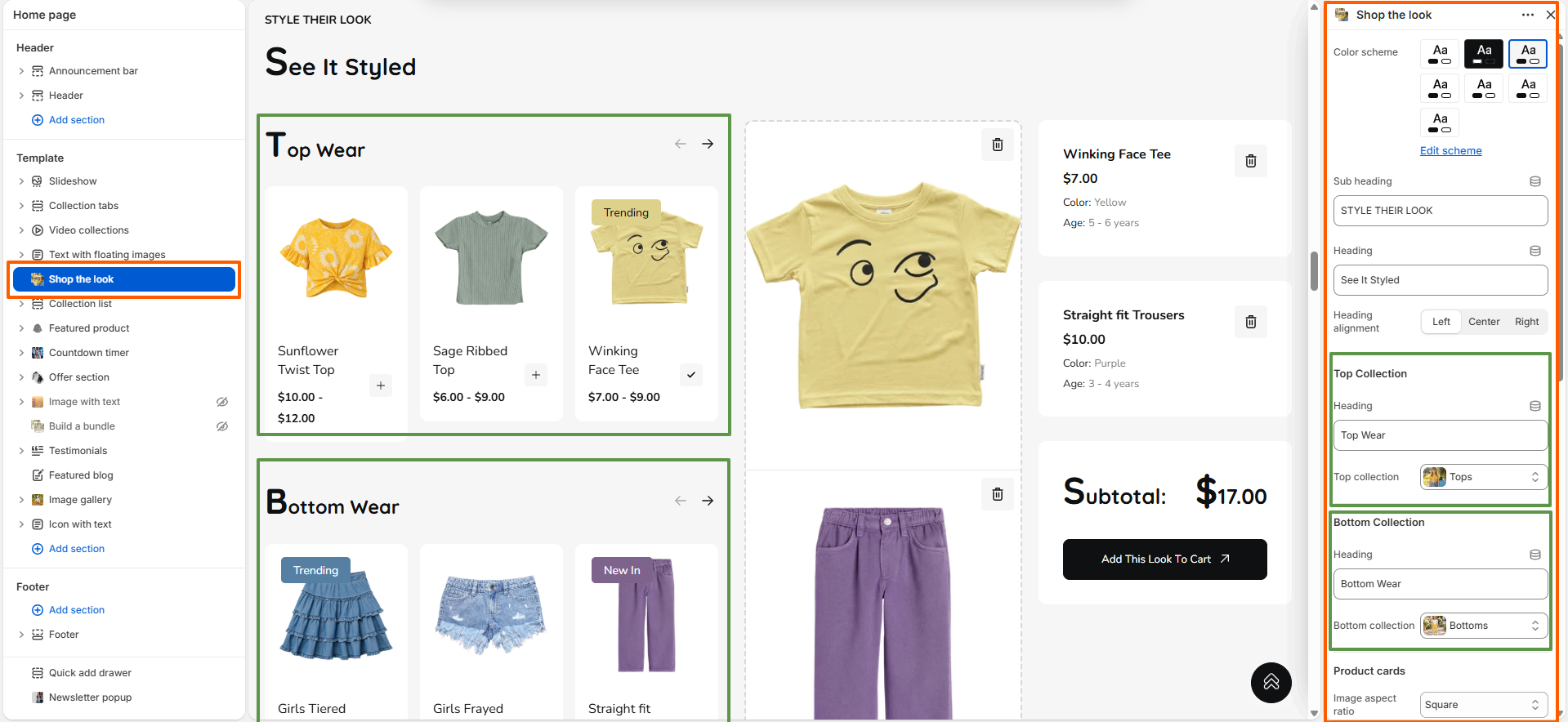
The Shop the Look section displays products from the selected top and bottom collections in separate categories. Customers can select individual products to build their look, view selected items with their details, and add the complete combination to the cart using the provided call-to-action button. This creates an interactive shopping experience that makes discovering and purchasing coordinated products easier.

Shop the Look product selection and settings

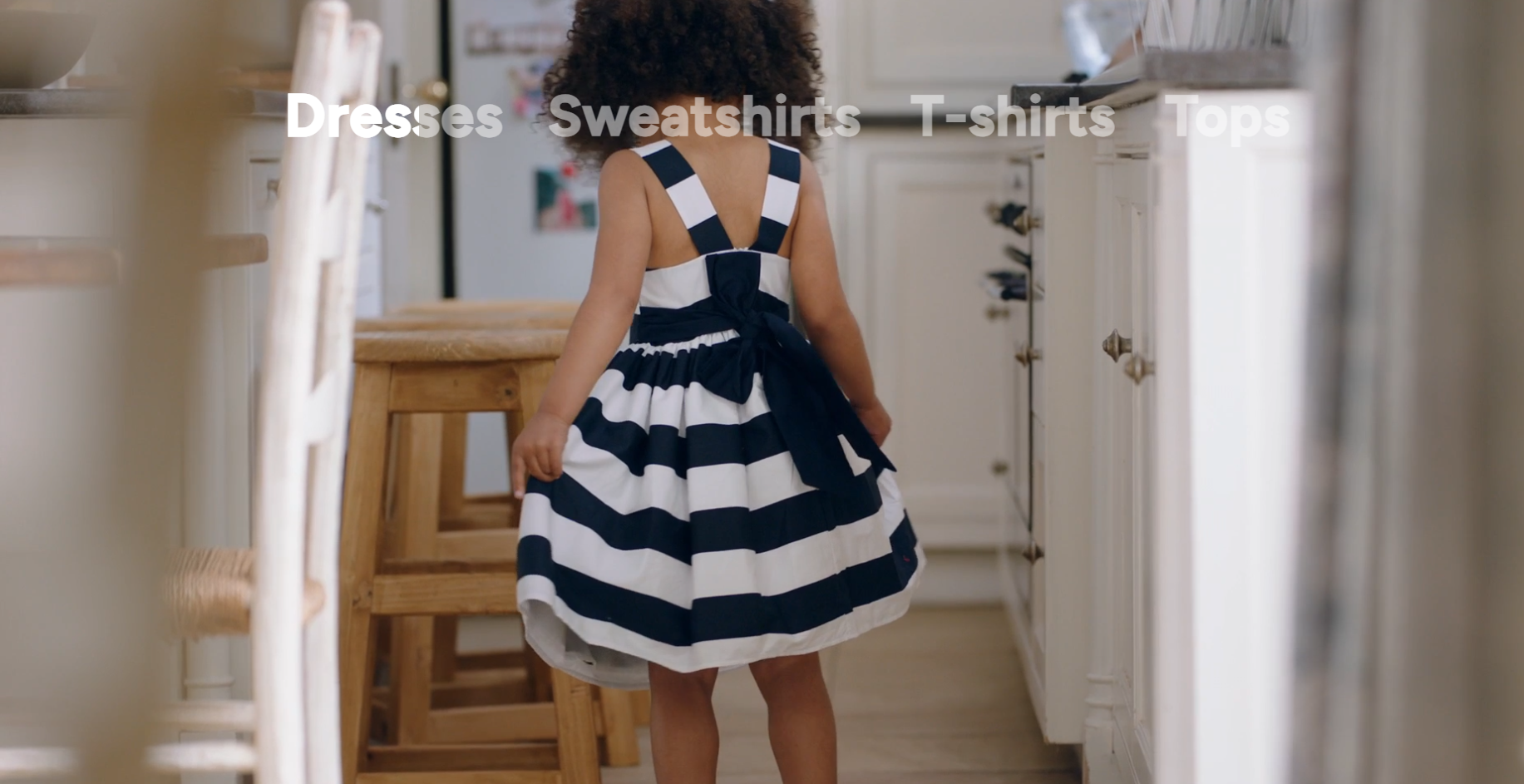
Sticky Image with Text

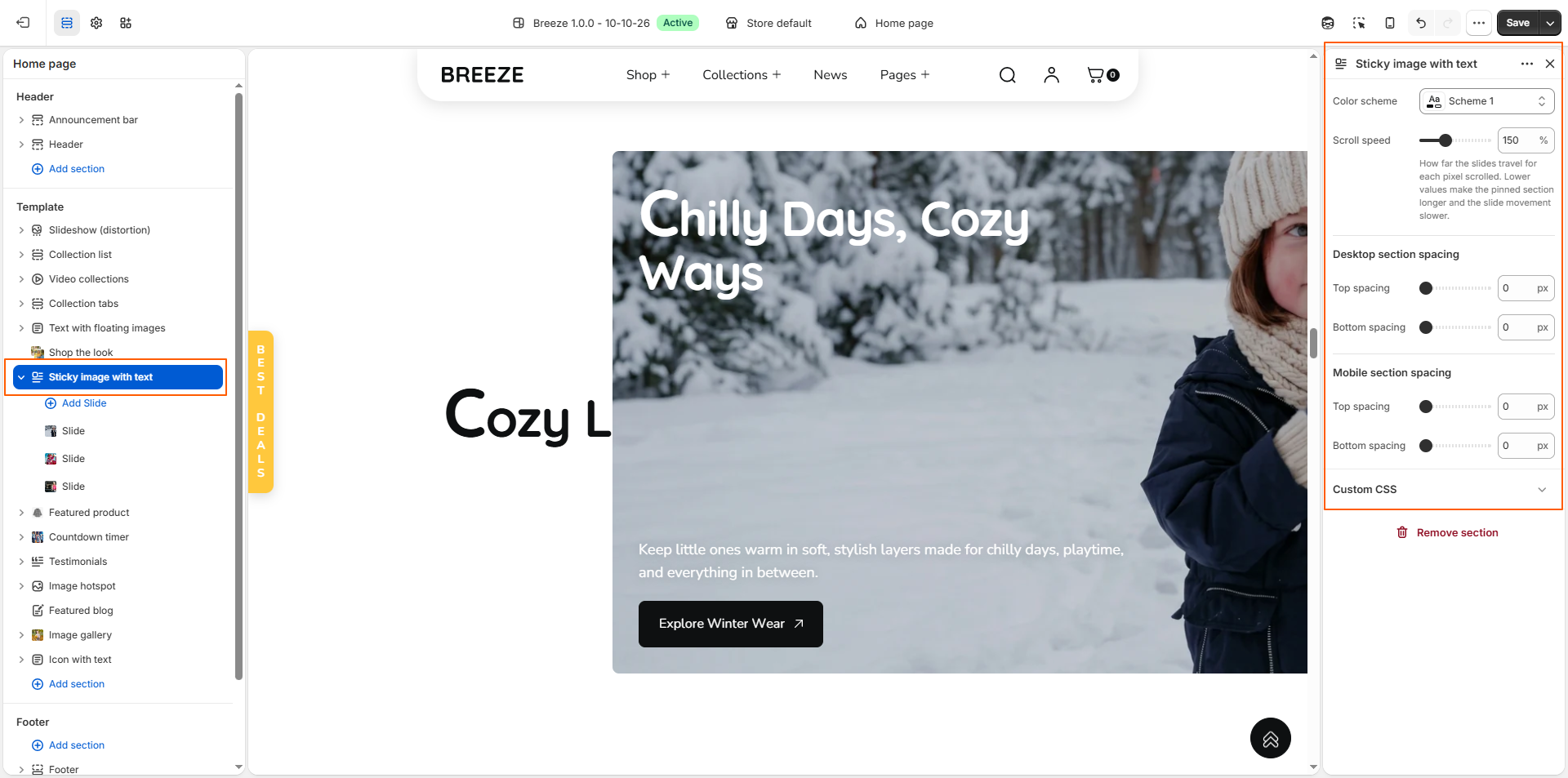
The Sticky Image with Text section creates an engaging scroll-driven storytelling experience by keeping the main heading pinned in the centre of the screen while images and their accompanying content slide into view. It includes customizable color schemes, scroll speed, image overlays, text positioning, heading and content settings, and button options to create a visually appealing and interactive storefront experience.

Sticky image with text

Block Slide (Block)

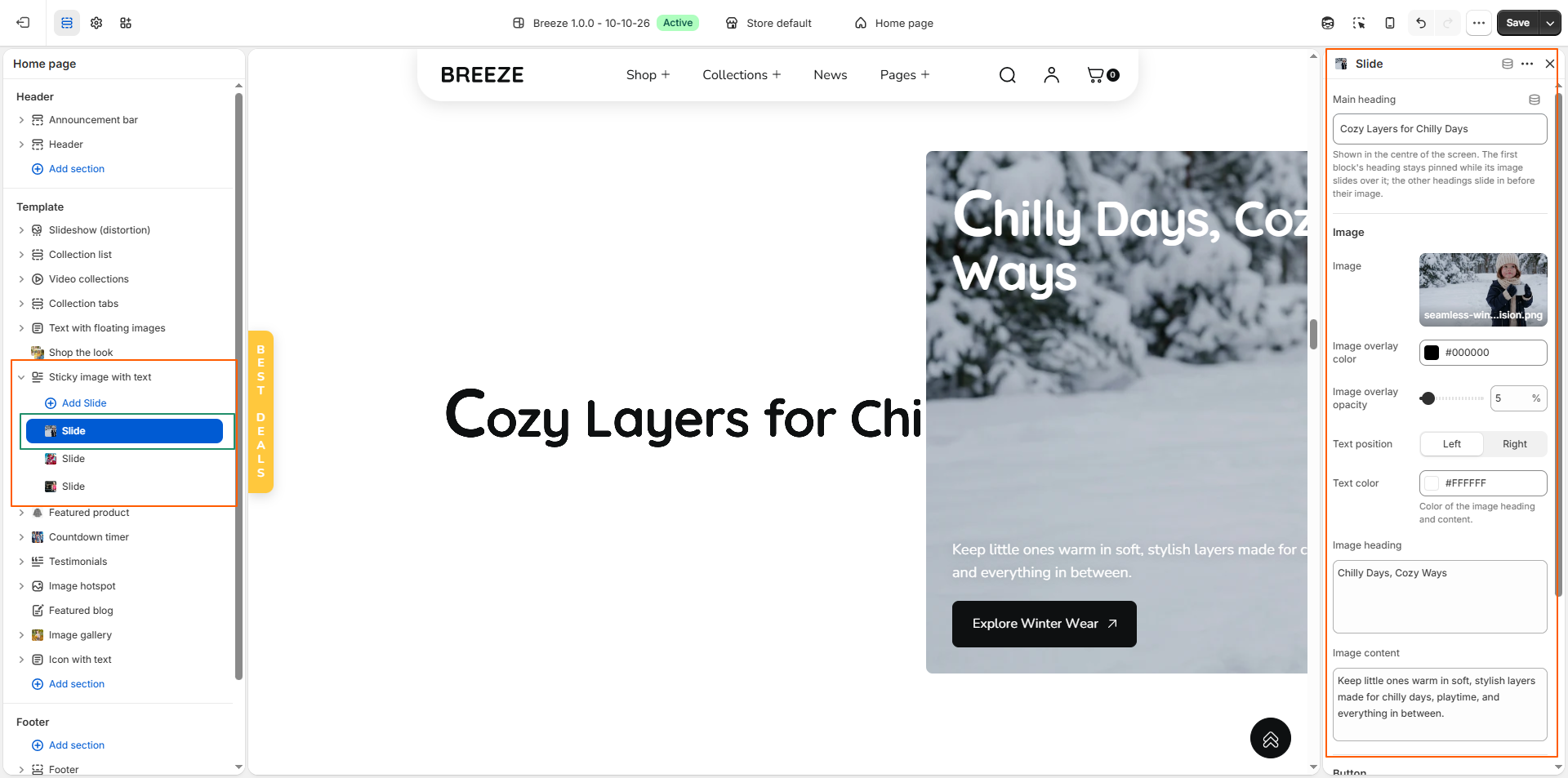
The Block Slide allows you to create individual slides within the Sticky Image with Text section. Each block includes customizable images, overlay settings, text positioning, headings, descriptive content, and buttons. You can add multiple blocks to create an engaging scroll-driven storytelling experience that showcases products, collections, or seasonal campaigns.

Block Slide settings

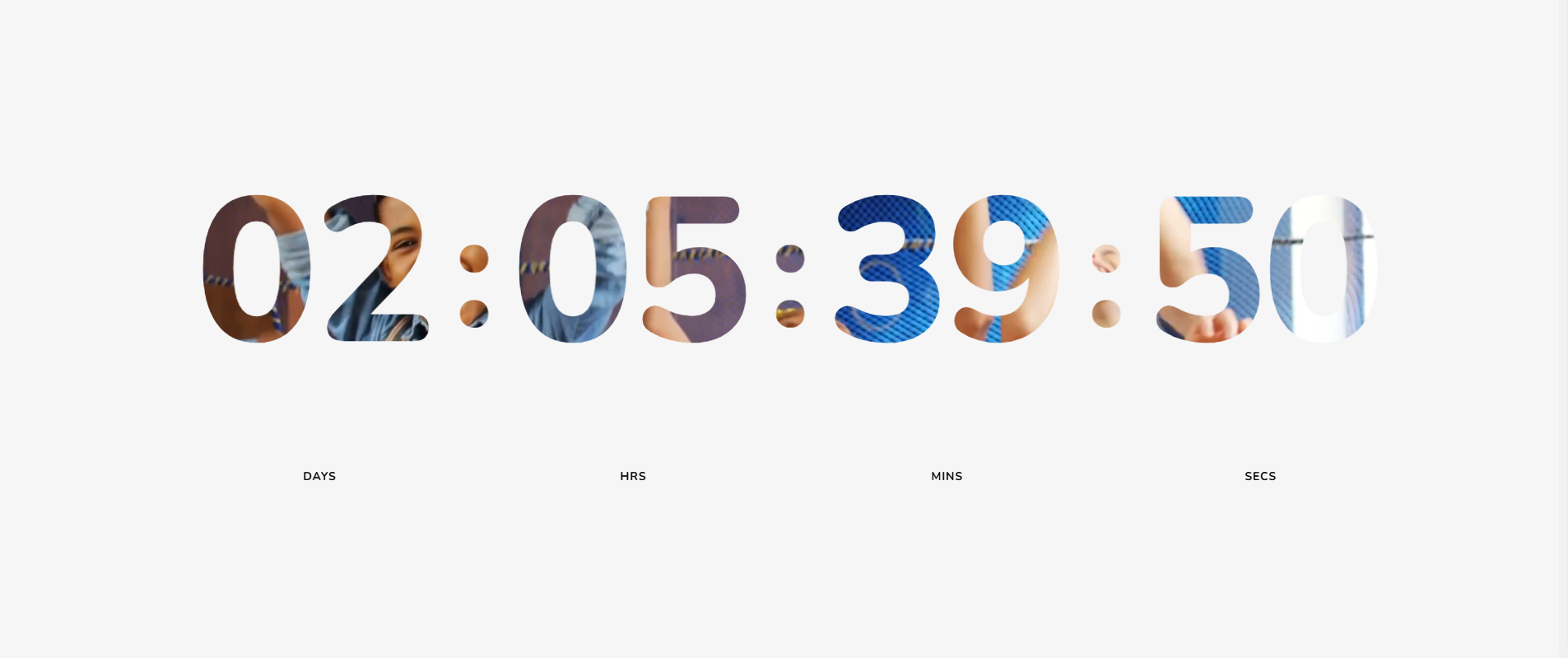
Countdown Timer

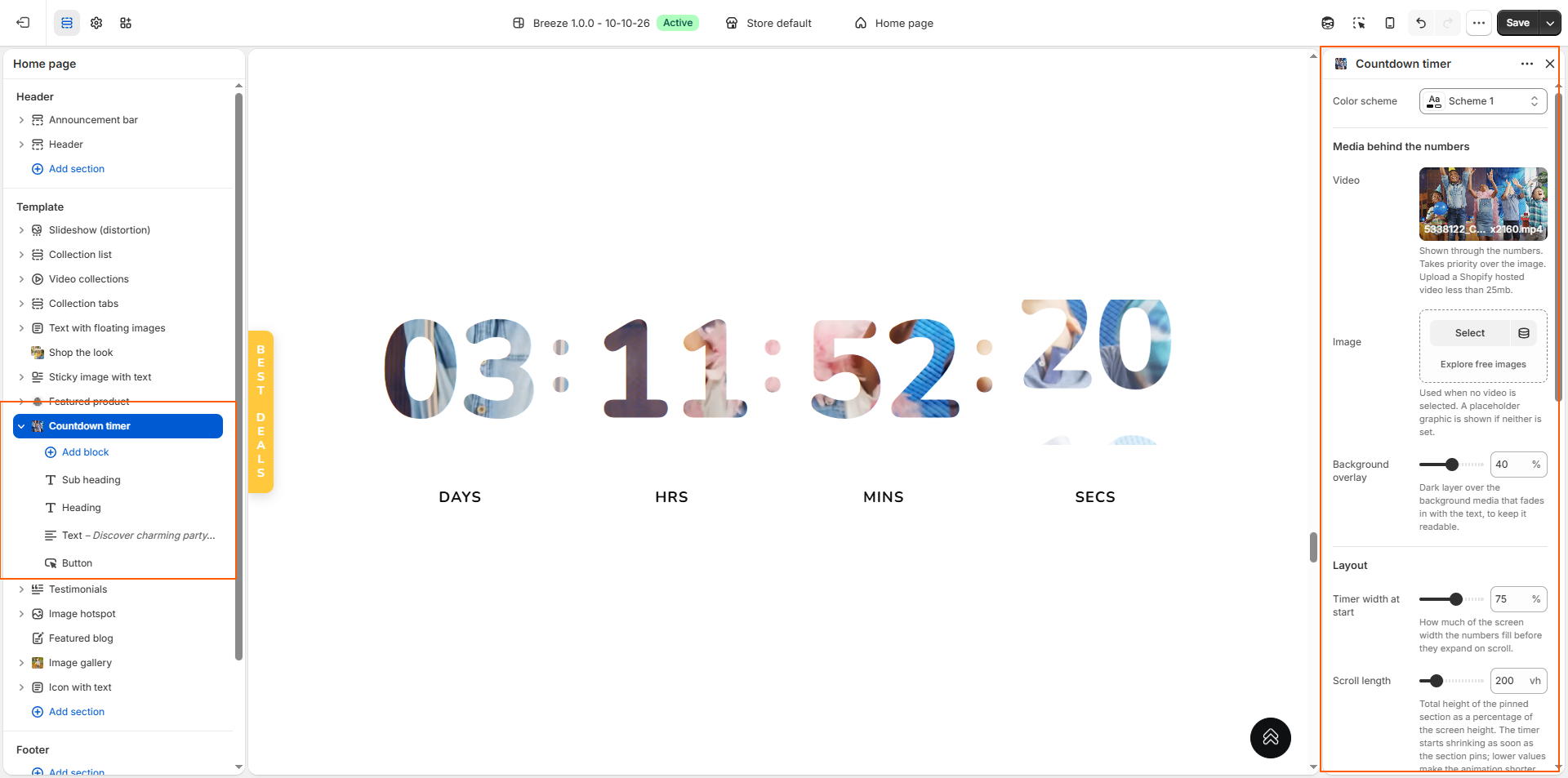
The Countdown Timer section creates an engaging promotional experience by displaying a countdown that shrinks and expands as customers scroll through the page. It supports video or image backgrounds, customizable overlays, scroll animation settings, and countdown configurations, including the end date, end time, visibility options, and an expired message. This section is ideal for highlighting flash sales, limited-time offers, product launches, and upcoming promotions.

Countdown Timer section settings

Countdown Content (Block)

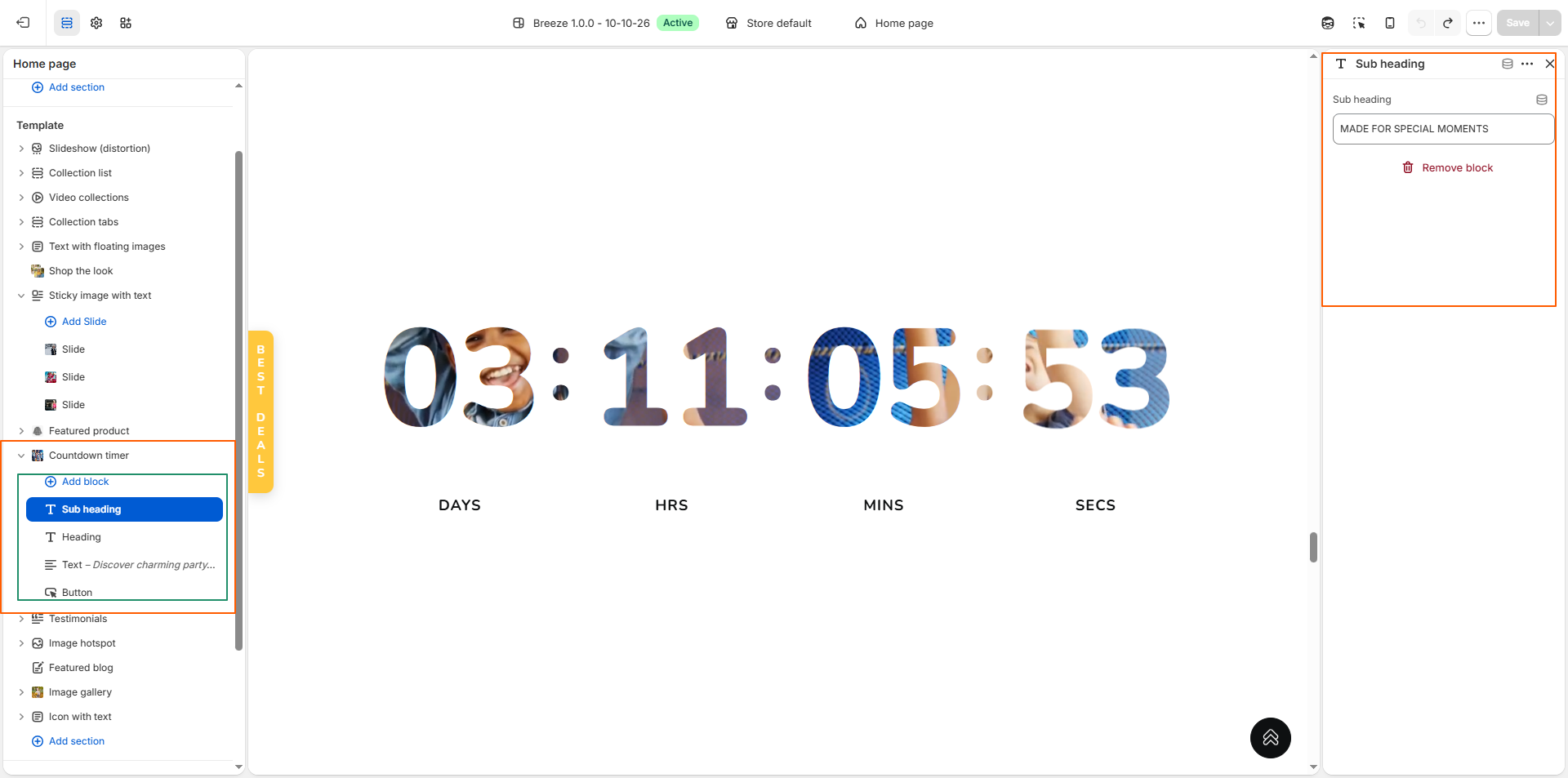
The Countdown Content block allows you to add supporting content to the countdown section, including a heading, subheading, image, descriptive text, and a call-to-action button. Use these settings to highlight a promotion, communicate an offer, and direct customers to a relevant product or collection.

Countdown Timer block settings

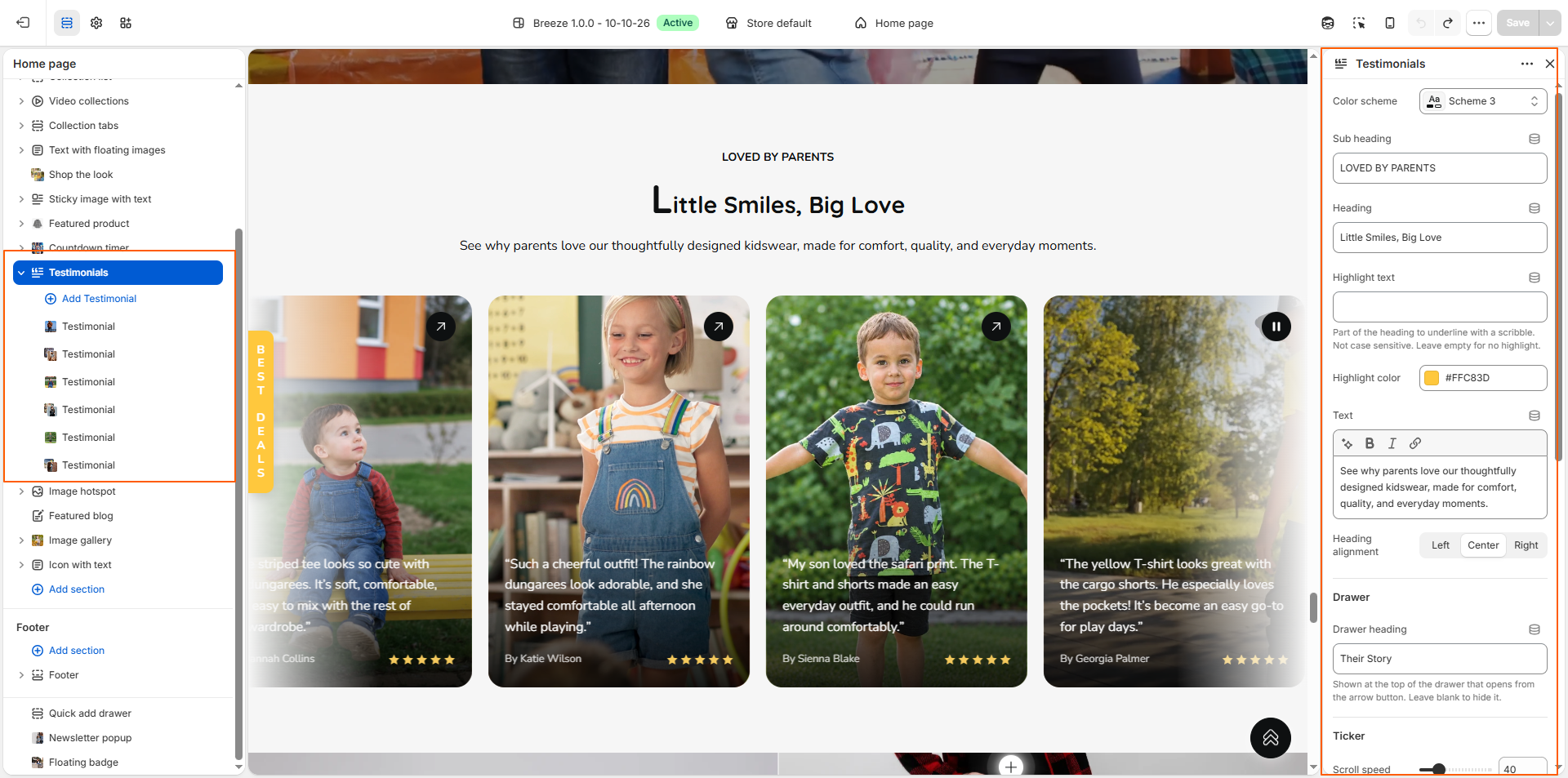
Testimonials

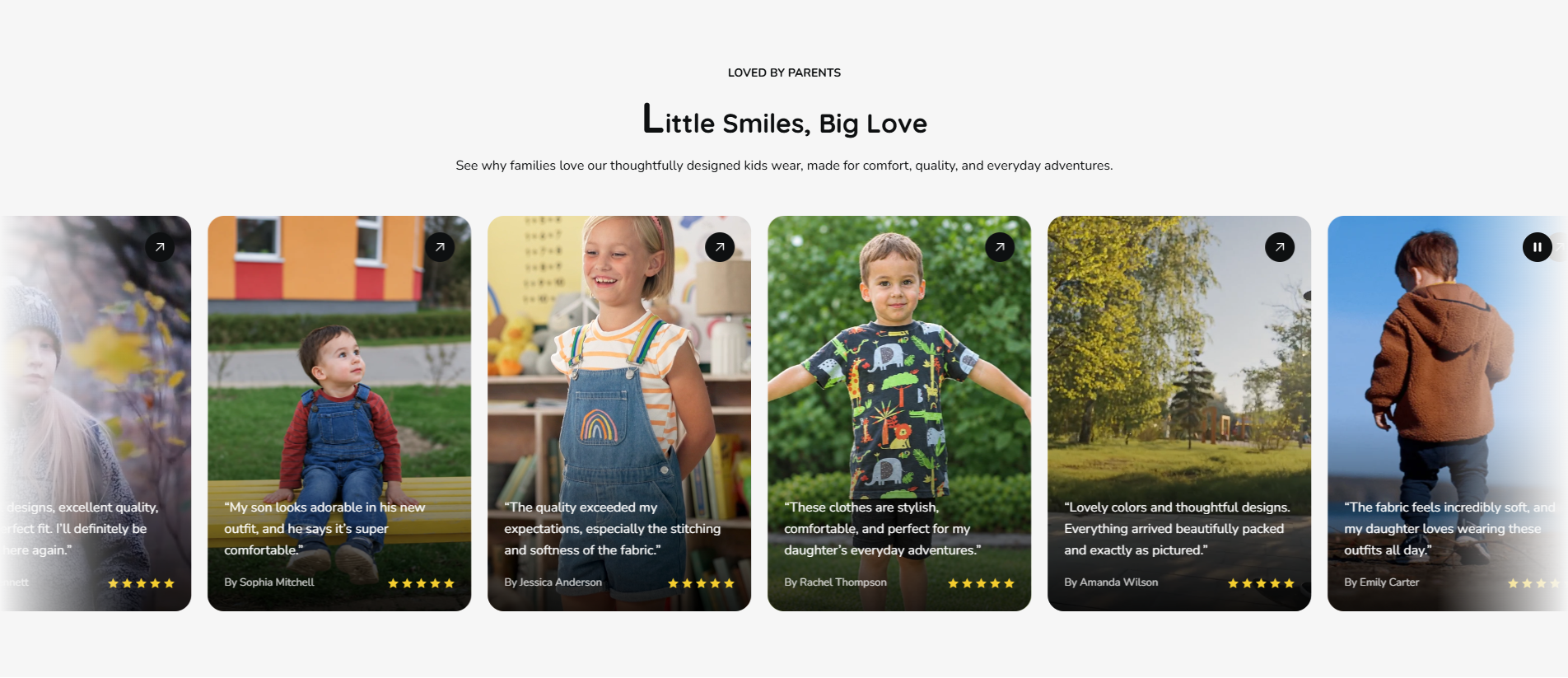
The Testimonials section showcases customer feedback and product experiences in an engaging, visually appealing layout. It includes customizable headings, highlighted text, scrolling testimonial cards, card styling, and a drawer that displays additional testimonial details and associated products. This section helps build customer trust by highlighting authentic experiences and showcasing products loved by your customers.

Testimonials section

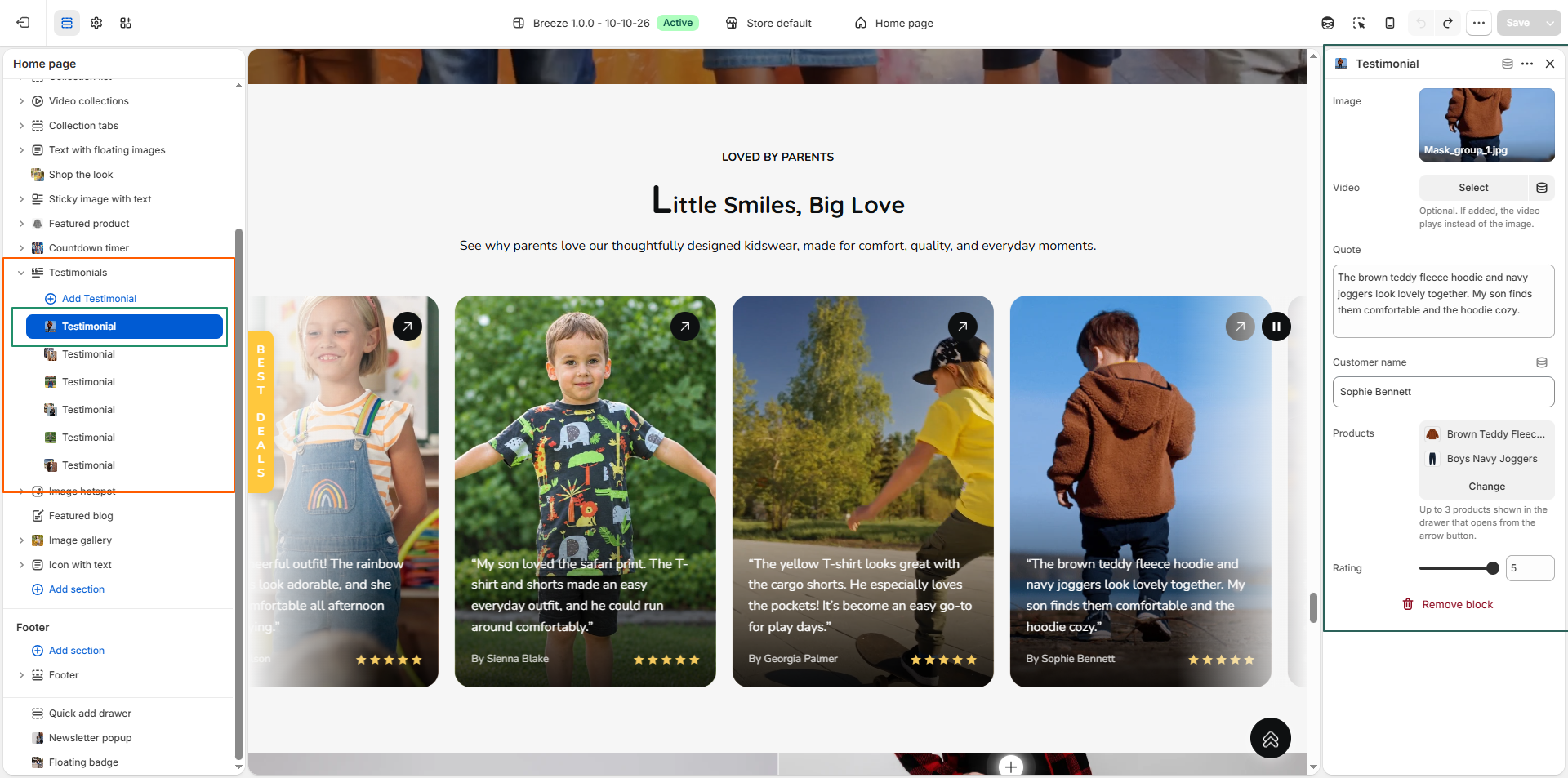
Testimonial (Block)

Each Testimonial block allows you to add an individual customer review with an image or video, a written quote, the customer's name, associated products, and a star rating. Multiple blocks can be added to showcase different customer experiences and provide shoppers with helpful product insights.

Testimonial block settings

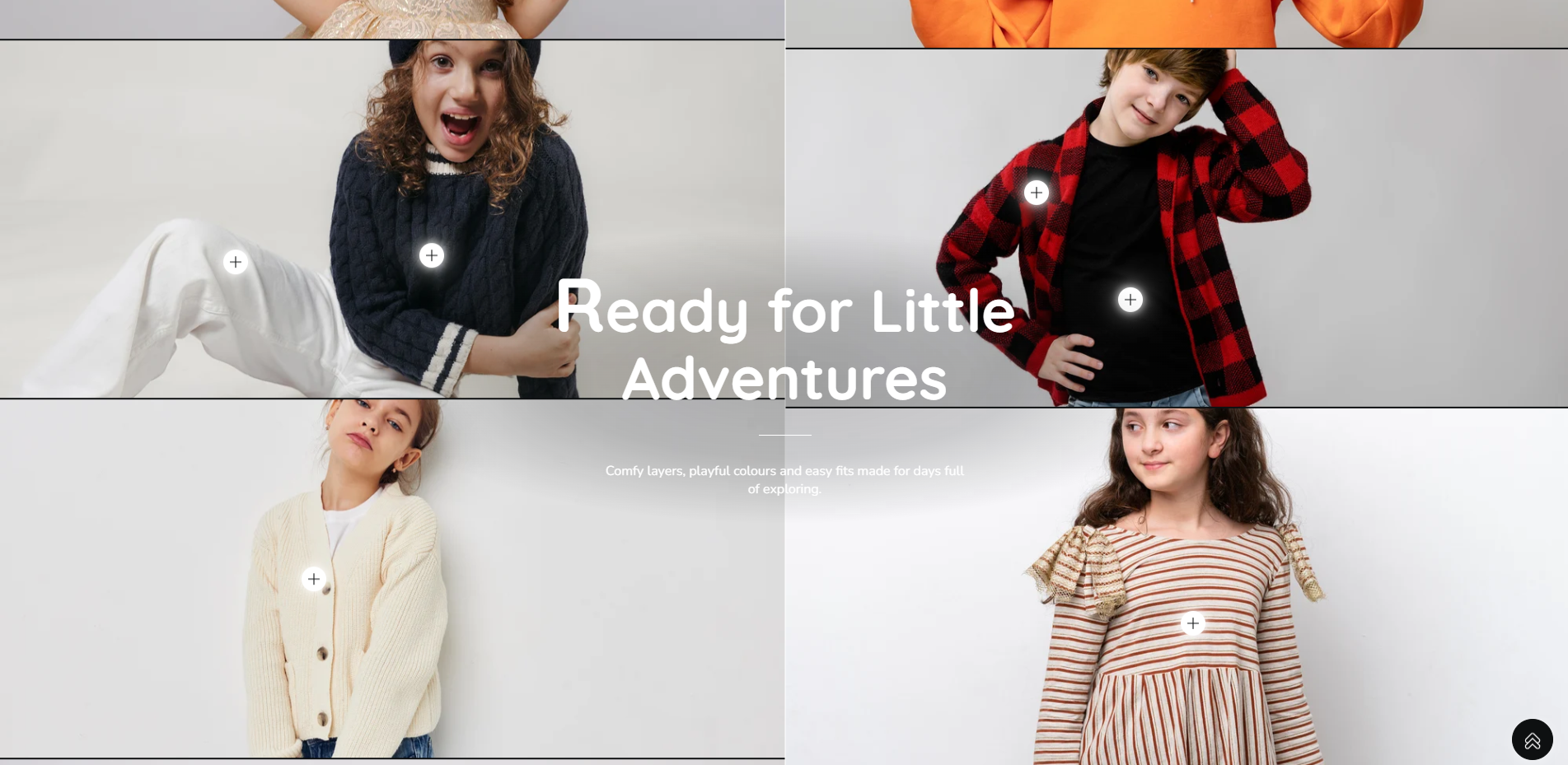
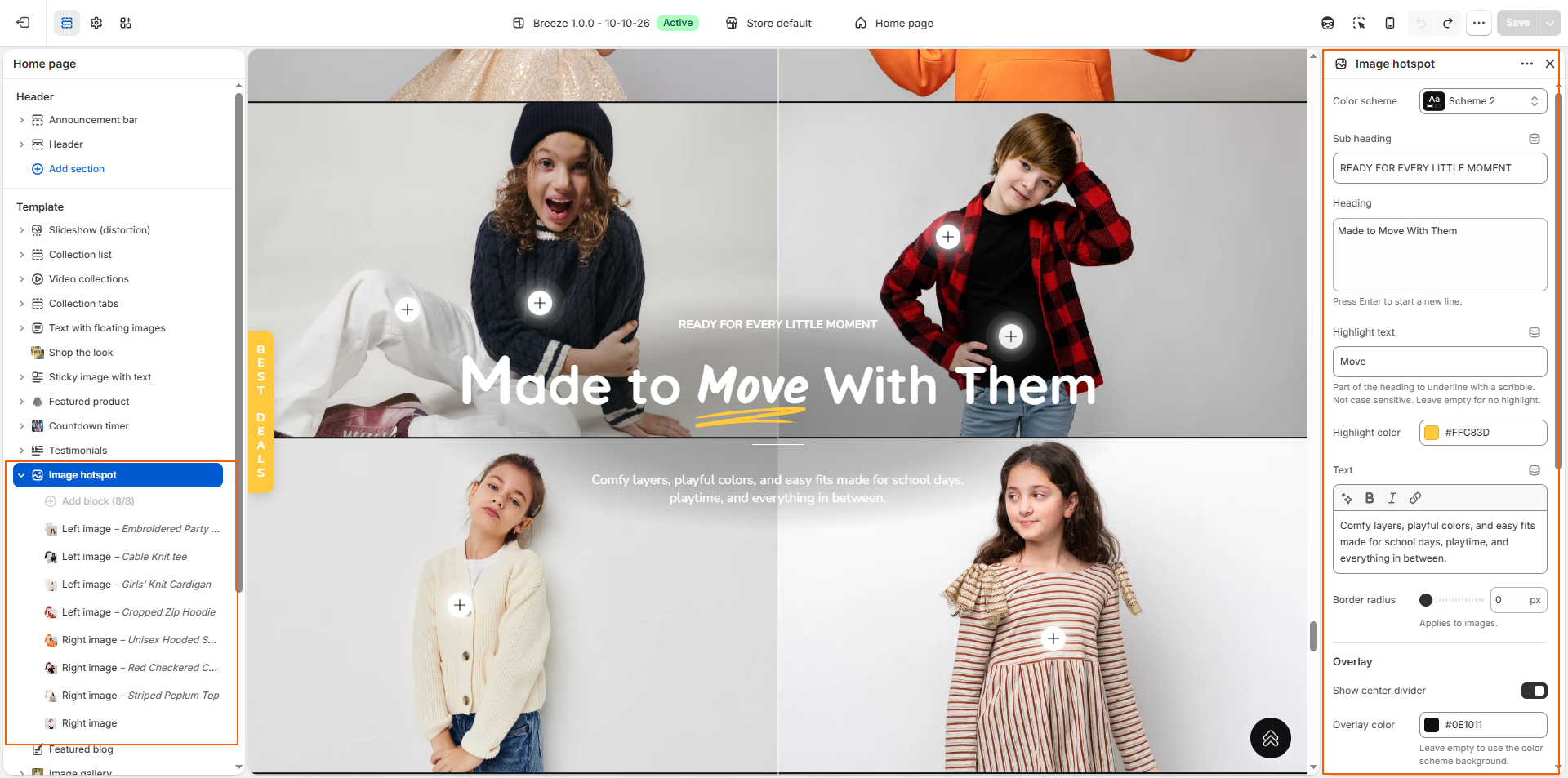
Image Hotspot

The Image Hotspot section creates an interactive shopping experience by displaying product hotspots over featured images. Customers can explore highlighted products and open them in the quick add drawer. The section includes customizable headings, text, image styling, overlays, hotspot colors, and image positioning to create an engaging and visually appealing storefront.
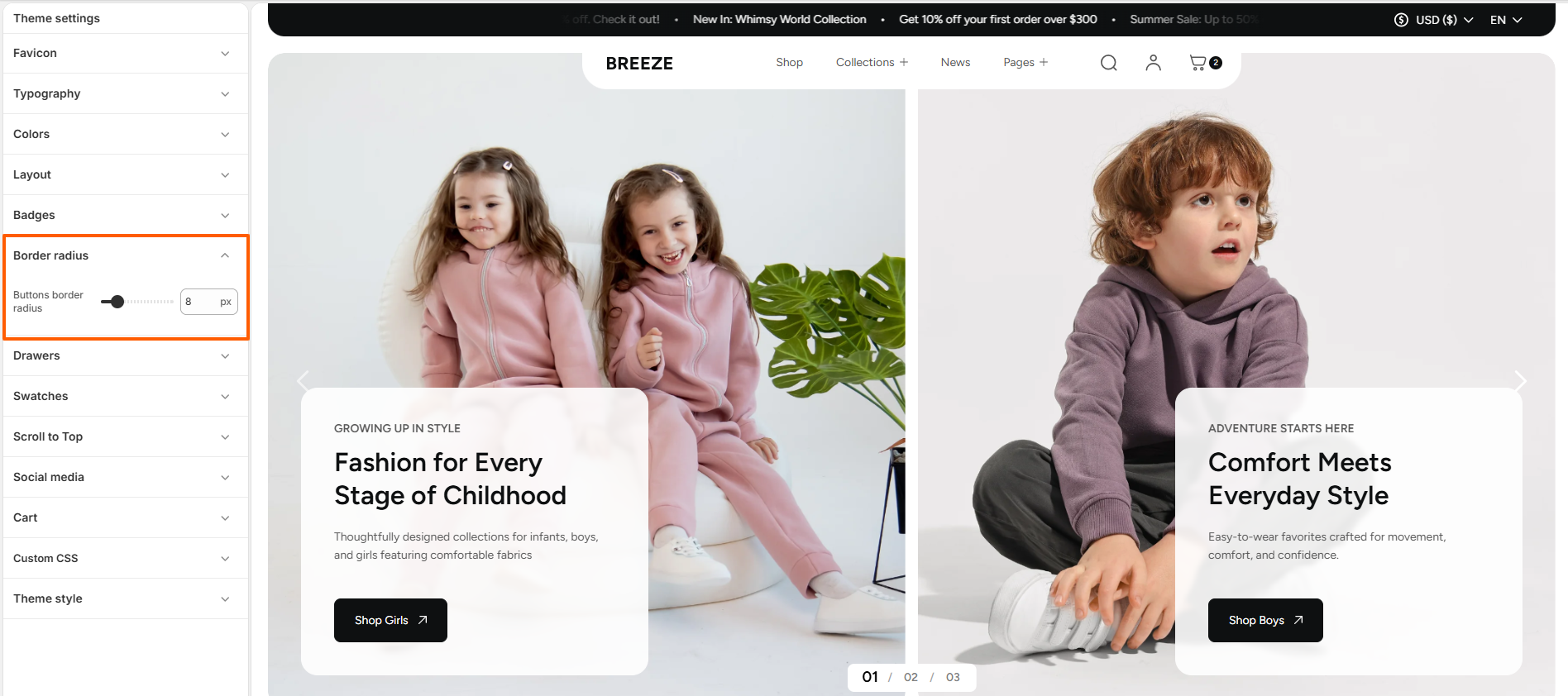
Image Hotspot section

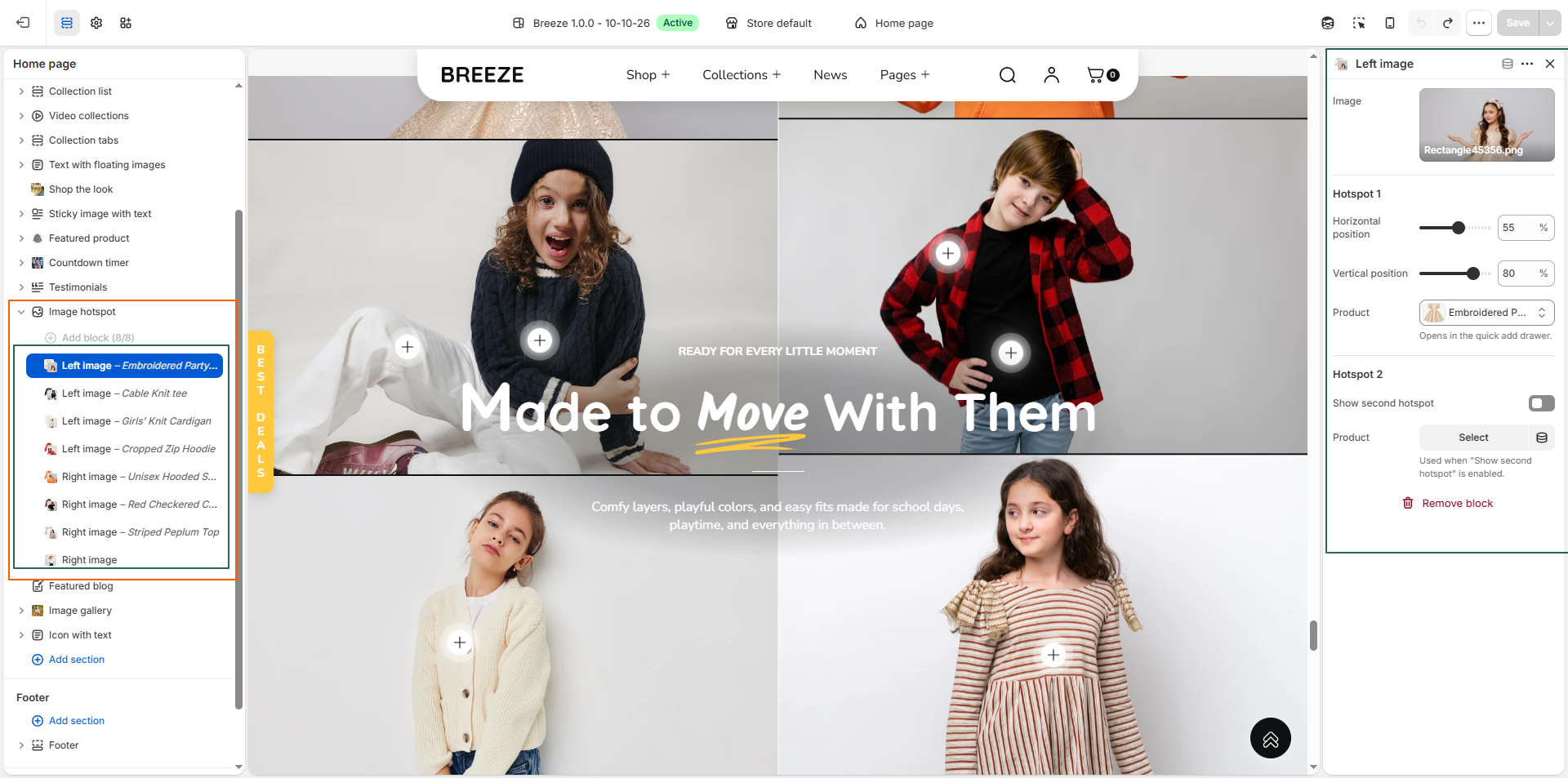
The Image Hotspot section provides two types of image blocks: Left Image and Right Image. Both blocks allow you to upload images, position interactive product hotspots, and assign products that customers can explore through the quick add drawer. Choose the appropriate block to display the image on the desired side of the section.

Left and Right Image block settings

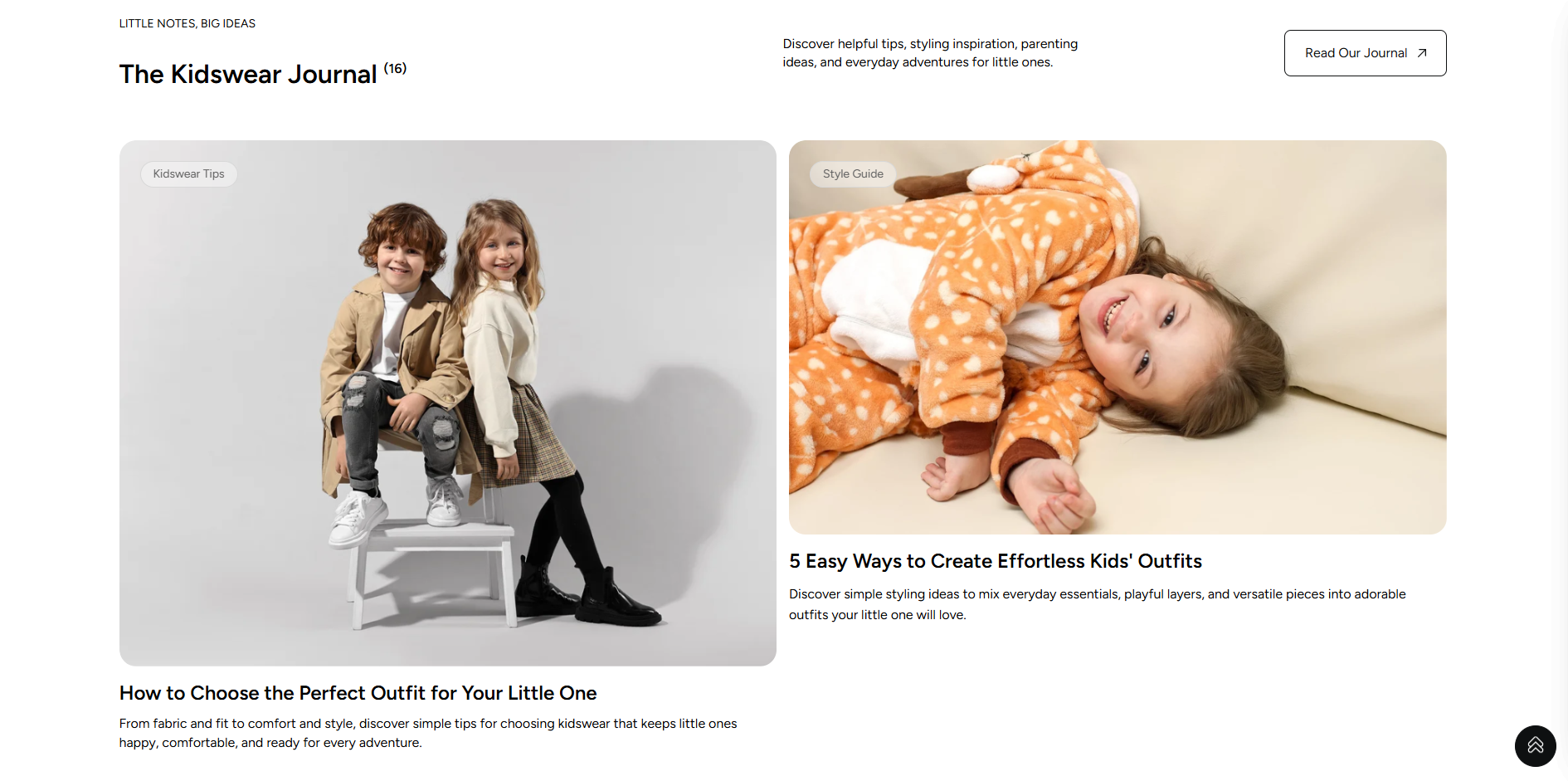
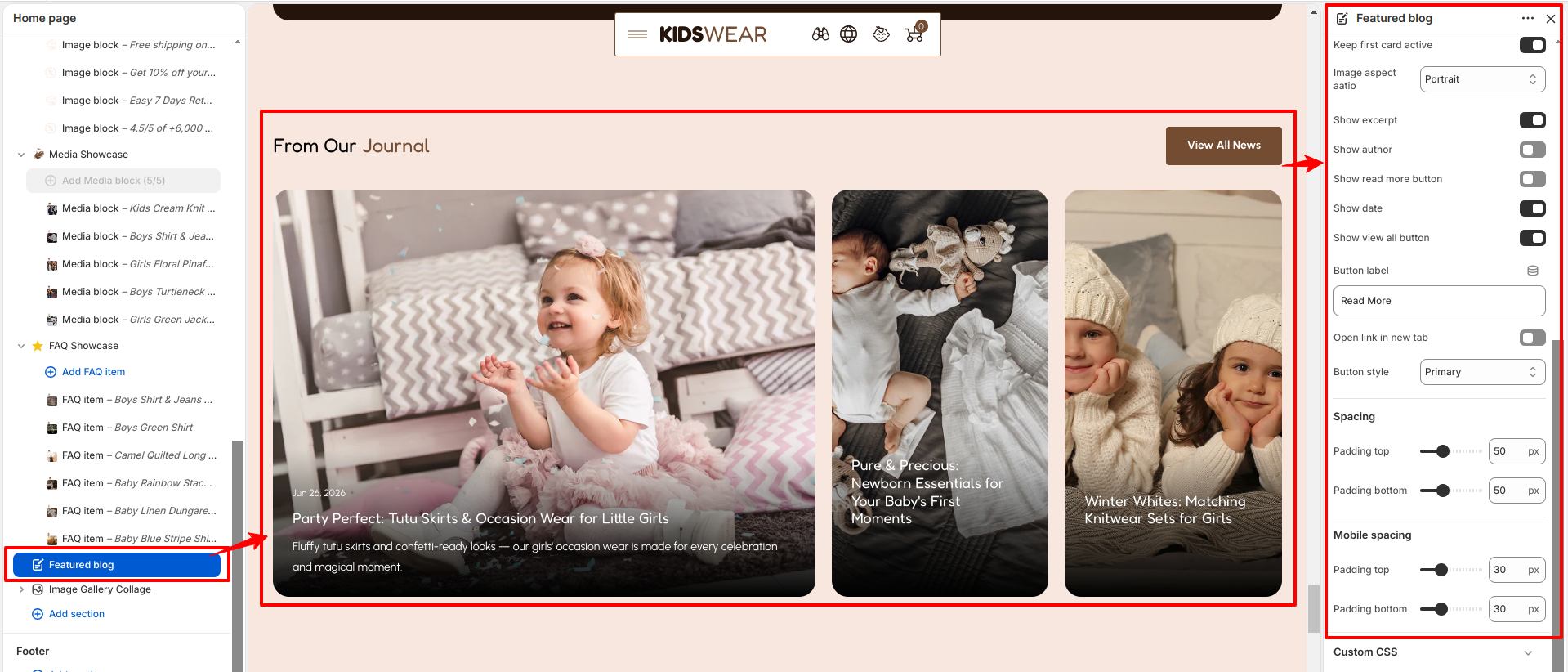
Featured Blog

The Featured Blog section showcases selected blog articles in a visually engaging layout, helping customers discover news, stories, styling tips, and helpful content. It includes customizable headings, highlighted text, descriptions, blog selection, article image styling, and display options for tags, publication dates, and authors. You can also add a call-to-action button to encourage visitors to explore your blog.
Featured Blog

You can further customize the article cards by choosing whether to display tags, publication dates, and authors. You can also adjust the article image border radius, control the number of content lines displayed, and enable a Read Our Journal button with a customizable label and button style. These options help create an engaging and user-friendly blog browsing experience that matches your store's design.

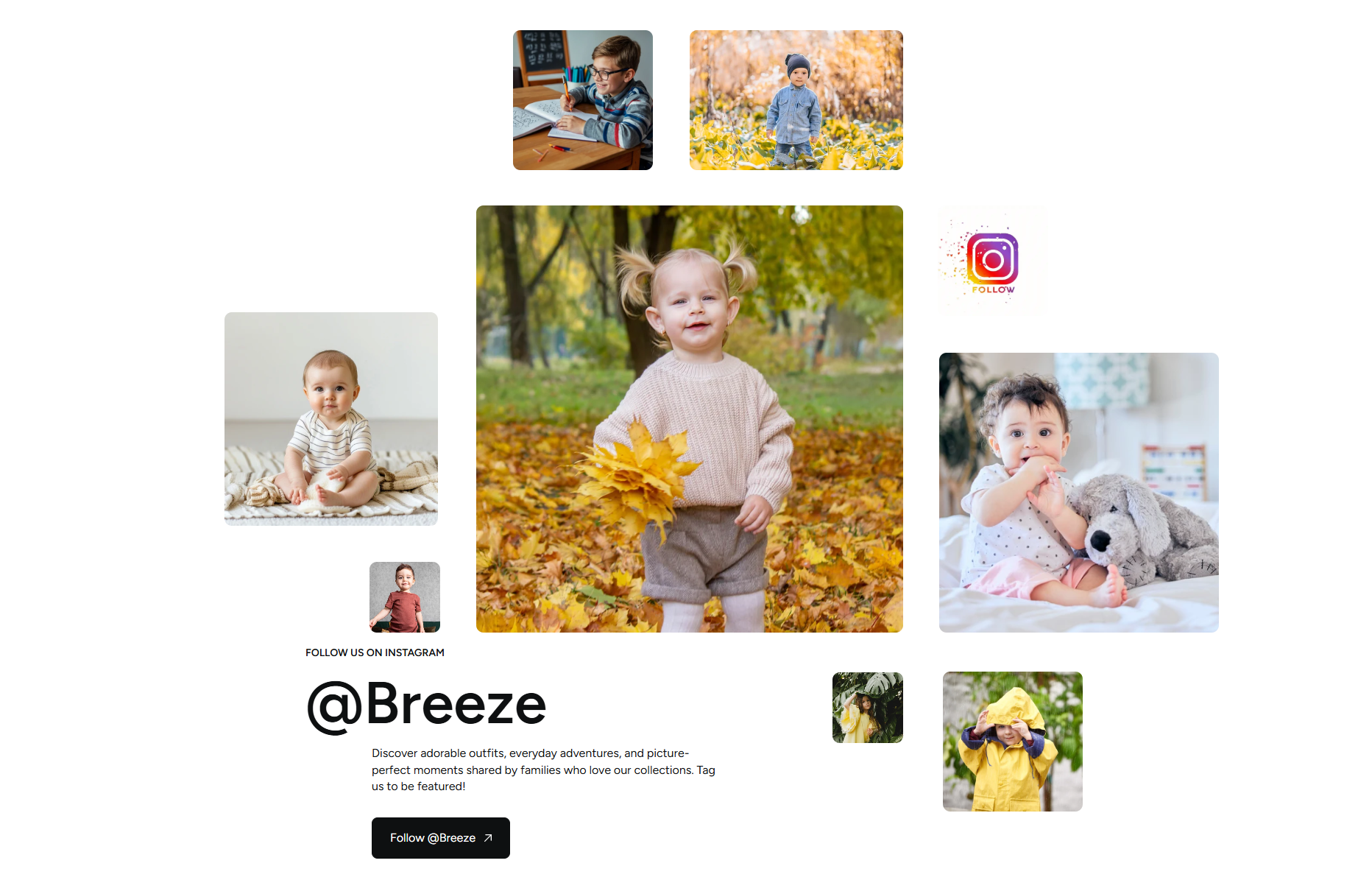
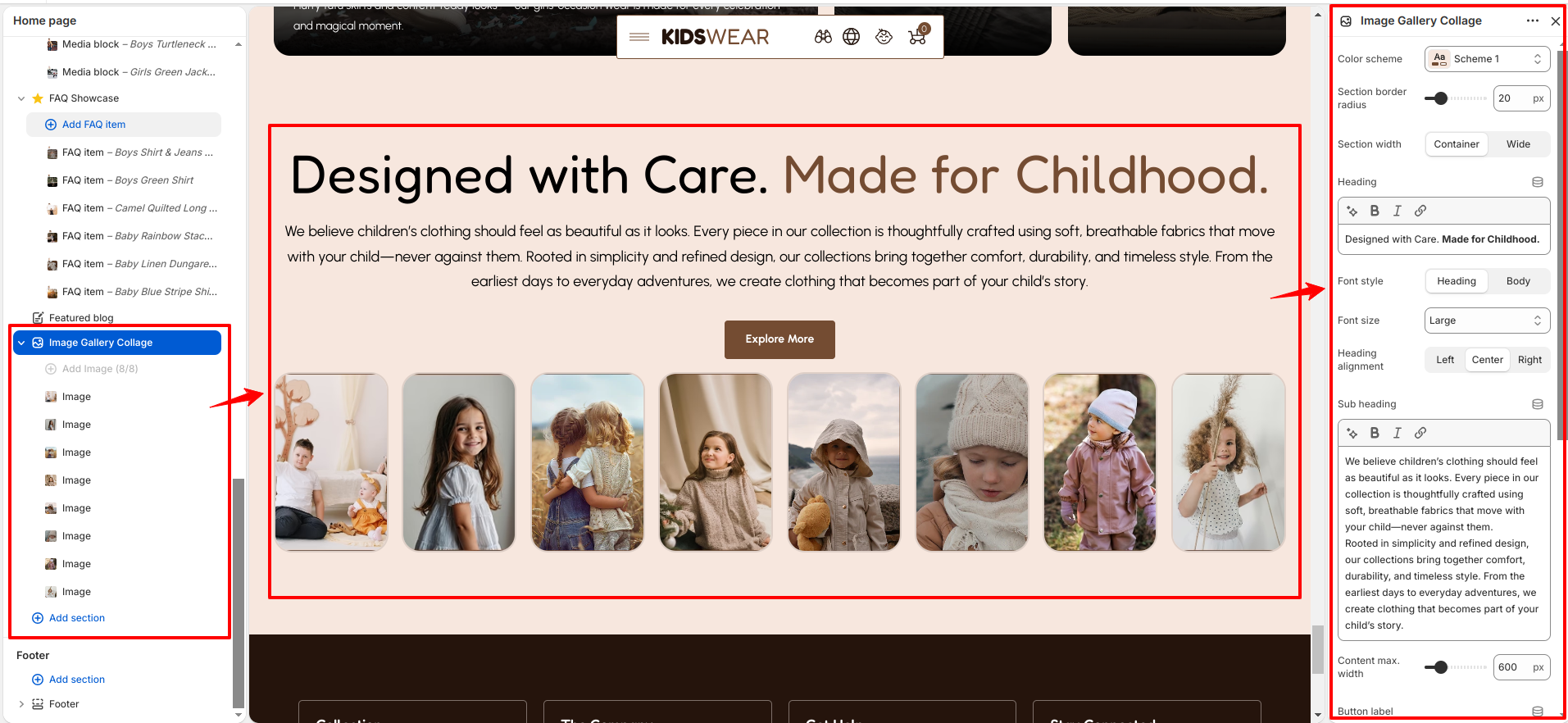
Image Gallery

The Image Gallery section showcases a collection of images in a visually engaging layout, making it ideal for displaying lifestyle photography, product images, and brand-related content. It includes customizable color schemes, headings, highlighted text, descriptions, a main image, and a call-to-action button to create an attractive gallery that complements your store's design.
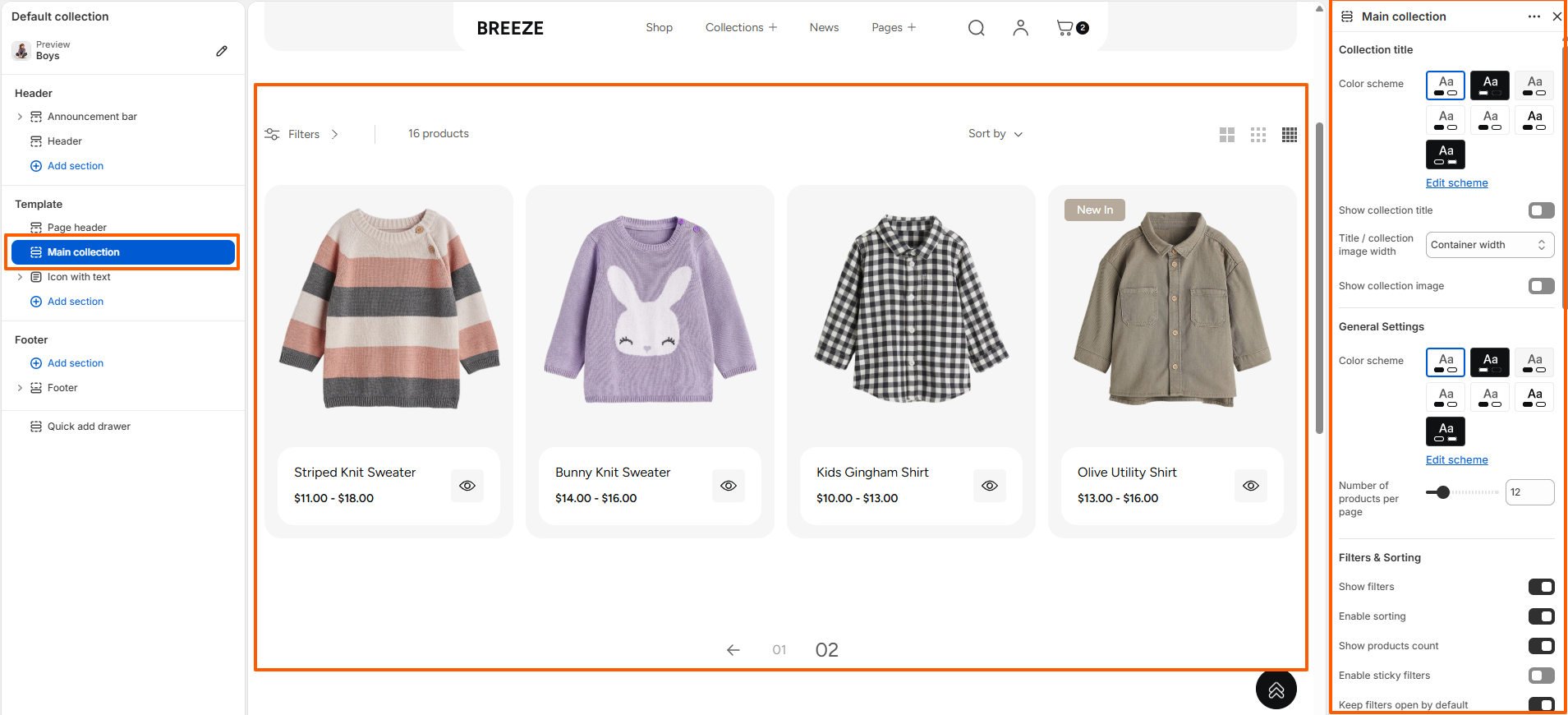
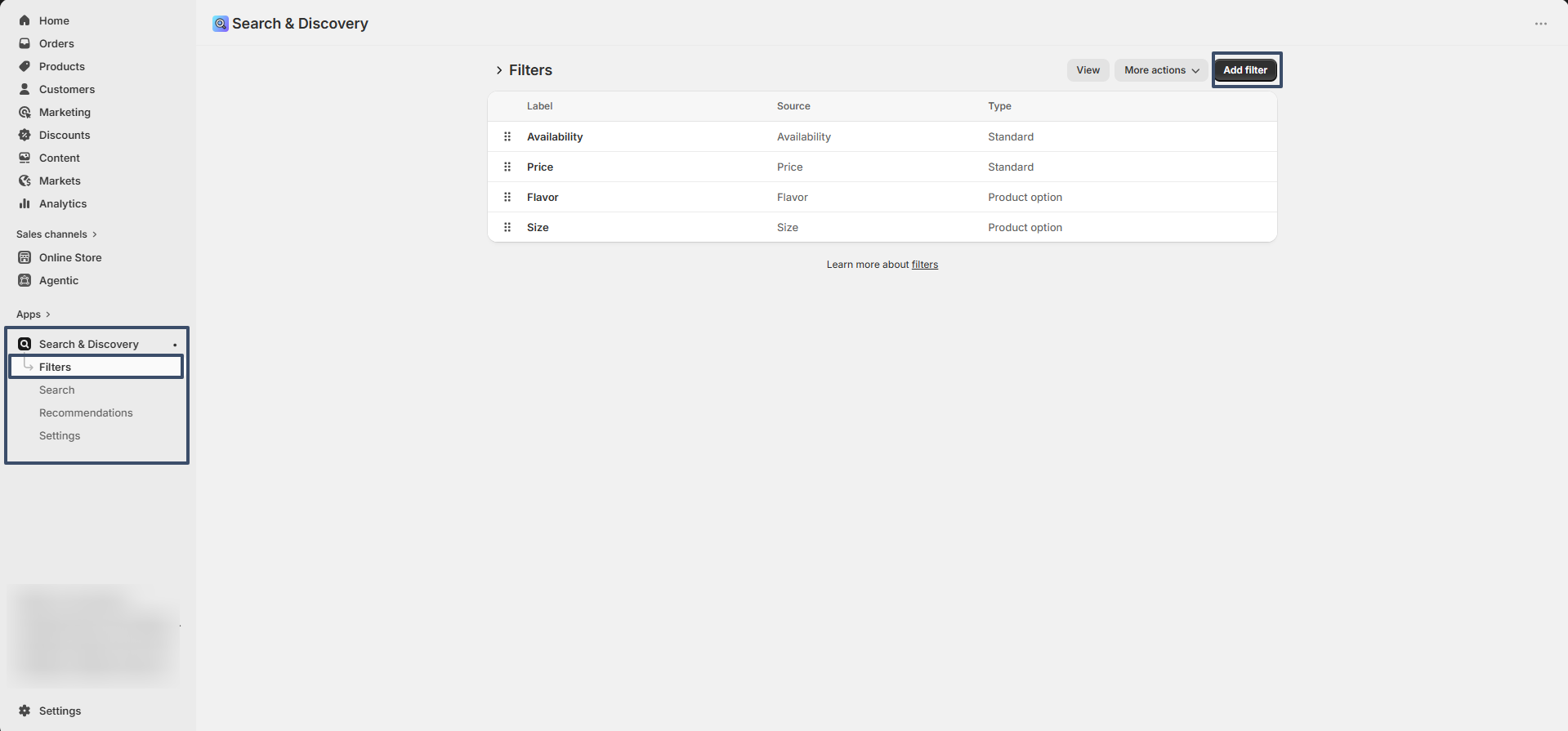
Image Gallery section

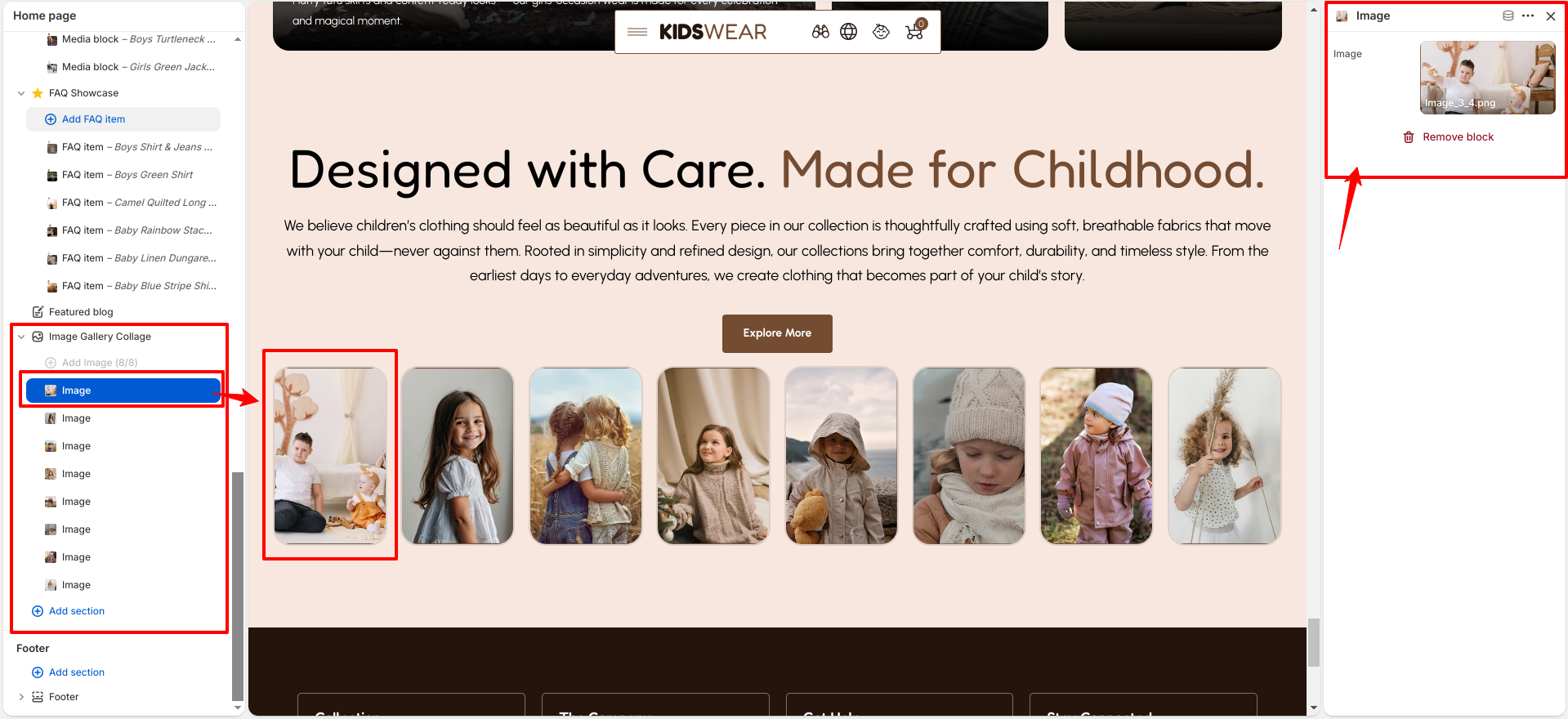
Image (Block)

The Image block allows you to add individual images to the gallery. You can select an image, assign an optional link, and choose whether the link opens in a new tab. Multiple image blocks can be added to create a visually engaging gallery showcasing your products, collections, or brand imagery.

Image Gallery block settings

Theme Update

What is a Theme Update?

A theme update involves upgrading your Shopify store’s theme to its latest version. Updates for the Breeze theme are released regularly to introduce new features, enhance performance, and improve overall functionality and design.

How to Update the Theme

At Breeze, we frequently release updates to introduce new features, boost performance, and enhance the functionality and design of your store. To ensure a smooth update process, we recommend reviewing the Shopify guide on updating themes. This guide provides step-by-step instructions to help you effortlessly integrate the latest improvements and keep your online store running at its best with the newest enhancements.