Product Page
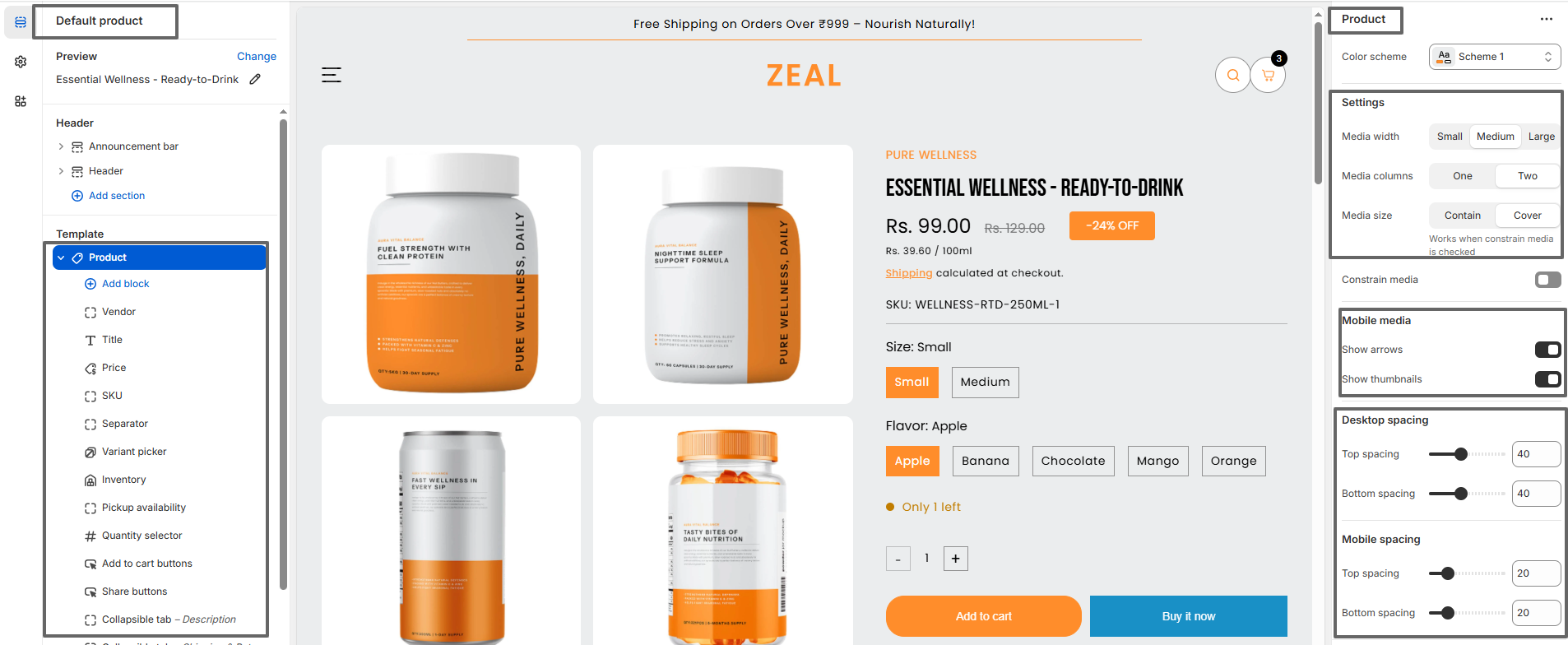
The Zeals product page offers flexible settings for media, spacing, and color schemes, and provides a variety of blocks within section. These blocks include the variant picker, title, price, inventory status, quantity selector, add-to-cart buttons, collapsible content, and more. The product page also includes a Recently Viewed section.
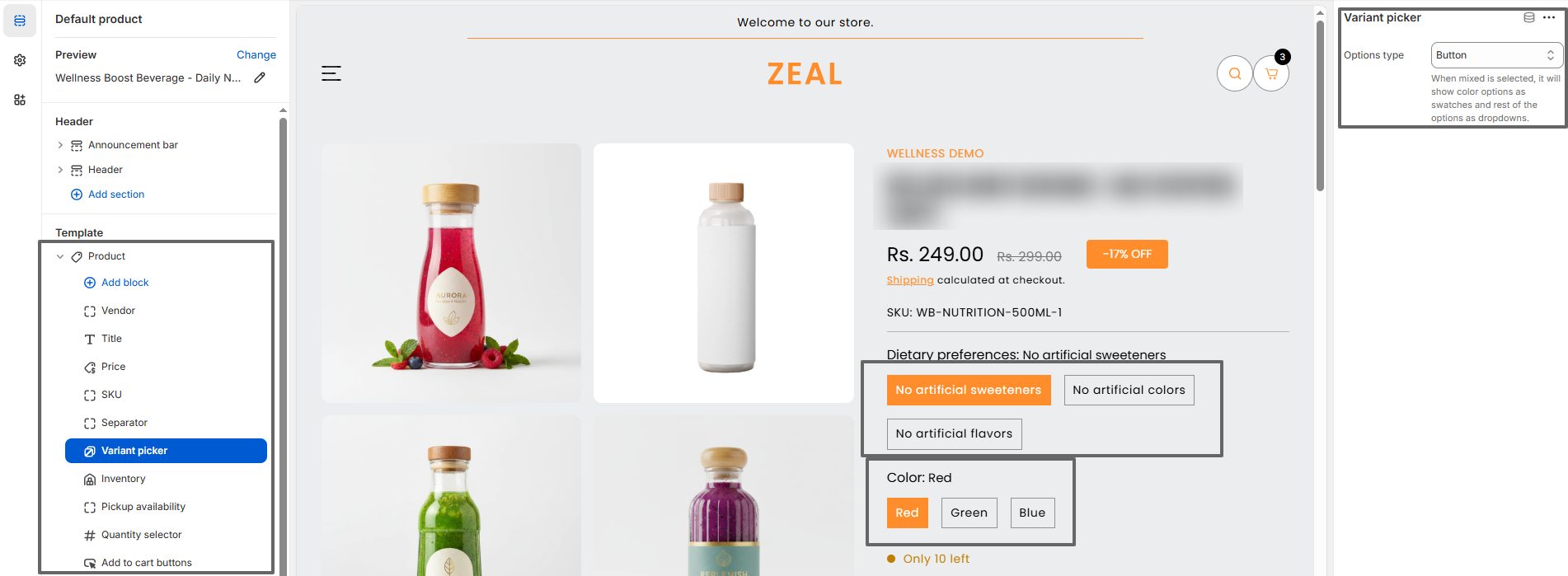
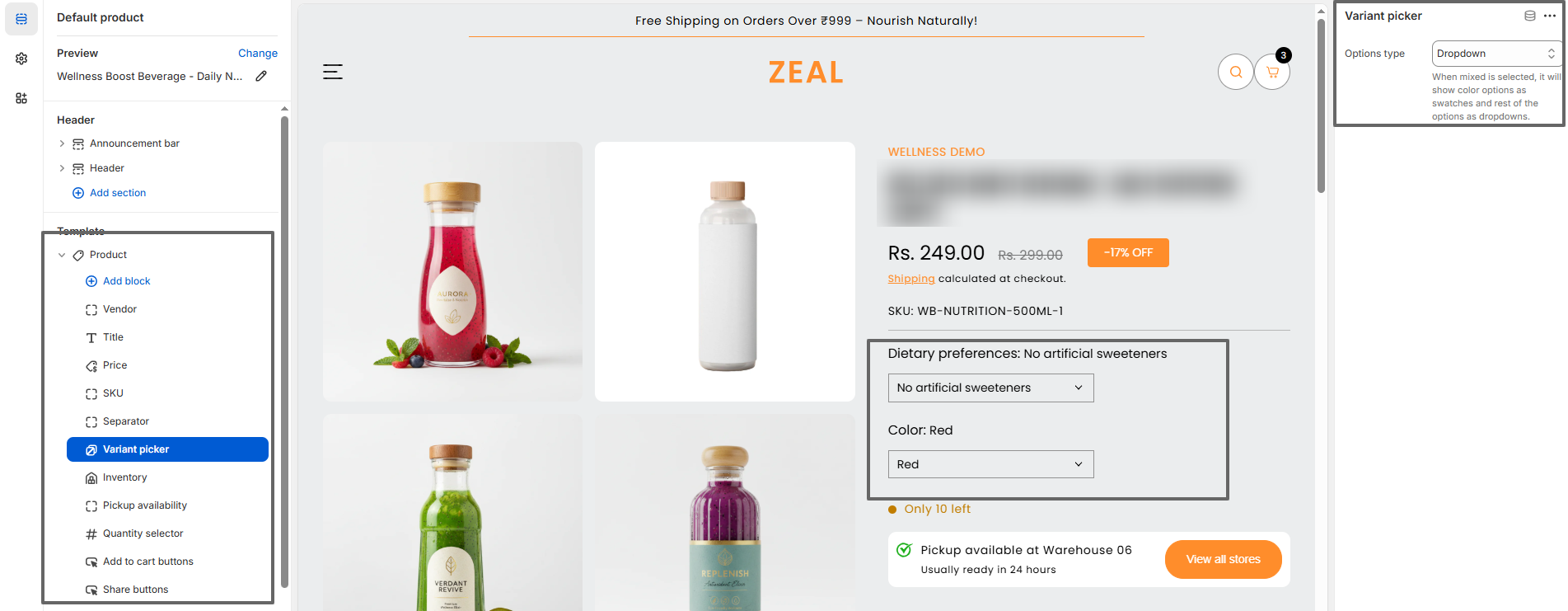
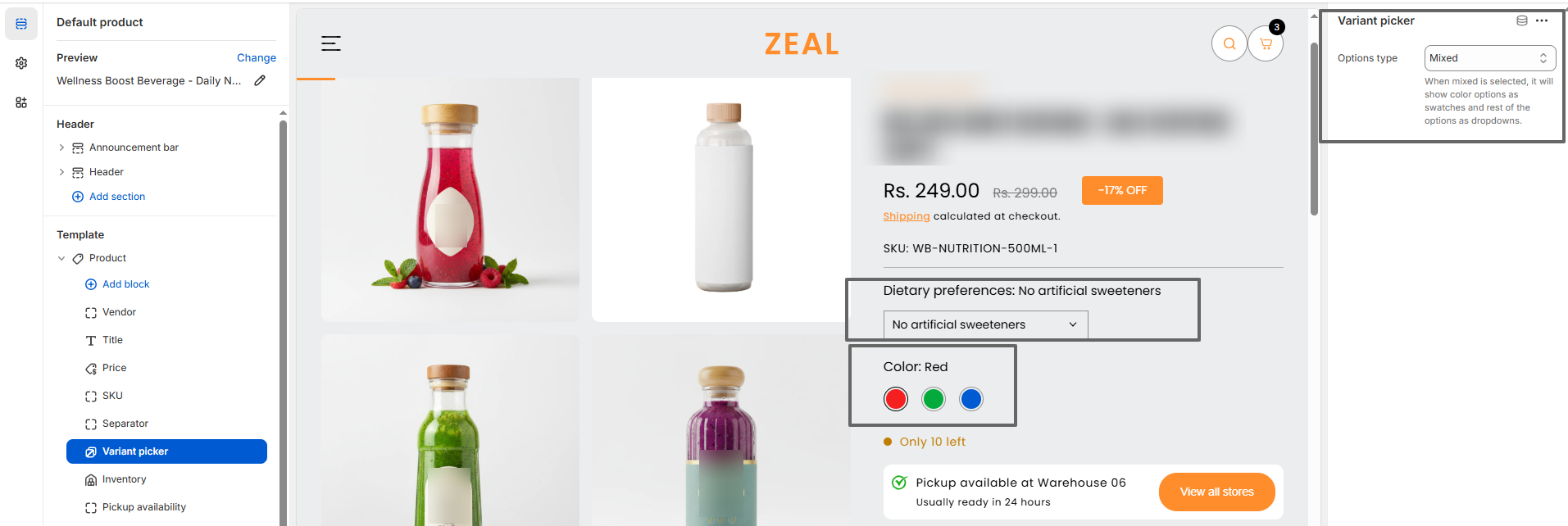
The Variant Picker setting offers three options: Button, Dropdown, and Mixed. When Mixed is selected, color options are displayed as swatches, while the remaining options appear as dropdowns. Read more about Swatch settings( click here. )
Button
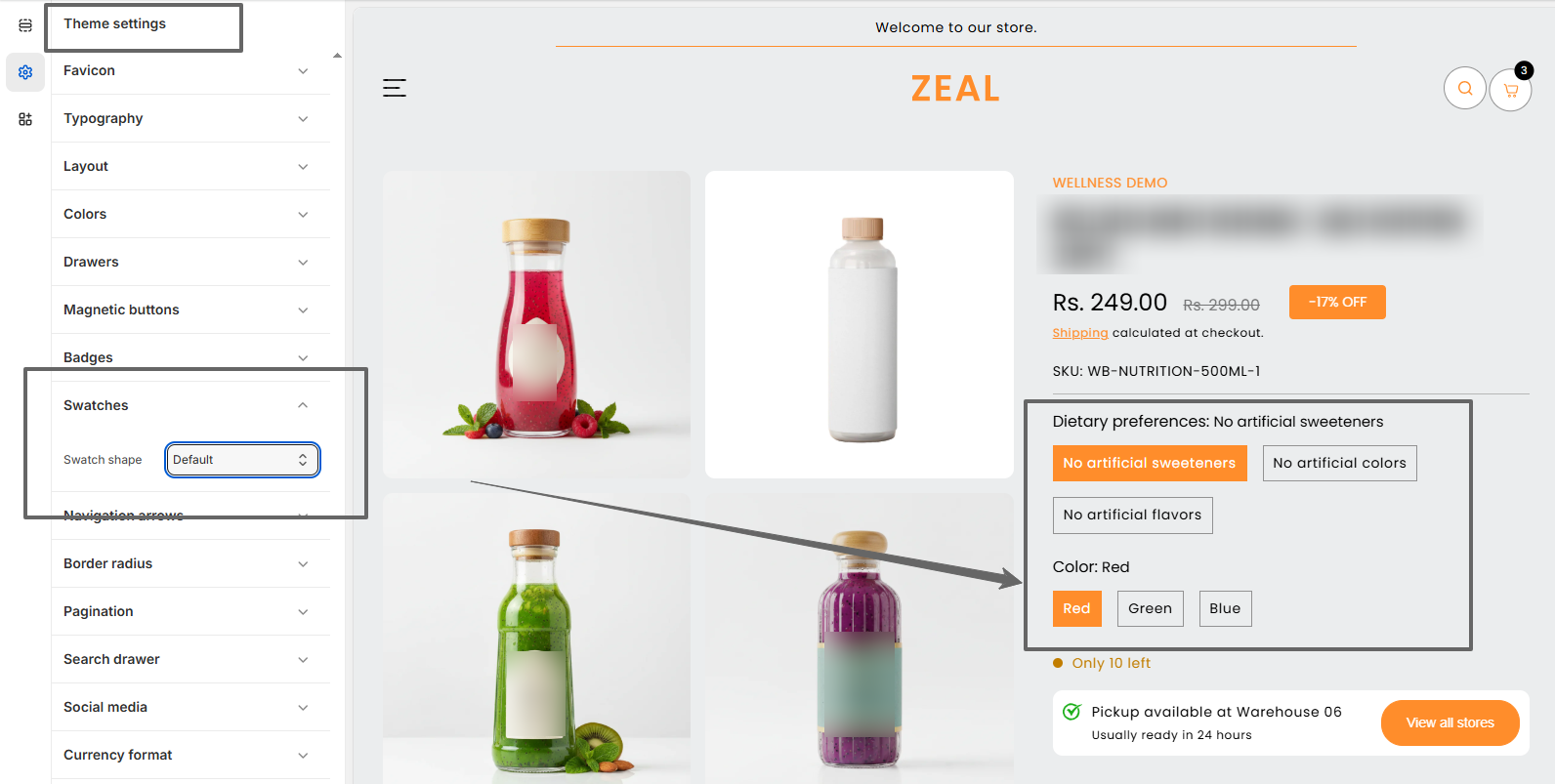
Note: If you want the variant picker to display only as buttons or dropdowns (not swatches), please set the Swatch Shape to Default in the theme settings.
Dropdown
Mixed
Recently Viewed Section
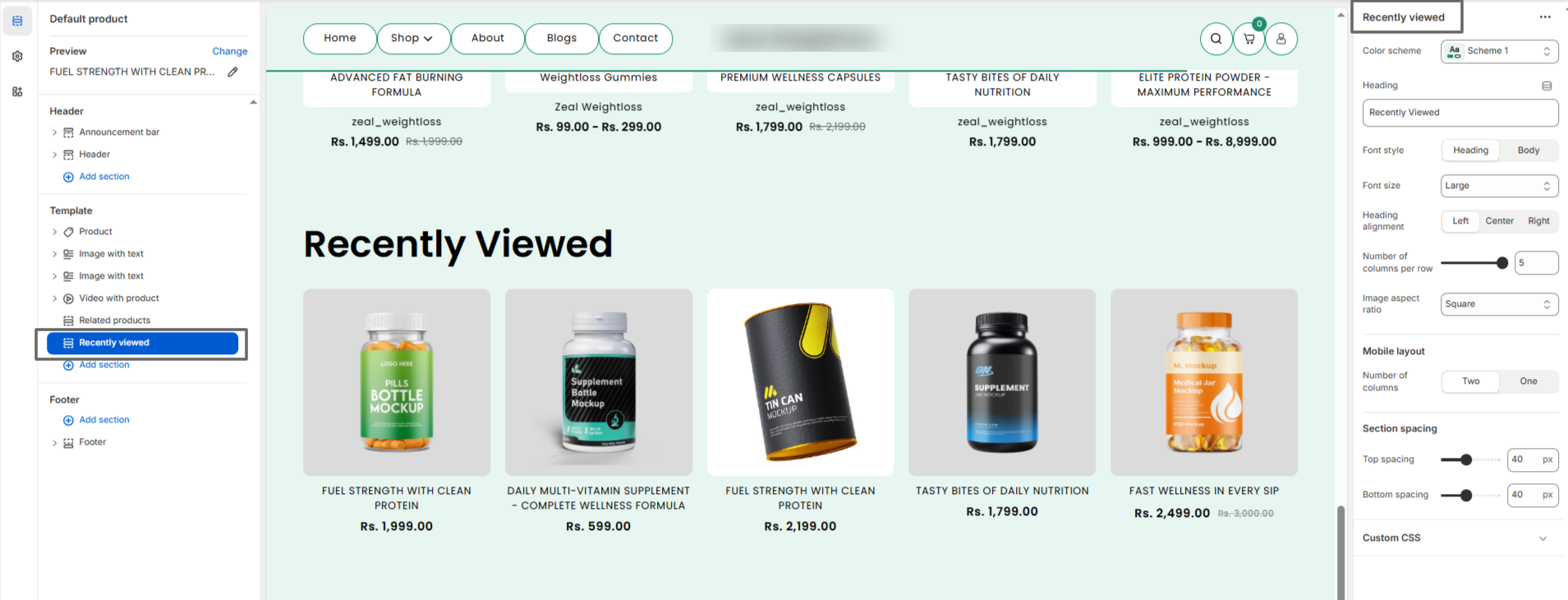
The product page also includes a Recently Viewed section that displays products the customer has
previously visited. This helps improve product discovery and creates a more personalized shopping
experience for customers.
The Recently Viewed section includes customizable settings to add a section heading, adjust font style
and font size, control the number of columns per row, configure image ratio settings, set mobile column
layout, and manage section padding for optimal spacing across devices.
Product Siblings Feature
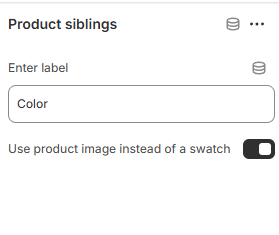
The Product Siblings feature allows you to link related products (such as different color variants) on the product page. These linked products are displayed as swatches, making it easy for customers to switch between sibling products. Swatches can be shown as colors or product images, and their shape can be customized globally.
Steps to Enable Product Siblings
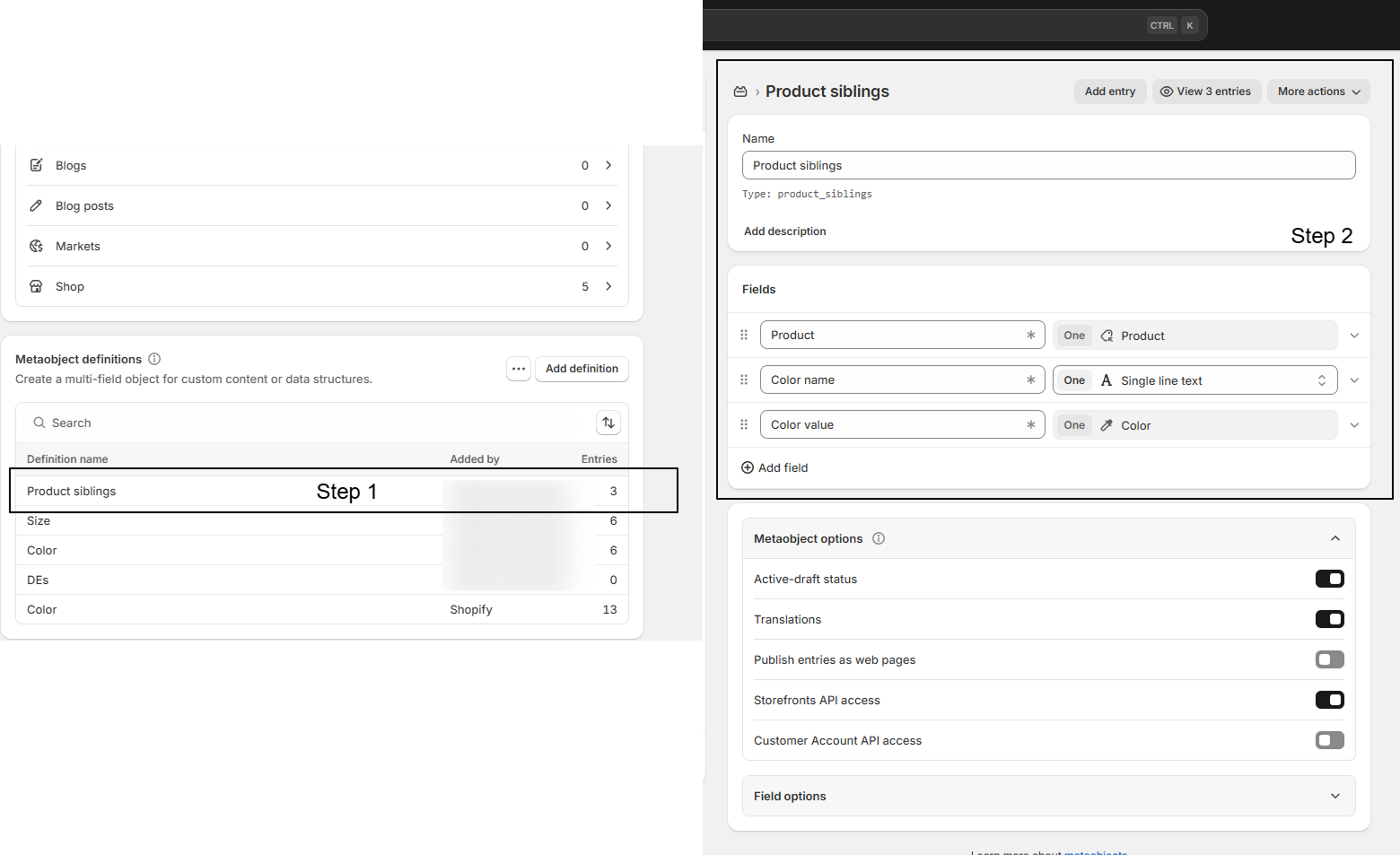
Go to Admin Panel >> Content >> Metaobjects
- Create Metaobject: Create a metaobject named Product siblings.
- Add Fields: Add the following fields inside the metaobject:
- Product: Type – Product (Single value)
- Color name: Type – Single line text (Single value)
- Color value: Type – Color
- Create Metafield: Go to Settings >> Custom data >> Products and create a
metafield named
Product siblings. Connect it with the Product siblings metaobject and set it as a
List
of
values.
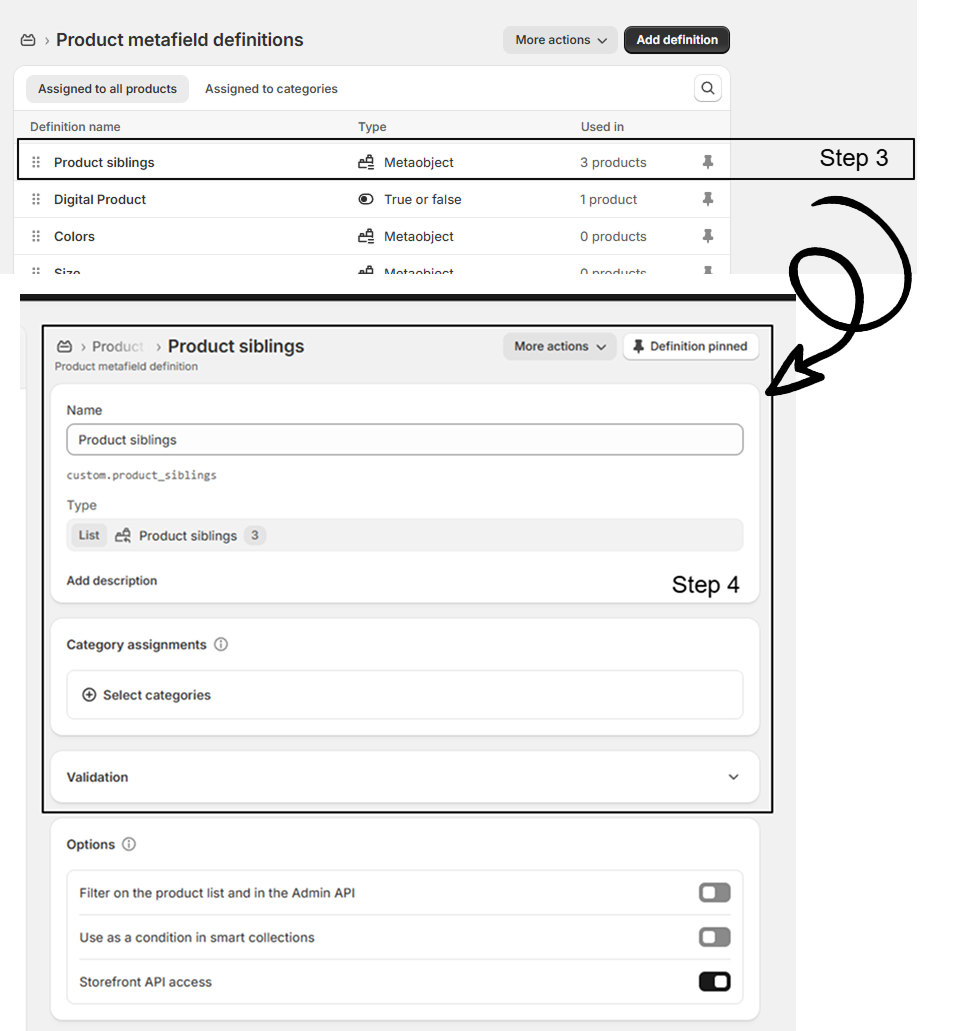
-
Add Metaobject Entries:
Go to Content >> Metaobjects >> Product siblings, click Add entry,
and fill in the product, color name, and color value.
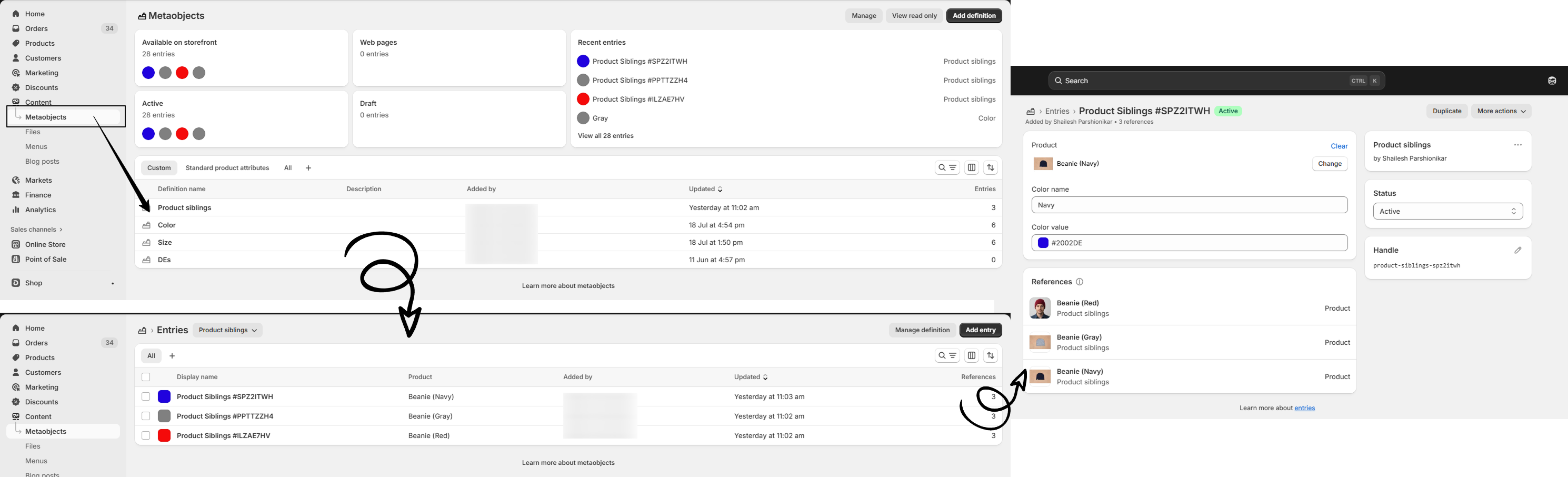
- Assign to Products: Open each product and add the relevant Product siblings entries in the metafield.
Customization Options:
- Add Product Siblings block on Product Page: Go to the Theme Customizer and navigate to the Product page. In the Product page section, add the Product Siblings block
- Product Image Swatches: Enable the checkbox in the Theme Customizer to replace color swatches with product images.
-
Swatch Shape:
Change the global swatch shape (circle, square, etc.) from theme settings.